
Search Knowledge Base by Keyword
Zendesk Applications
Create Zendesk Applications using Spreadsheet Calculations
Most businesses use Excel spreadsheets to build applications and automate various business calculations. Sales quoting, ROI calculators, product configurators, rules engines are only few examples of such applications. With our Zendesk integration, you can build an interface to run these applications directly from your Zendesk board. You can map inputs and outputs to existing Zendesk fields or create new ones. While all user interface and data fields stay on Zendesk, backend spreadsheet calculations are handled by SpreadsheetWeb. This means you need a Zendesk account and a SpreadsheetWeb account.
Please note that you need to add a Push Data from Frame event into the Action Button for SpreadsheetWeb to save data into Zendesk properties.
If you are just evaluating, you can signup for a free 14-day SpreadsheetWeb trial account here.
1. Upload your Excel File to SpreadsheetWeb
Let’s assume we have complex Excel file to calculate shipping costs for a specialized equipment delivery. Sales people need to run this Excel file to calculate shipping cost and add it to their quotes. They enter Origination ZIP, Destination ZIP, and Weight. It calculates the shipping cost through various calculations built into the Excel file. Instead of running these calculations in Excel, we want this application available inside Zendesk. We also want Destination ZIP to come directly from a contact’s postal code in Zendesk.
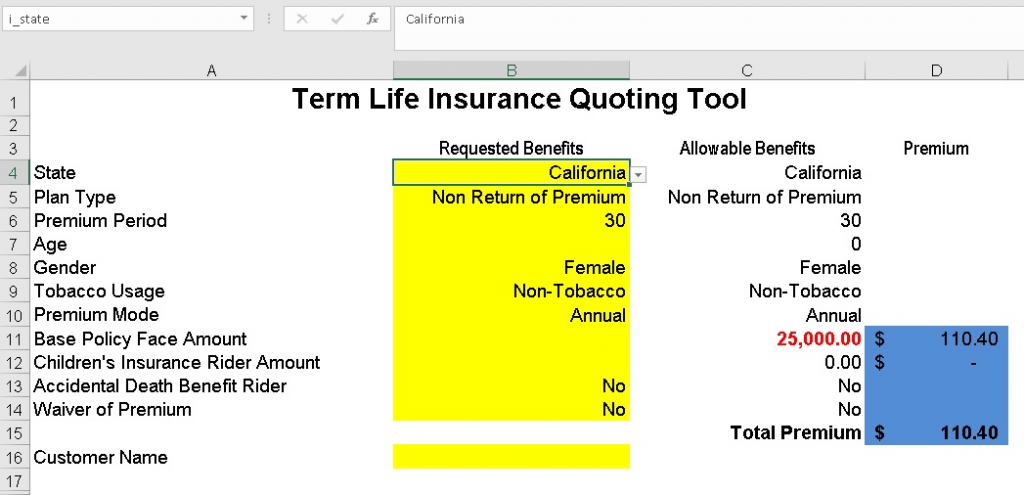
First, upload the Excel file to your SpreadsheetWeb account. Let’s assume you signed up for a trial account. Login to your trial account and press Create Application button. Drag and drop the Excel file and press Next.

2. Install SpreadsheetWeb from Zendesk App Marketplace
Simply login to your Zendesk account. Go to App Marketplace, search and install “SpreadsheetWeb”. Click Authorize when prompted. SpreadsheetWeb will be added to side panel widgets.

3. Create your Zendesk Application
Go back to your Zendesk board where SpreadsheetWeb was activated. Select a lead and find SpreadsheetWeb widget on the right.

This will load the connected SpreadsheetWeb applications. Press the Add New Application button to create your first application. Enter a name for your application, and then copy and paste the Application URL and Application ID from the first step. This is how the application will match your Zendesk application to the Excel file running on SpreadsheetWeb.

Next step is to add inputs and outputs, and map them to the Excel file. Press Add Input and enter a name as Zendesk Name. This is the name that will appear in your application. Enter the cell name from Excel file as SpreadsheetWeb Name. If there is no name defined for that cell, you can also enter the cell reference i.e. Input!B2, but make sure the cells match the Excel file.

Once you are done entering inputs, press the Add Output button to select which fields are to display calculation results. Enter a Zendesk Name. As SpreadsheetWeb name, make sure to enter that formula cell’s name i.e. cost, or its cell reference Input!B7. If you want to store this data in Zendesk, you can add those fields into Mapped Outputs. Note that you also need to create a Custom Field from Zendesk properties for each field you would like to save by adding into Mapped Outputs. Finally, press Save to save the application.
Congratulations! You have just created your first application.
3. Run your Zendesk Application
Now that you’ve created your first application, next step is to run it. Click View under your app under the SpreadsheetWeb widget.
This will load the application selection page. Enter Origination Zip, Destination Zip, and Weight inputs. If you did not disable automatic calculations in your Designer application, the system will trigger the calculations and produce the results when you change any of the inputs. All inputs will be sent to SpreadsheetWeb and the calculated cost will be populated in the Cost box. You can change inputs to rerun the calculations as many times as you want.

The saved data is also available under the Lead’s information. Note that only fields selected as Outputs will be stored.

4. How to test your Zendesk – SpreadsheetWeb integration
If you don’t have a SpreadsheetWeb account, you can still test it from your Zendesk account. Make sure to install our integration as described above and follow the steps below:
1. Click the name of a contact and create the following two numeric custom properties in Zendesk
– Age
– Total Premium
2. Create a new contact and enter any number between 18-100 for the Age input.
3. Click the SpreadsheetWeb button from the menu. This will load the applications list.
4. Press Add New application.
5. Enter below for application settings. This is a life insurance quoting demo application built on SpreadsheetWeb from an Excel spreadsheet.
Application Name: enter a friendly name
Application Link: https://www2.spreadsheetweb.com/Designer/a/Term-Life-App
Application Identifier: e94e4a83-704e-47f3-a96d-21f9fb9c41cf
6. Press Auto Populate to automatically add inputs and outputs. It will add and connect Age under Inputs and Total Premium under Outputs sections.
7. Hit Save to save the application.
8. Go to SpreadsheetWeb Apps and Run the application.
9. Once the application loads, you confirm that Age input is populated by the custom Age input from Zendesk
10. You can change inputs and have the Total Premium recalculated.
11. When done, press Submit button to capture the results received from SpreadsheetWeb.
12. Close the application window and confirm that custom property Total Premium for this contact is updated by the Total Premium calculated by the SpreadsheetWeb application.