Single Sign-On (SSO) with Entra
SpreadsheetWeb offers Single Sign-On (SSO) support with Entra, formerly Azure AD (Azure Active Directory). This functionality is available exclusively for select private cloud and server licenses.
APPLICATION REGISTRATION
To integrate Azure Entra into our web application, we have to create an endpoint on the Microsoft Azure side for the credentials and tokenization purposes.
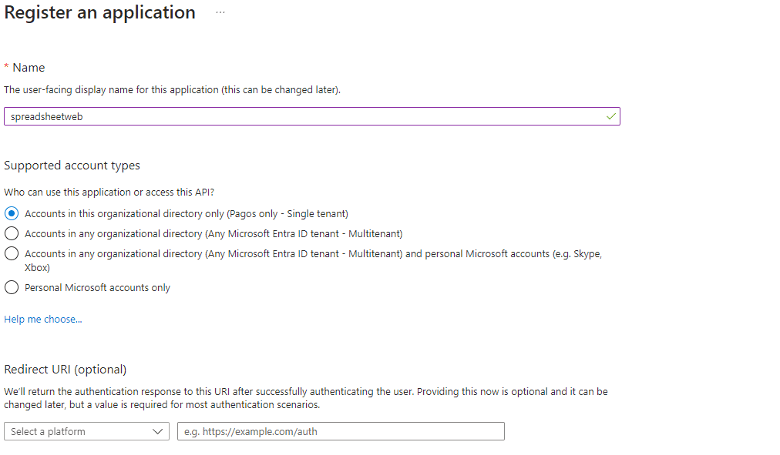
After navigating to https://entra.microsoft.com/, the user clicks on the “Applications -> App Registrations” in the left panel.

After making a new registration, the user will configure the “Name” section and select “Organizational Preferences’’ then will proceed to the “Register” button. “Redirect URI” will be left as empty. We will proceed to this section on the next steps (Authentication).
CONFIGURING THE REGISTRATION
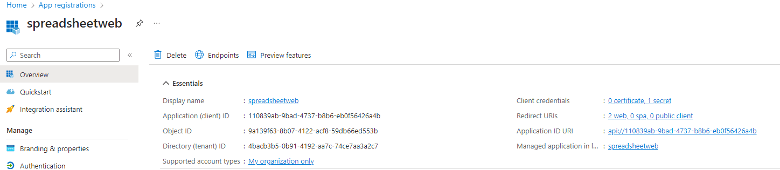
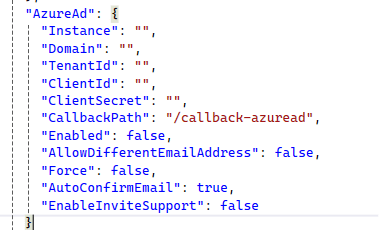
Now, we have a registered application. Users must see a bunch of generated parameters in the ‘’Overview’ tab, which will be used in our .Net Core Web Application config file later, as shown below. Now, we will continue with configuring the rest of our registration.
The user will navigate to the “Authentication” inside of the registration nav panel. Then, the “Redirect URI” section must be configured according to the web app’s authentication URL unified with the “callback-azure” string piece, as shown below.

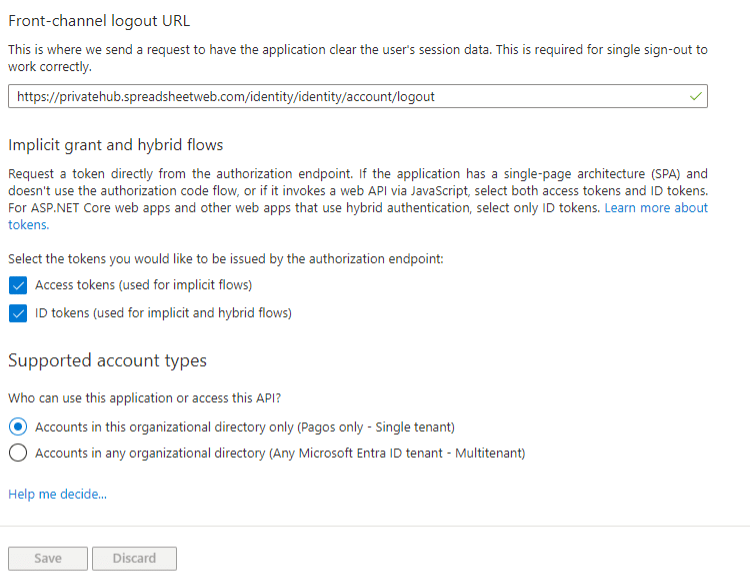
After this user will configure “Frontchannel logout URL” according to the web app’s logout url and other settings will be configured like the image below.
After this, the user will navigate to the “Certificates and Secrets” tab. A client secret must be created here to be used in our web app config file.
Note: After the client secret is created, the secret’s value(not ID) has to be noted somewhere else; otherwise, it will be hidden for a short time after creation.

After this, the user will navigate to “Token Configuration” and add user claims, which will be received and processed by the web app as shown below.
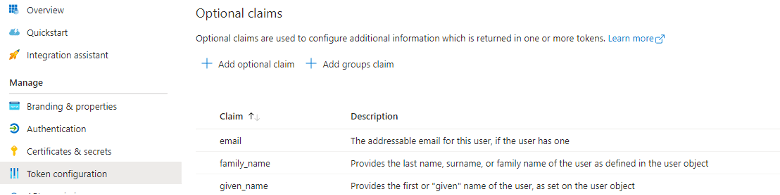
After this, the user will navigate to the “API permissions” tab and add the following permissions.

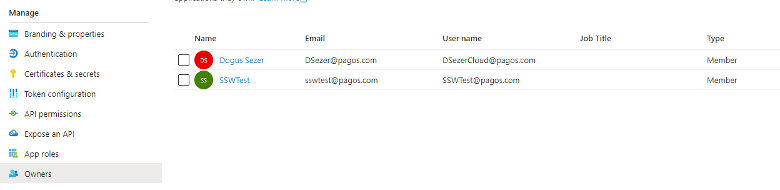
Finally, users who will authenticate and be involved in recent tenants have to be added to the “Owners” tab. By this step, we have completed the configuration of an app registration.
CONFIGURING APPSETTINGS FILE
Our default settings in appsettings file(IdentityServer : ExternalLoginProviders : AzureAd) will be like shown below. Parameters which were generated in Entra Admin Center will be used in here.
Now, you can easily use this functionality by clicking on Secure Login with Entra.
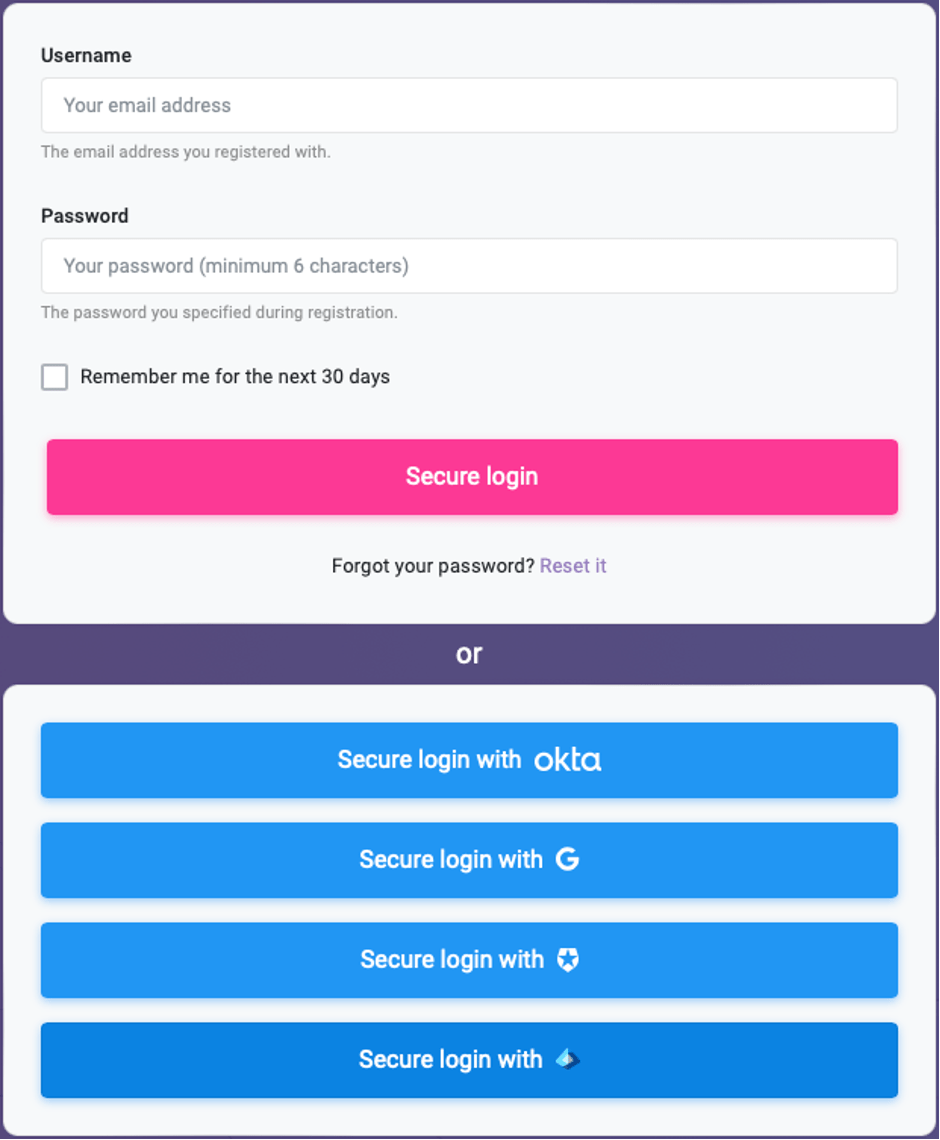
Log in to your account with your credentials.