Elements
The Elements module in SpreadsheetWeb Hub App Designer allows you to define user interface elements directly within an Excel-like environment, eliminating…
The Elements module in SpreadsheetWeb Hub App Designer allows you to define user interface elements directly within an Excel-like environment, eliminating the need to prepare your Excel file with named ranges beforehand.
In previous versions of SpreadsheetWeb, all input and output cells had to be defined as named ranges inside the Excel file prior to upload. With the Elements module, you can upload your Excel file as-is and configure all UI elements within the Designer interface. The system automatically generates and manages the required references in the background.
How It Works
Once your Excel file is uploaded, the Elements module provides an interactive, Excel-like grid where you can select individual cells or ranges and assign them as UI elements.
When a selection is made, SpreadsheetWeb creates the necessary internal references automatically. These references are then used throughout the application, including in layout design, calculations, and workflows.
Auto-Detection of Elements
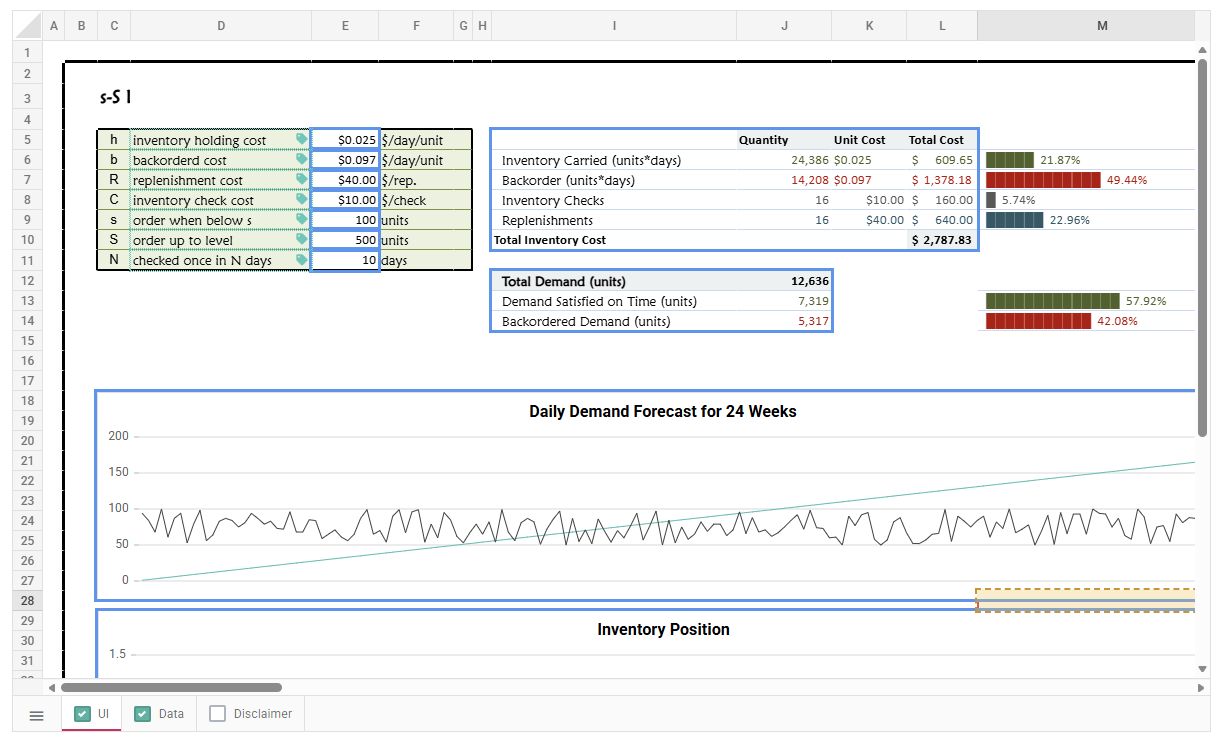
The Elements module includes a built-in auto-detection algorithm that scans your spreadsheet and suggests possible user interface elements.
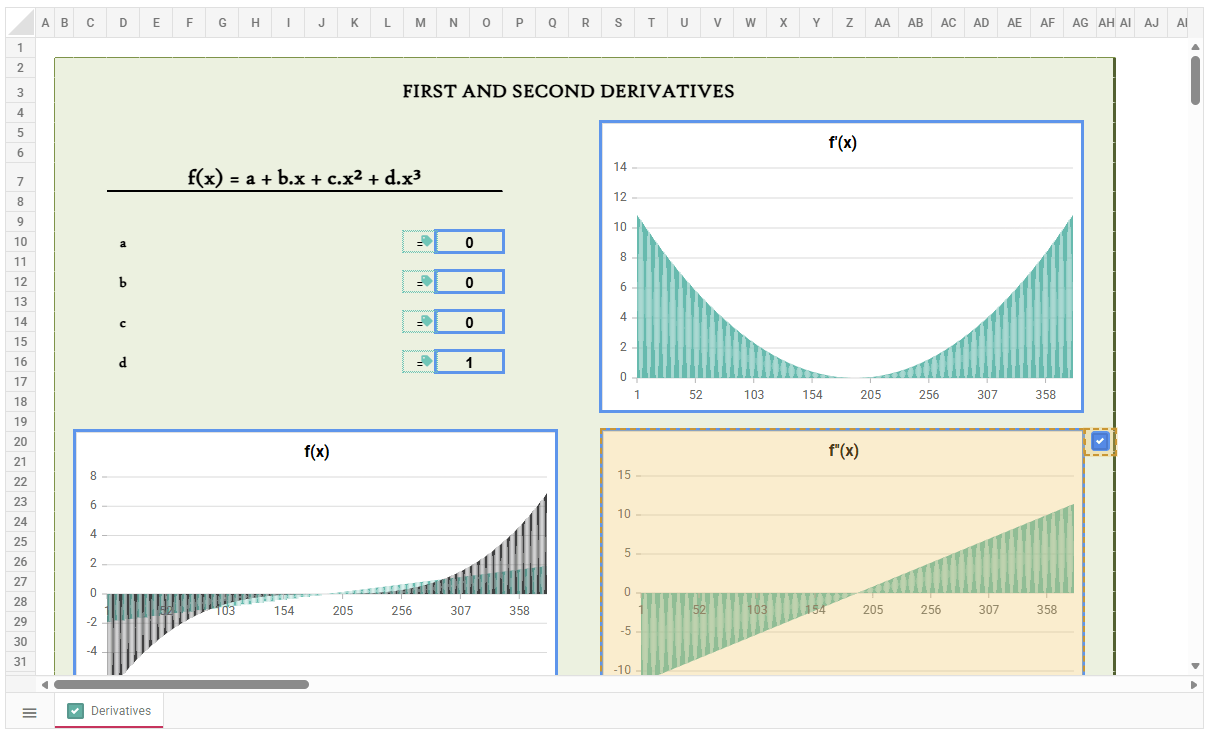
- Suggested elements are highlighted with blue borders.
-
These suggestions can include single cells, ranges, charts, and images
-
To include a suggested element, hover over the selection and enable the checkbox in the top-right corner
Because the detection algorithm evaluates multiple patterns and structures, there may be overlapping suggestions for the same area. In such cases:
- Multiple checkboxes will appear for different suggested ranges
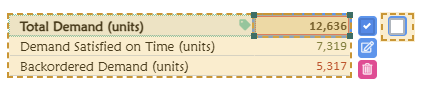
- You can choose the most appropriate option based on your intended UI design
If a desired cell or range is not automatically detected, you can still manually select it and add it as an element.
Selecting Elements
To define elements:
- Open the Elements module from the App Designer
- Navigate through the spreadsheet using the Excel-like interface
- Select a cell or a range of cells, or use one of the suggested selections
- Enable the checkbox to include the element
- You can repeat this process to define all required elements for your application.
Working with Worksheets
The Elements module also allows you to navigate between worksheets in your Excel file.
-
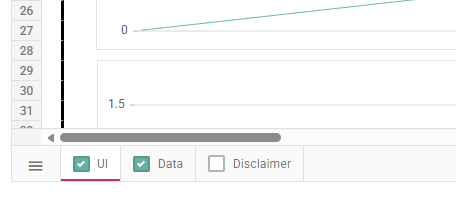
Each worksheet is listed and can be selected using a checkbox
-
Only selected worksheets will be included in the user interface
-
Each selected worksheet will appear as a separate page in the final application
It is recommended to review each worksheet and include only the relevant ones, along with their corresponding elements.
If you need more advanced page configurations:
-
To combine elements from multiple worksheets into a single page
-
To split elements from one worksheet across multiple pages
You can configure these scenarios using the Pages and Layout & Controls modules.
Element Types
Depending on the selection, different element types are available:
Single Cell Elements
Single cells can be added as:
-
Control: Makes the cell editable in the user interface
-
Label: Displays the value as read-only
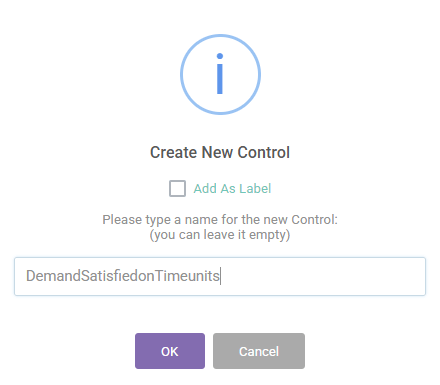
To create a label, enable the “Add as label” option during selection.
Multi-Cell Elements
For multi-cell ranges, you can define:
-
Input Grid: Allows user interaction and editing within the grid
-
Output Grid: Displays calculated or read-only data
If any cells within the selected range need to be editable, you should select Input Grid.
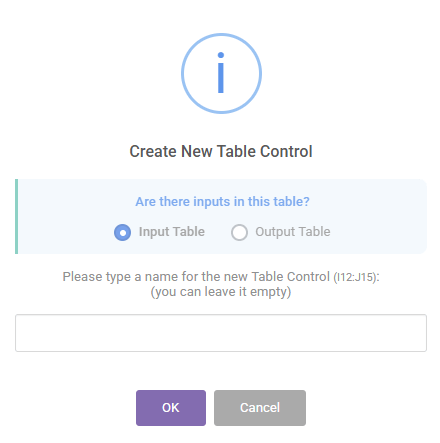
Charts and Images
The Elements module also detects charts and images.They are highlighted with blue borders similar to cell selections. When enabled, they will be included as part of the final user interface.
Named Range Handling
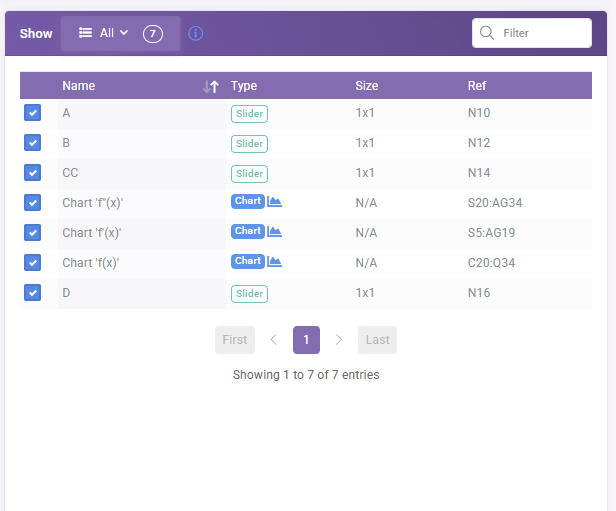
If selected elements do not already have named ranges defined in the original Excel file, SpreadsheetWeb will automatically generate them.
-
System-generated names use the prefix:
pgs_auto_ -
These names are visible in the right-hand panel within the Elements module
- References are stored both in the application database and in the Excel file when downloaded from the system
This ensures that you can re-upload the original Excel file without losing mappings and system-generated references will continue to function correctly. During the creation process, you have the option to rename these generated names. If not renamed, the system will assign default names automatically.
Notes
-
The original Excel file remains unchanged unless downloaded from the system
-
Existing applications that use named ranges will continue to work as expected
-
System-generated named ranges are persistent and stored independently of the uploaded file
-
Each selected worksheet becomes a separate page unless reconfigured using other modules
-
Elements can be used alongside other App Designer modules such as Pages, User Interface, and Database
-
It is recommended to keep your spreadsheet structured and clearly labeled for easier element detection and selection
The Elements module simplifies and accelerates the process of turning Excel models into web applications by moving UI configuration entirely into SpreadsheetWeb Hub.