Single Sign-On (SSO) with Auth0
Enabling Auth0 with SpreadsheetWeb Hub Configuring Auth0 Dashboard First, log into your Auth0 dashboard ( https://auth0.com/api/auth/login?redirectTo=dashboa…
Enabling Auth0 with SpreadsheetWeb Hub
Configuring Auth0 Dashboard
First, log into your Auth0 dashboard (https://auth0.com/api/auth/login?redirectTo=dashboard).
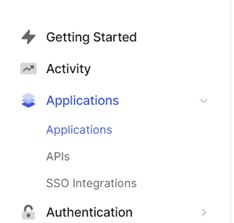
In the lefthand panel, navigate to the Applications > Applications tab.
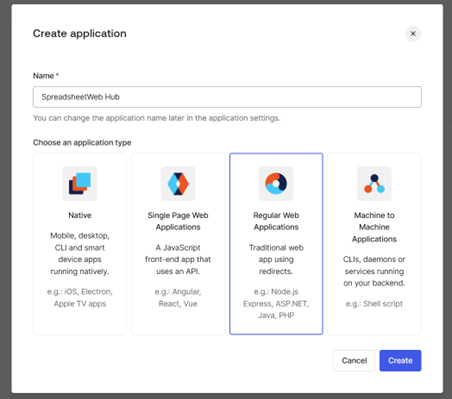
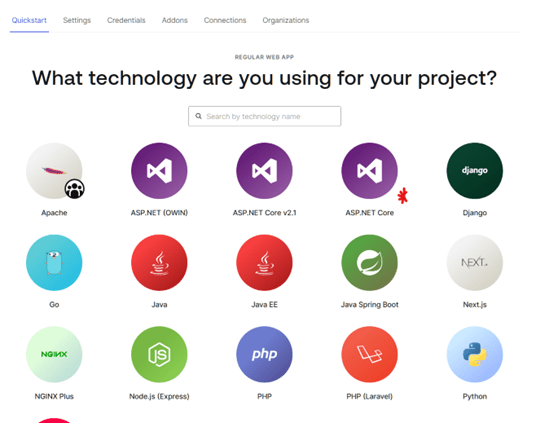
Create a new application and select Regular Web Applications. Provide a name – we suggest ‘SpreadsheetWeb Hub’.
From the list of options, select ASP.NET Core.
Go to the Settings tab, and copy following properties:
- Domain
- Client ID
- Client Secret
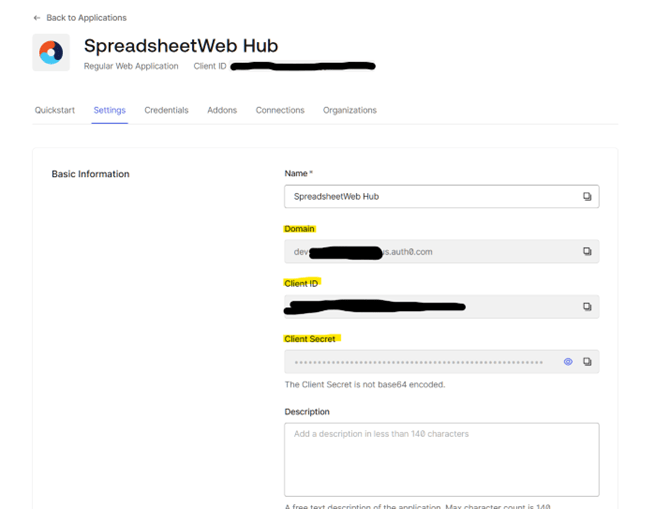
Keep this information for the configuration of SpreadsheetWeb Hub.
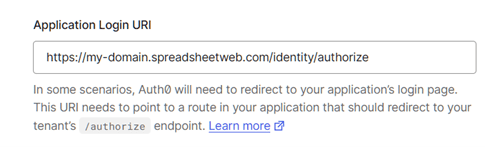
Under the Application URIs section, update the Application Login URI property to include your domain identity login URL. For example, if your FQDN is my-domain.spreadsheetweb.com, then the URL should look like:
https://my-domain.spreadsheetweb.com/identity/authorize
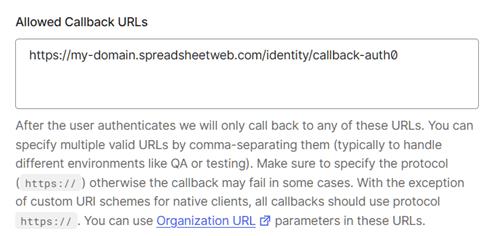
In the same section, under the Allowed Callback URLs, add the same FQDN URL but point to the callback for Auth0, which will be /callback-auth0:
Save your changes.
Configuring SpreadsheetWeb Hub Server Settings
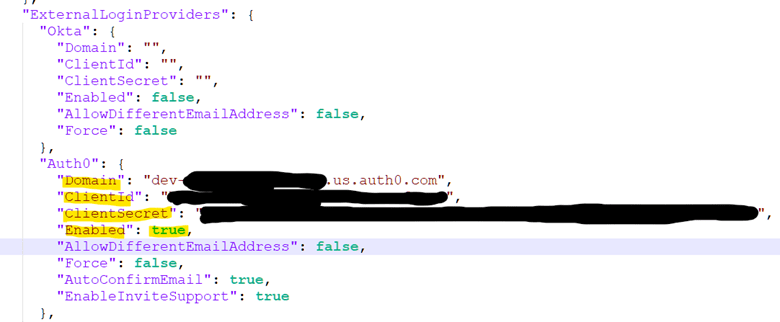
On the server, go to the global settings directory JSON file, by default found in C:\HubTemp\Settings\appsettings.shared.json. Open the file in Notepad or your favorite editor and find the section that includes “Auth0” under IdentityServer > ExternalLoginProviders > Auth0.
Update the Enabled flag to be true, and add your Domain, ClientId, and ClientSecret values from the prior section:
Perform an iisreset on the server by opening CMD Prompt as Admin, typing in iisreset and hitting Enter.
Configuring a User
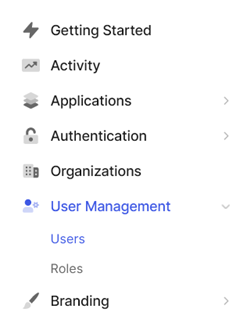
On the Auth0 Dashboard, go to User Management > Users.
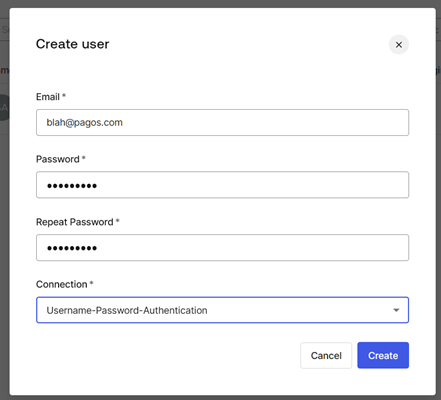
Create a user by providing an Email and Password.
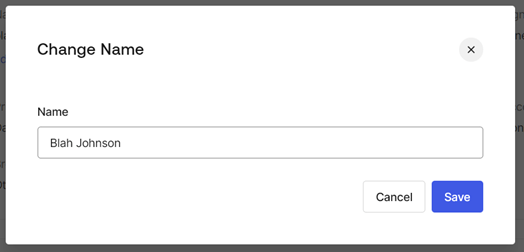
After creating the user, edit their Name property and define a relevant first and last name. The SpreadsheetWeb Hub platform requires first name, last name, and email address to create a new user in the system.
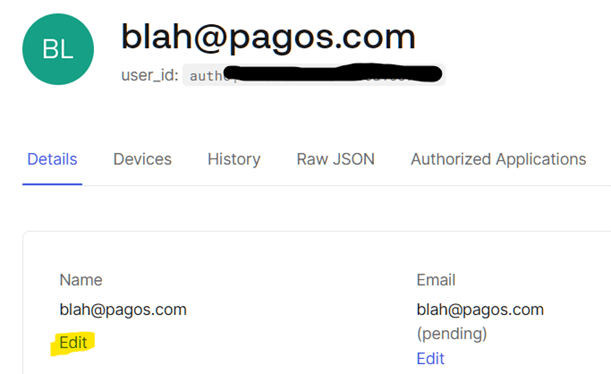
If you provide a space-delimited full name as the Name, the system will accurately identify this information upon user creation; otherwise, it will duplicate the value that is in the Name field as the first name and the last name. This can be updated later on the SpreadsheetWeb side from the Account page.
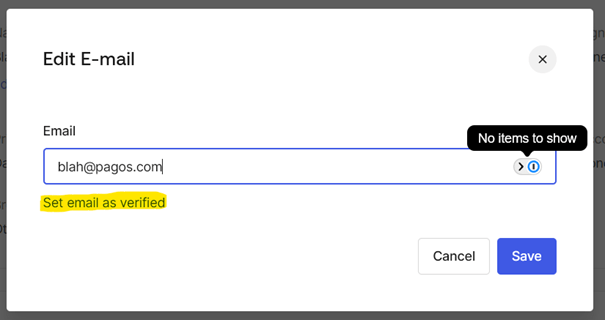
You may also choose to verify your users email address by clicking on the Edit option under the Email property.
Logging into SpreadsheetWeb Hub with Auth0
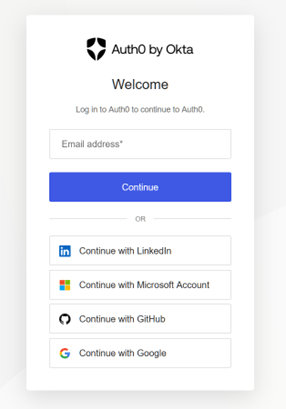
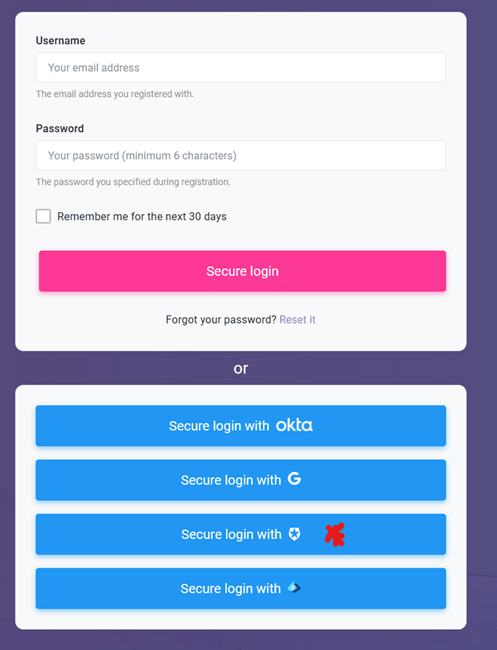
Go to the login page on your SpreadsheetWeb Hub server and select the Auth0 login:
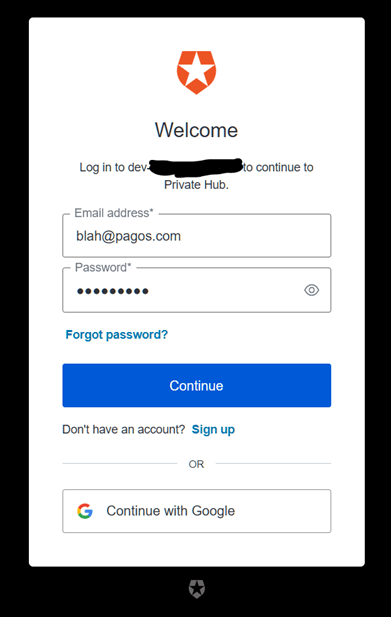
You will be redirected to the Auth0 login screen. Enter your credentials to log in.
You will receive the following message on the SpreadsheetWeb Hub side – click Register to continue:
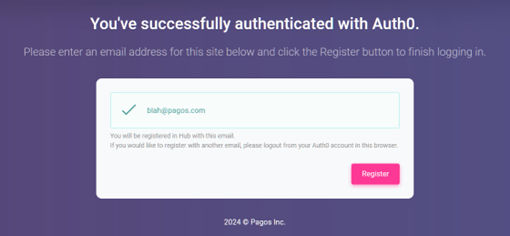
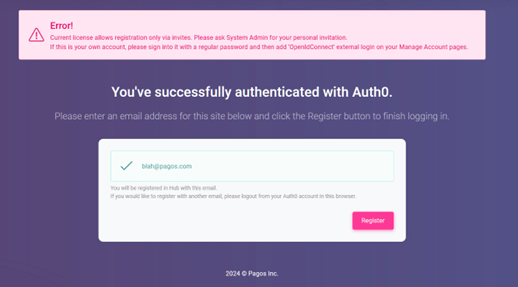
If you have not been invited to this workspace, then you will receive the following error:
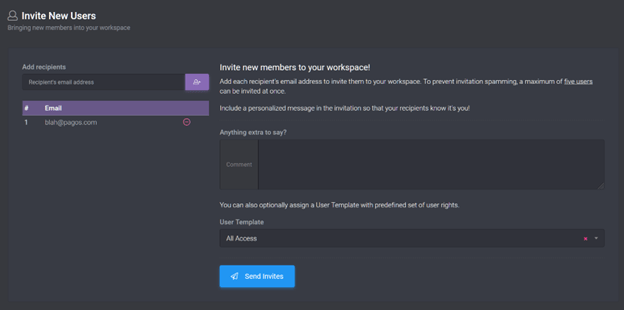
On a private server, make sure that you invite a user with that email address so that they can register their account:
Then, ensure that the invite indicates that the login provider is Auth0.
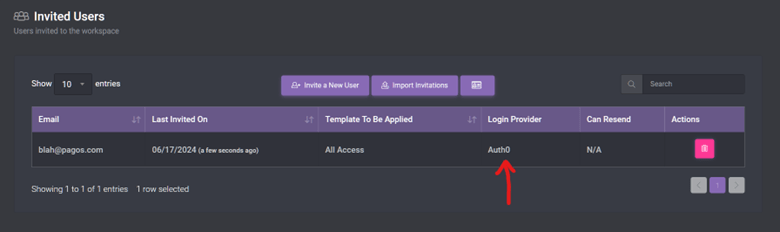
In this case, once the user logs in and clicks Register, an account will be automatically created and they will land in the system with their new account: