API Toolkit
SpreadsheetWeb’s API Toolkit allows users to configure and execute sample requests for complex application calculations. This module aims to provide web…
SpreadsheetWeb’s API Toolkit allows users to configure and execute sample requests for complex application calculations. This module aims to provide web developers with a sandbox to construct their calculation requests easily, with minimal documentation required, and then to take these sample requests forward into their intended implementations. Rather than figuring out which events require setting which parameters, the toolkit allows developers to click various configuration settings, which auto-update the sample request and demonstrate the mapping between the developer’s intentions and the calculation request body.
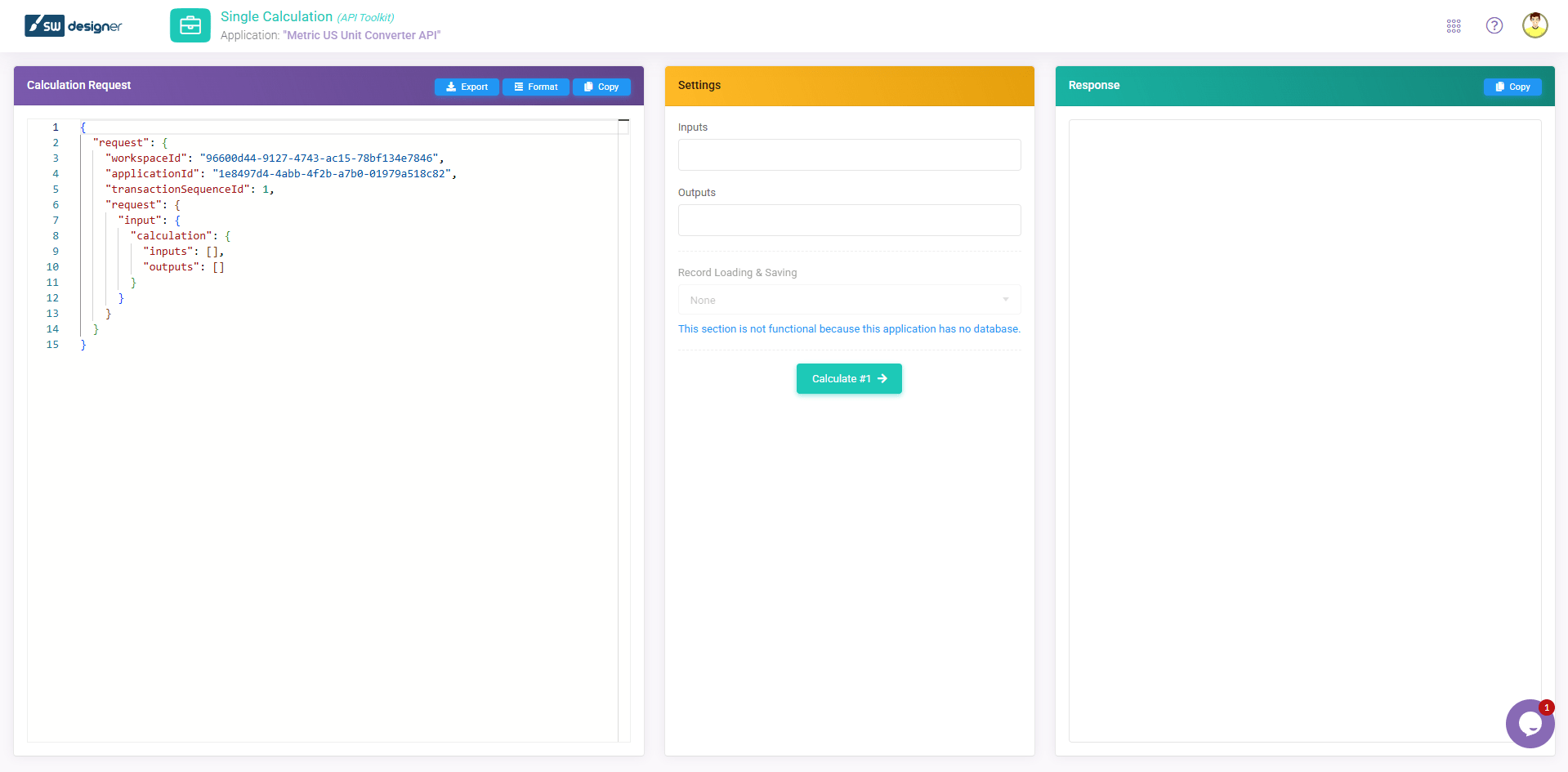
User Interface
The interface is divided into three key areas:
Calculation Request Panel
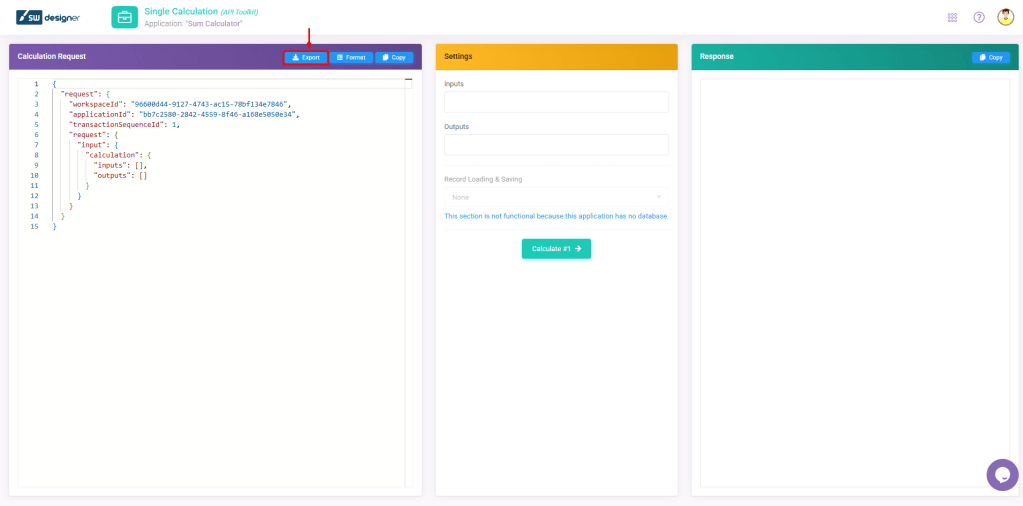
Users can construct or modify the body of an API request using a JSON code editor. The request body is structured as a calculation request object, including workspace and application identifiers, the transaction sequence identifier, and the calculation input and output specifications.
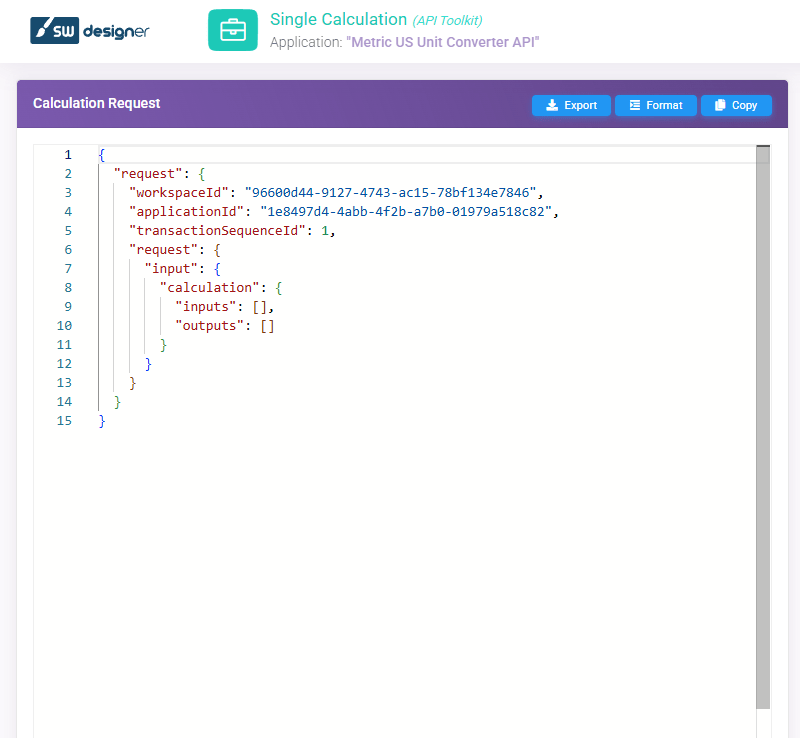
Components:
`workspaceId`: The unique identifier for the workspace.
`applicationId`: The unique identifier of the application.
`transactionSequenceId`: The identifier for the specific transaction, if executing historical calculations. Typically, this may be set to null to utilize the most recent, active, published transaction. If testing a WIP workbook on an unpublished transaction, this will need to be targeted directly.
Settings Panel
The API Toolkit Settings Panel is the command center for customizing API requests within SpreadsheetWeb. Users can set parameters for inputs and outputs and define how records are managed during calculations.
Components:
Inputs/Outputs: Fields for naming or specifying calculation input and output parameters. In this case, the parameters refer to the named ranges. For single-cell ranges, clicking on the input name after adding it to this dropdown will open a modal with an option to modify the value. You can also directly change the value (and other properties, such as type and format) in the JSON request body. For outputs, the parameter is simply a list of named range names, so these can be set without providing additional information – the results will include the output values accordingly. Requesting or setting inputs based on cell reference information (e.g., Sheet1!C5) must be done directly in the request body on the left-hand side.
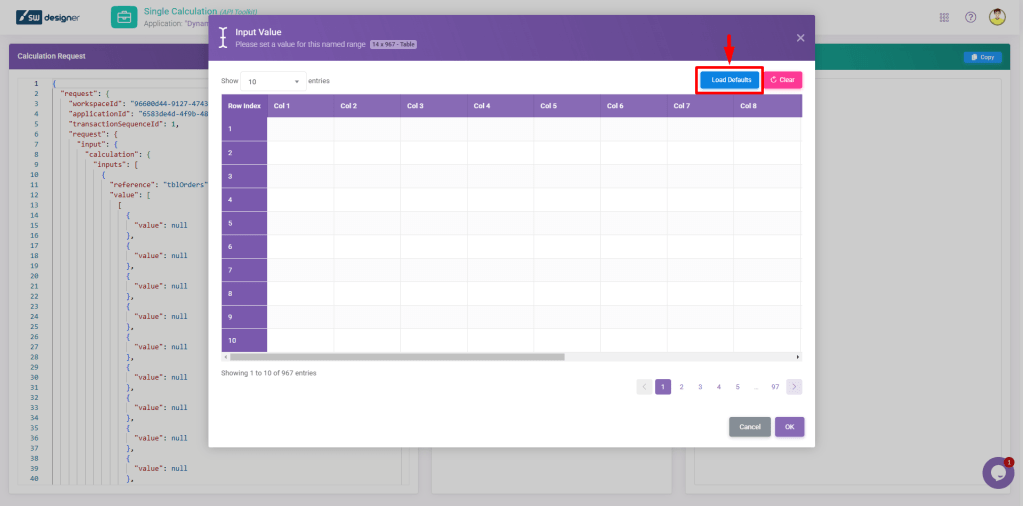
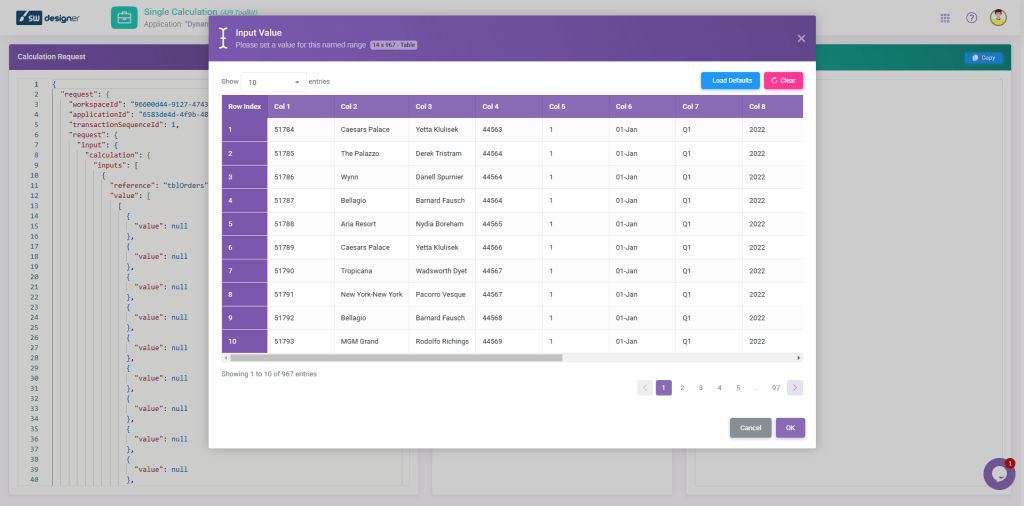
Edit Table Values
In the SpreadsheetWeb API, you have the capability to interact with multi-dimensional arrays within an Excel file. You can populate a range with a list of values or fill a two-dimensional table with a complete dataset. Additionally, you can retrieve calculation results from a multi-dimensional range. The API Toolkit offers a simple grid interface for setting values to these ranges. Moreover, you can load default values directly from the Excel file itself.
Transaction Date
Updating the underlying Excel file is a typical practice in a SpreadsheetWeb application. You might need to periodically refresh the data or modify the formulas. Each update is recorded as a new transaction with a unique identifier known as transactionSequenceId. Frequently, there may be a need to access an older version of the Excel file. However, tracking each update by transactionSequenceId might not always be practical. As an alternative, you can use the transactionDate option.
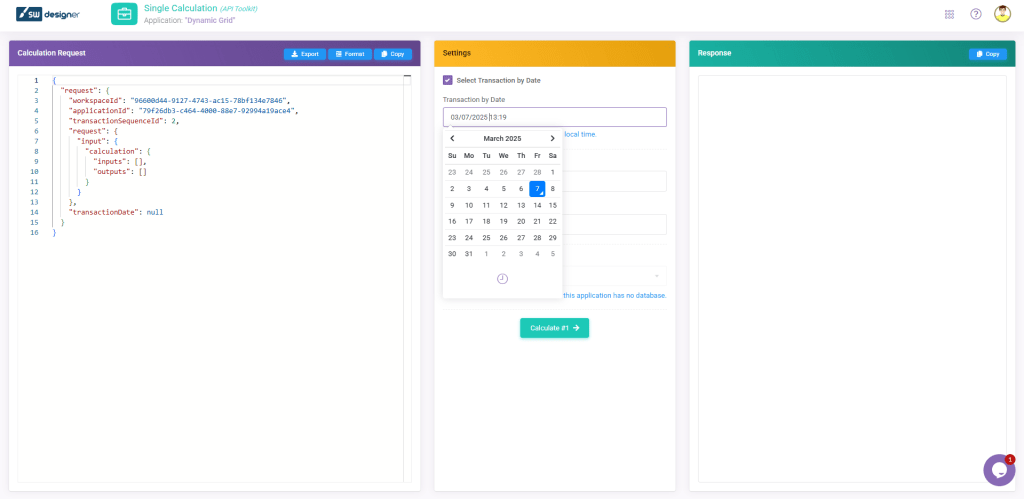
This option allows you to simply specify the date and time, and the system will locate the appropriate Excel file active at that moment. The system requires the UTC time with an offset in ISO 8601 format to represent your local time, which it then converts to server time to identify the correct transactionSequenceId. If you specify a date prior to the application’s initial publication, the system will select the earliest transaction. Conversely, selecting a future date will prompt the system to choose the most recent transaction. If you provide the date without an offset, it will be interpreted as server time.
Printing Options
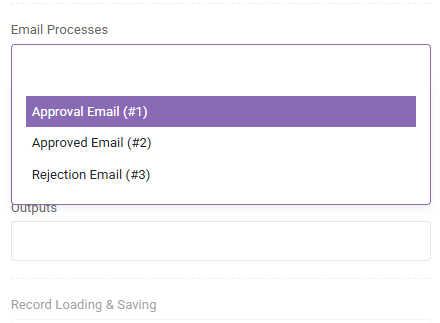
The API Toolkit allows users to integrate email functionalities within their applications. Within the ‘Email Processes’ dropdown menu, users can select predefined email templates to be triggered as part of the API request.
Record Management
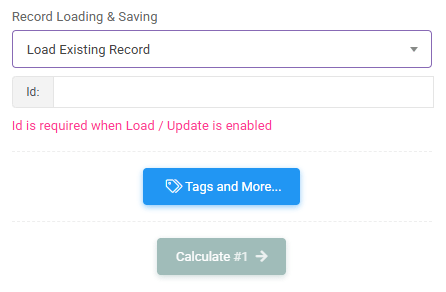
Load Existing Record: This option loads data from an existing record for the calculation. Specify the record ID or edit ID, and this data will populate the input fields. Should inputs provided in the API request match those loaded from the record, the request’s inputs will take precedence.
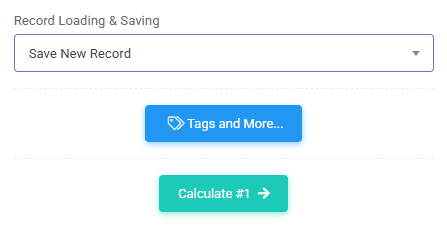
Save as New Record: Check if the calculation results should be saved as a new record. If a record ID is included in the request, the API will save the results as an edit to that record. However, if an edit ID is supplied for loading a record version, it will not affect the new data save, preserving the historical data and adding the latest results as an edit.
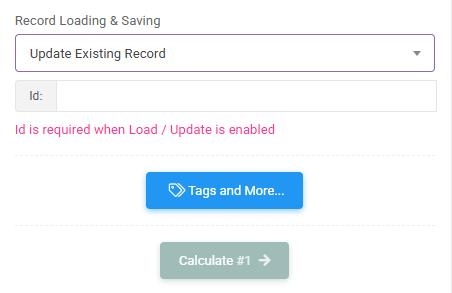
Update Existing Record: When selecting ‘Update Existing Record’ from the ‘Record Loading & Saving’ dropdown, you must provide the unique identifier (ID) of the record you wish to update. This ID ensures the API Toolkit targets and modifies the correct entry within your application’s database.
Corresponding fields will be available if the application includes defined processes such as printing, emailing, or exporting to Excel. In these cases, you can select from lists of those defined events, and enabling the event will trigger it during this calculation. Note that some events will trigger regardless of whether you explicitly enable them, such as the Save event triggering when you allow the saveAsNewRecord flag, database-bound print/Excel processes when triggering save, and print/Excel processes when they are bound as attachments for a requested email process.
Tag Options and More
The Tag Options And More allows for nuanced control over how records are tagged upon saving or updating:
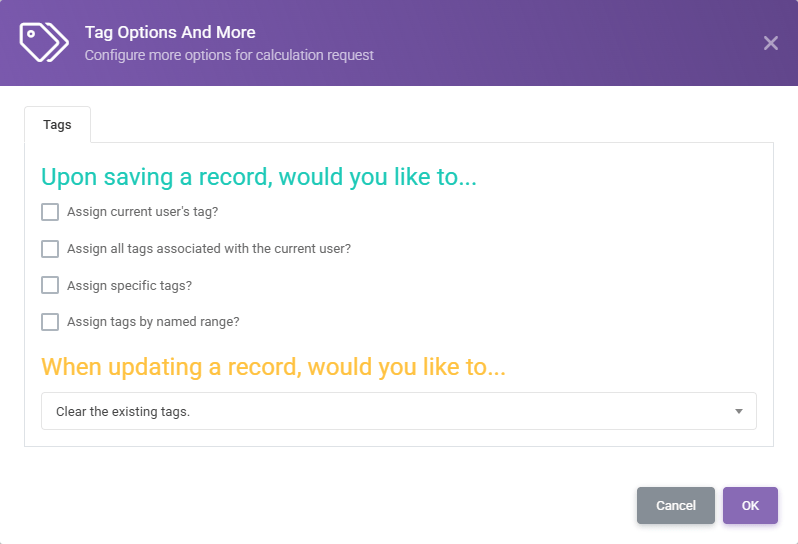
Assigning Tags to a New Record: You can decide to append tags to a record in various ways:
- Assign the tag of the current user.
- Include all tags associated with the current user.
- Specify particular tags to be assigned.
- Use a named range within your application to determine the tags.
Modifying Tags on an Existing Record: When updating a record, there’s an option to clear any existing tags associated with it, ensuring that only relevant tags are maintained.
Components:
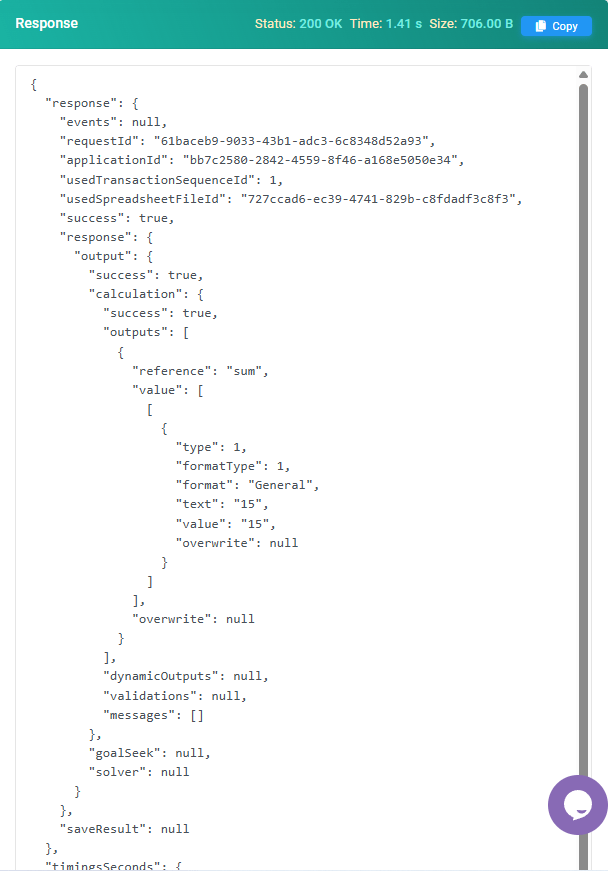
Status Code and Time: Indicates the success of the API call and the response time.
JSON Response: Contains the outcome of the calculation, including:
`events`: Any relevant information regarding events triggered during the calculation. For example, if printing and expecting document output, this structure will consist of a URL that can be used to download your document. Note that these links are valid for only 60 minutes, so ensure that you download and retain them as needed. Additionally, the URL in the browser window is the same as in a calculation request elsewhere. Still, the actual download link used from the web browser (launched when you click on the link) will be slightly modified for the API Toolkit. This is normal and can be ignored.
`requestId`: A unique identifier for the request.
`success`: Boolean value indicating the success of the calculation.
`response`: Detailed results from the calculation. This will include the complete set of requested outputs (in a similar structure as the inputs are sent in) and any warning or error messages from the core calculation engine.
`saveResult`: If storing a record as part of this operation, the save results will include relevant output information from the save operation, such as the new record ID and edit ID.
Postman Collection Export
The API Toolkit now supports exporting API collections directly to Postman. This feature facilitates a softer transition from API testing to execution, ensuring developers can manage and test their APIs more efficiently.
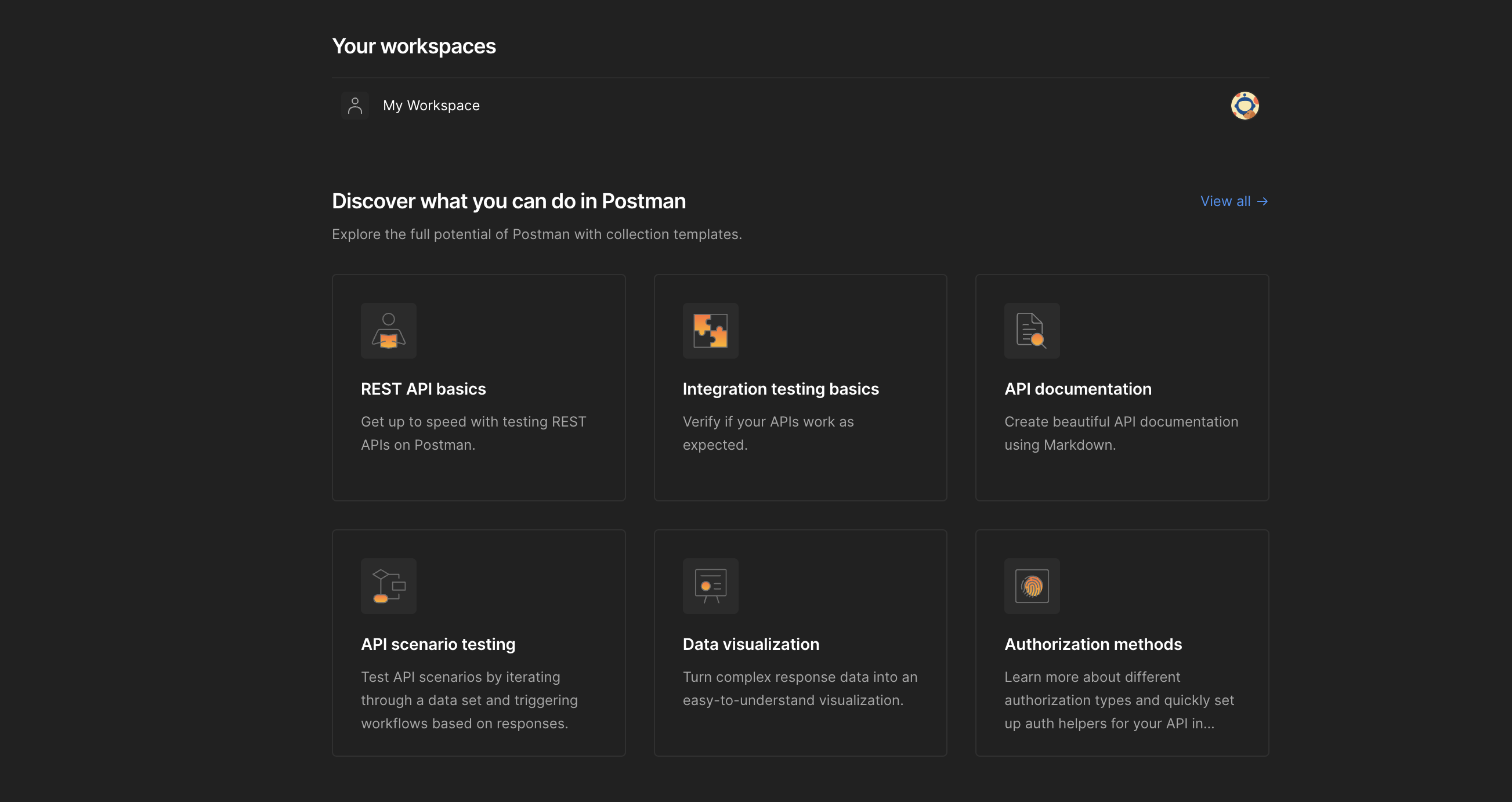
First, navigate to the top of the left section, locate the ‘Export to Postman’ button, and click this button to export the current API request configuration into a .json file. Then, import the .json file into Postman for further testing or execution.
Calculation Response Panel
After initiating the calculation, this panel displays the API’s response in a code editor format. The response is a JSON object containing the results and additional information such as status codes, processing time, and the response size.
By integrating these new features, SpreadsheetWeb continues to enhance user experience and developer efficiency, making it easier to manage and utilize data effectively within the platform. These documentation steps should help users understand and utilize these features effectively.
Batch Calculation
The Batch Calculation feature in SpreadsheetWeb’s API Toolkit enables users to execute multiple calculation requests consecutively. This feature is particularly beneficial for a variety of testing purposes. Whether you are stress-testing your system, verifying consistent responses, or evaluating performance under repeated conditions, batch requests offer a robust solution.
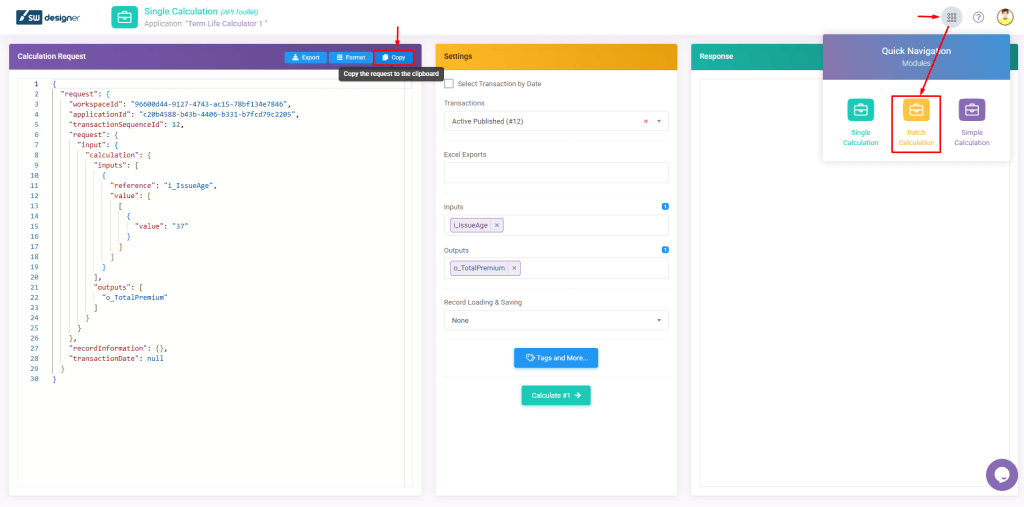
To use the Batch Calculation, simply copy the calculation request by clicking the “Copy” button on top of the calculation request box under the Single Calculation tab and navigate to the Batch Calculation tab.
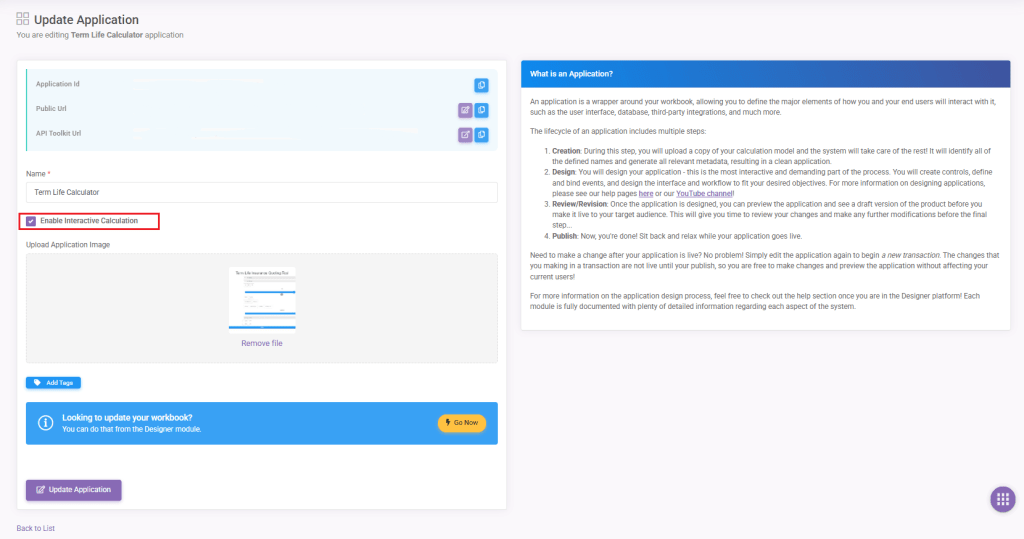
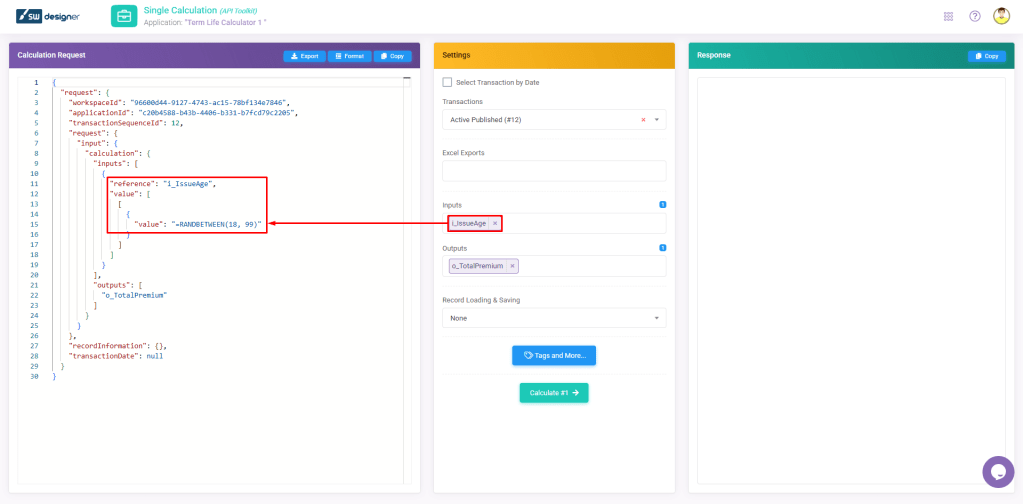
For example, to write a formula that generates random values, you can use the Excel formula =RANDBETWEEN(18, 99). To do this, click on the input variable and enter the formula. Please note that the ability to submit formulas instead of static values is part of the interactive execution feature and is only available with private cloud and server subscriptions.
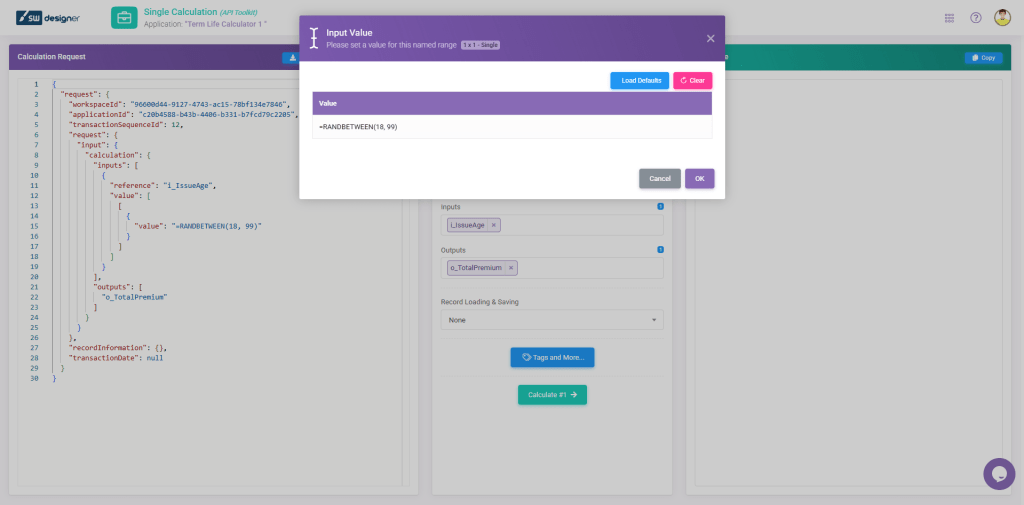
Batch Calculation allows you to select from 2 to 100 iterations at a time.
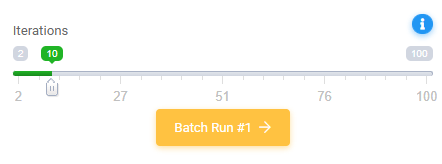
After selecting an iteration, click the “Batch Run” button. This will execute each API request consecutively.Remember that you can review each API response by clicking on it. You can also save the results to the database, export corresponding Excel files, print PDFs, and utilize other options for the Single Calculation.
Single Calculation
You can also access the single-calculation API endpoint directly through the API Toolkit. This integrates SpreadsheetWeb API applications with external platforms, including popular no-code tools.
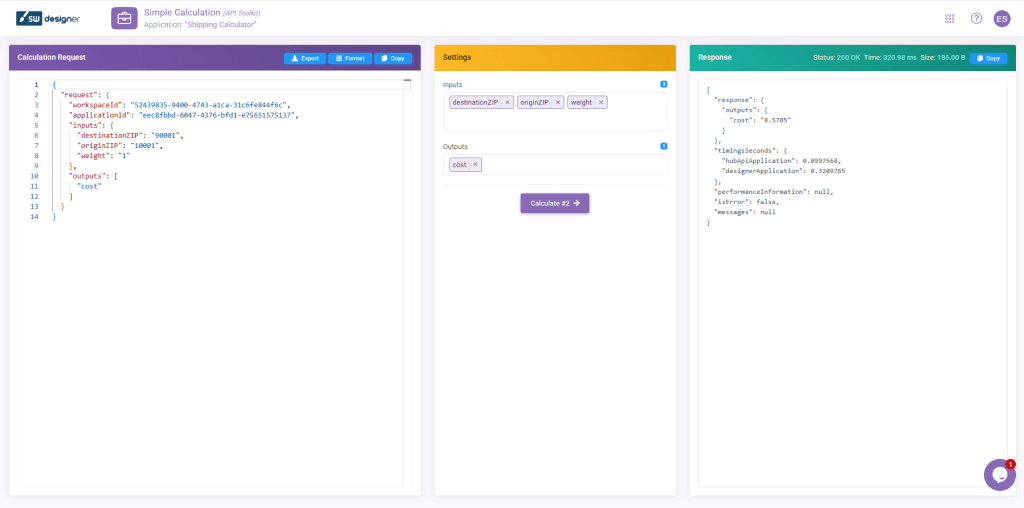
Open the API Toolkit in your SpreadsheetWeb application. Configure your Excel inputs and outputs for single calculations. Test the endpoint within the toolkit and copy the JSON structure for easy integration.