
Email Server Configuration
The primary email address utilized by SpreadsheetWeb Hub is team@spreadsheetweb.com. Hence, any emails dispatched from your Hub application using Email Events originate from this address. However, Pro subscription holders have the option to employ their own email server for these communications.
To configure your email, go to Workspace Settings and select Update Email Authentication Settings.
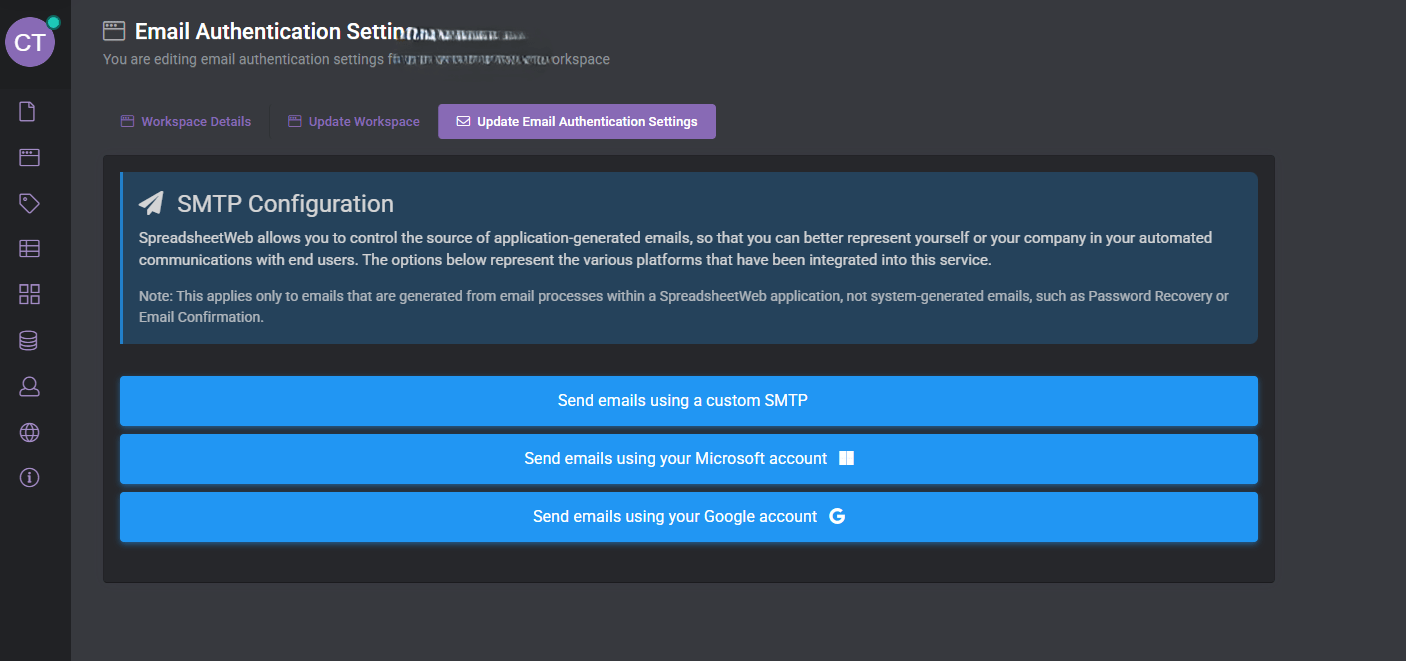
There are three options available: you can configure an SMTP server, connect a Microsoft email account, or connect a Gmail account.
Send Emails Using a Custom SMTP
To modify the sender’s email, adjust the settings in your Workspace. After this setup, all applications in that workspace will use the designated email server.

- Mail Server: Your SMTP server’s address.
- Mail Port: The port for the SMTP server, typically port 25 or 587.
- Sender Name: The display name for the sender in the email.
- Sender: The email address used for sending.
- Activation Email Address: An accessible email address for verification. An initial confirmation email will be sent to this address for security verification of SMTP settings.
- Password: This is for the sender email’s password. If your email service uses Multi-Factor Authentication (MFA), an application-specific password is necessary.
- Use SSL: Activate this if your SMTP server requires SSL encryption.
Configuring Outlook Authentication
The setup process for Outlook follows the same steps as Gmail:
- Choose Send Email Using Your Outlook Accounts.
-
You will be taken to the Outlook Email Configuration page. Proceed with authentication through your Microsoft account.

-
Sign in using the Outlook account you want to use for sending emails and allow the necessary permissions.
-
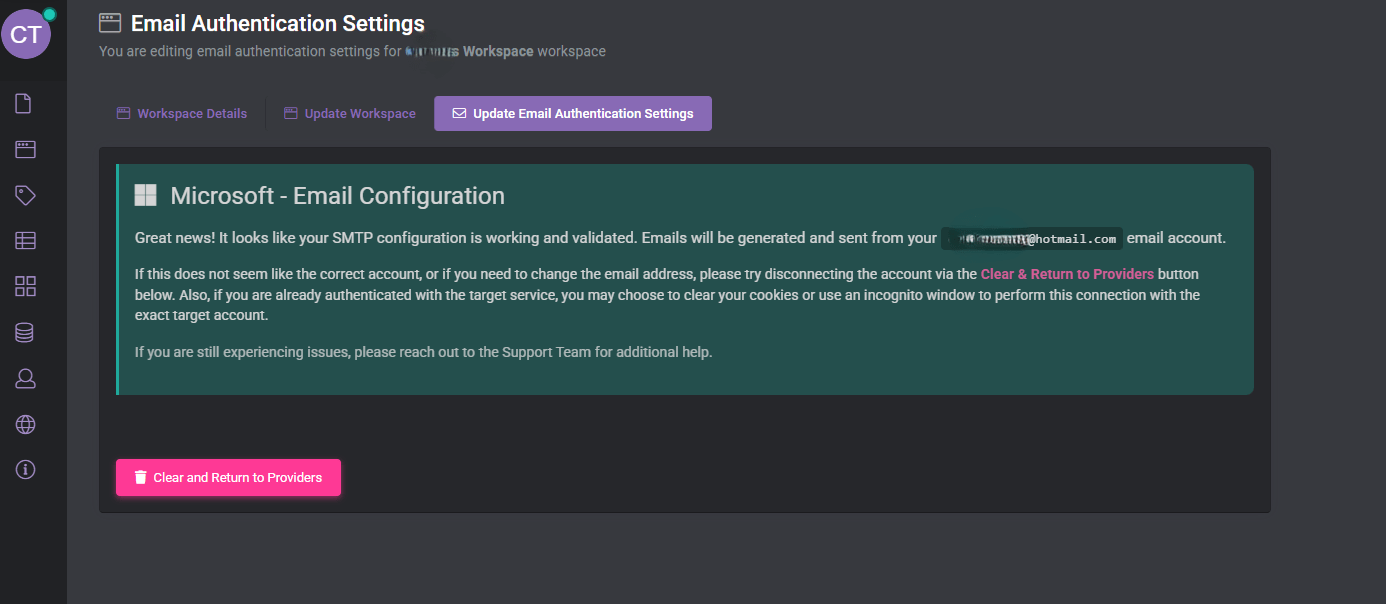
After authorization, you will be redirected back to the Hub.
-
Once you see the green confirmation message “It looks like SMTP configurations are working”, your Outlook configuration is complete.
Configuring Gmail Authentication
To configure Gmail as your email provider in SpreadsheetWeb Hub, follow the steps below:
- Choose Send Email Using Your Google Accounts.
-
You will be redirected to the Google Email Configuration page. Here, click Authenticate with Google.

-
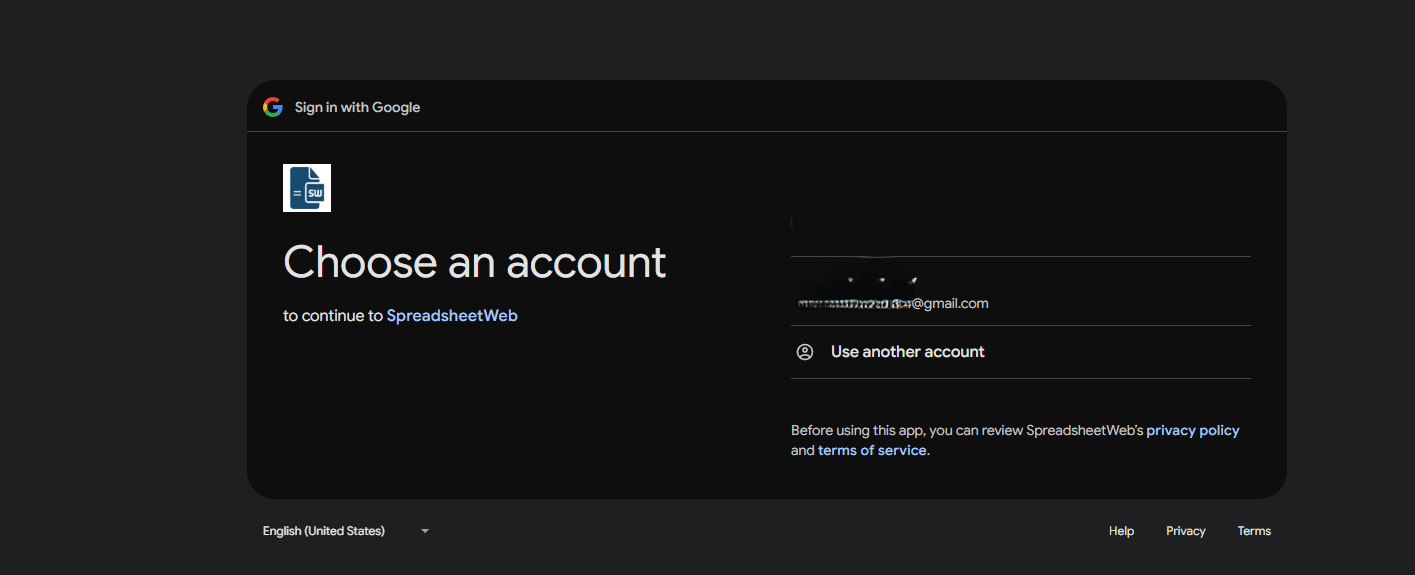
A Google login window will appear. Select the Google account you want to send emails from, click Next, and sign in.
-
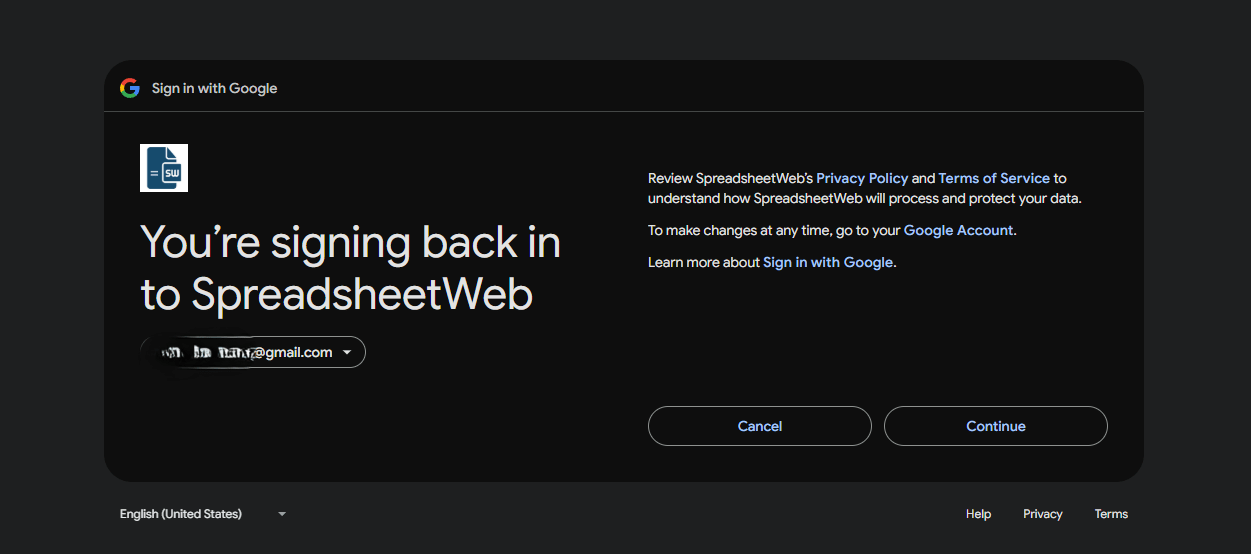
When prompted, grant SpreadsheetWeb the required permissions for sending and receiving emails on your behalf.
-
After completing the authentication process, you will be redirected back to the Hub workspace screen.

-
If you see the green confirmation message “It looks like SMTP configurations are working”, the setup has been completed successfully.
