monday.com
1. Upload you Excel file and create an application on SpreadsheetWeb
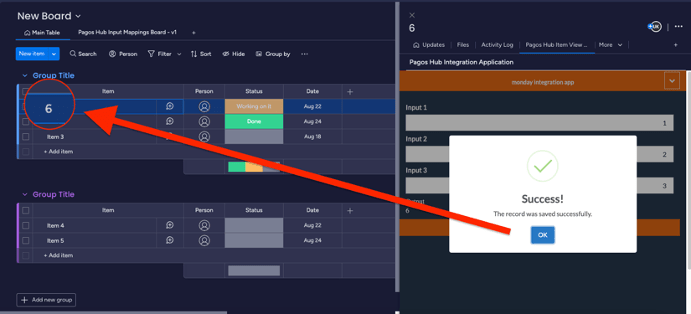
Imagine we have an app that functions as a calculator for determining costs. Users input key details and the app calculates the total cost as an output. We want to integrate this calculator directly into Monday.com so users can input these details within the platform and instantly see the calculated project cost.
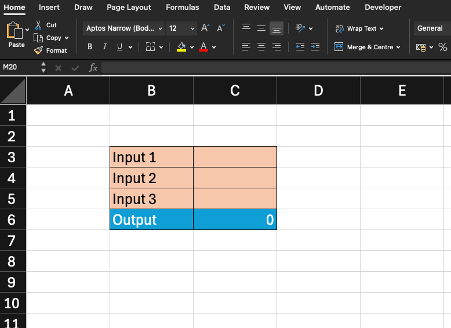
Remember, it is crucial to add named ranges to the related cells in your Excel file.
Upload the Excel file to your SpreadsheetWeb Hub account. After signing up and logging in, click the “Create an application” button. Then, drag and drop the Excel file into the designated area and click “Create” to proceed.
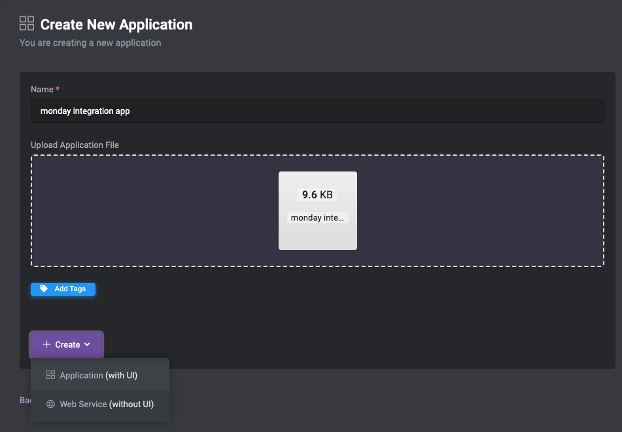
Remember, if an application is restricted or unpublished, it won’t be visible or available for selection on monday.com. Additionally, only designer apps can be used for integration purposes; web-service apps are not supported.
To unrestrict your application, go to the SpreadsheetWeb Hub, click on the Designer, and navigate to the Application module.

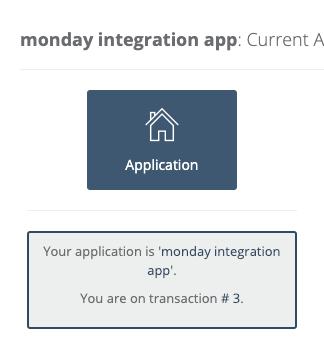

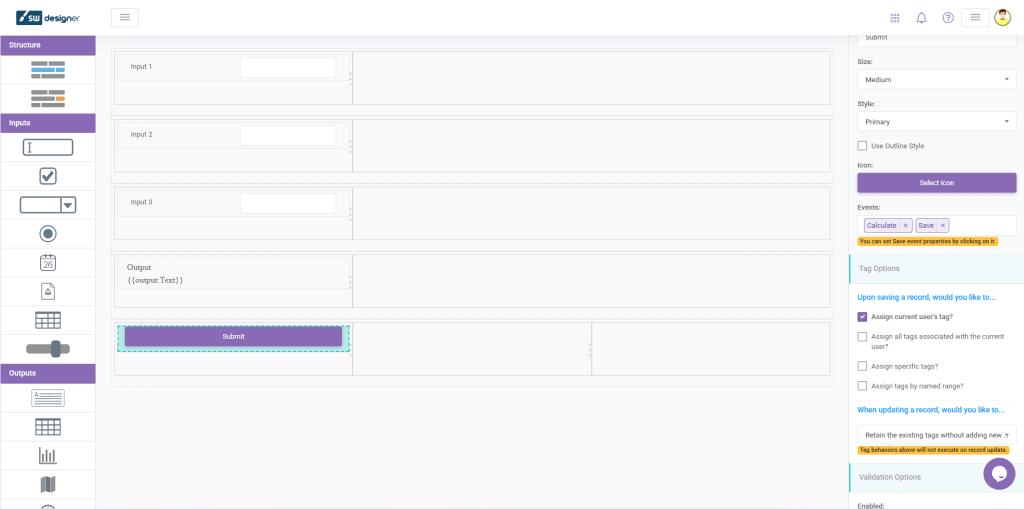
In addition, to enable integration, an action button with a “Save” event needs to be included. When users click this button, the app’s outputs will be sent to monday.com. Although the system will display a default message saying “Record was saved,” it’s important to note that this action will not create a record in your monday.com account.
2. Create your monday.com application
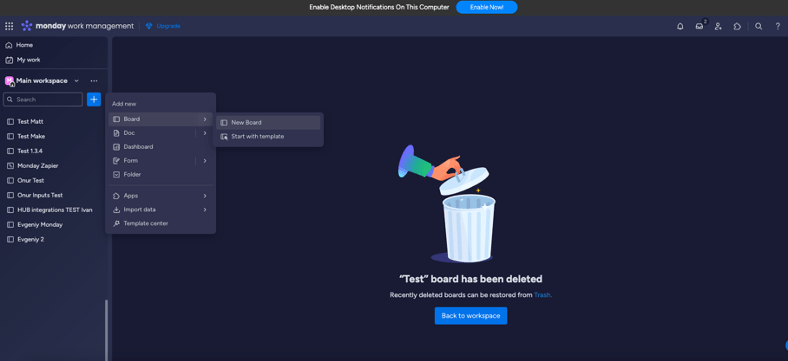
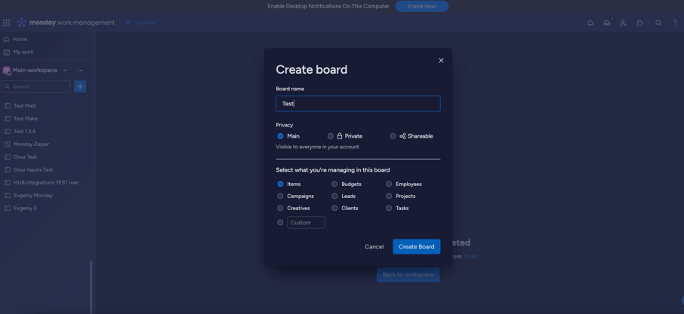
After creating your application, navigate to Monday.com and log in to your account. Locate the search bar and click the plus icon to add a new template.
3. Install SpreadsheetWeb from monday.com app marketplace
After creating a new board, hit the plus button on the Main Table tab. Select the Explore More Apps option in the dropdown menu.

Navigate to Marketplace menu, find “SpreadsheetWeb Apps”, and install. Click Authorize when prompted. SpreadsheetWeb Apps view will be added to the active board.
Go to the board you’d like connect to your SpreadsheetWeb app. There, you should select your SpreadsheetWeb workspace name, the application you prefer to integrate into monday.com, and the named ranges you prefer to map.
4. Integrate Monday and SpreadsheetWeb
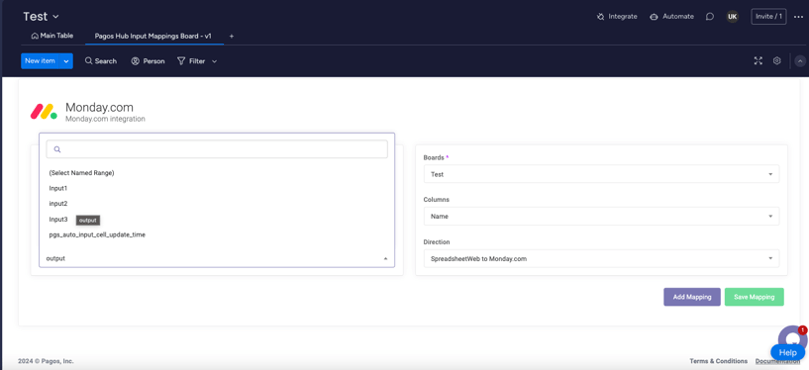
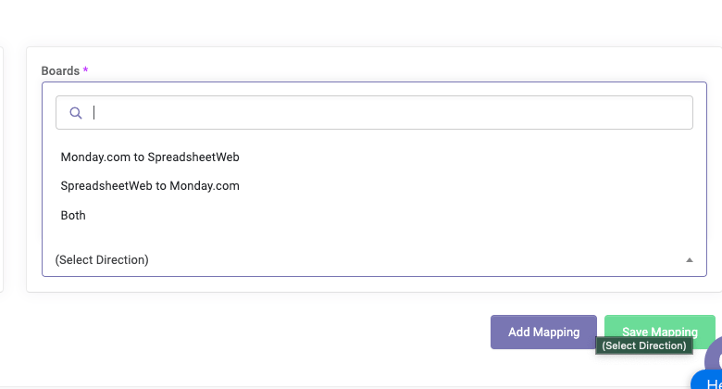
Select the direction of automation, click on Add Mapping, and lastly, Save Mapping.
When completed, click on the Main Table tab, then hit the plus icon in the desired row you need to work.


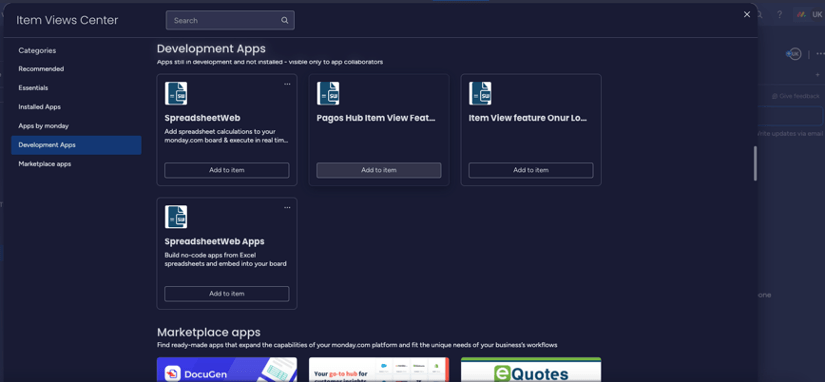
In the new window that opens on the right, click on the plus icon in the upper right corner and access the Spreadsheetweb application you have integrated. For this, the Item View Centre will open automatically. Select Pagos Hub from the Development Apps menu and click Add to Item.
After completing the action you want to do from the SpreadsheetWeb application, you can save it to your Board by clicking the action button you defined before.