Download Feature
Download Feature
The Download feature on the Data page of SpreadsheetWEB Hub enables users to retrieve their data in Excel file format. This functionality is essential for creating local backups, conducting offline data analysis, or preparing reports. It allows users to download data for a specific record or export all documents related to an application.
Downloading Data

Navigate to the Data page within SpreadsheetWEB Hub, which lists all records associated with different applications.
Single Record Download
To select a specific record, a user clicks on it, which then presents the option to download the data for that record. Additionally, downloading data for individual records is possible by clicking the ‘Download’ button in the Actions column. This action mirrors the functionality of the ‘Download Selected’ button found at the top of the View Data page.

Users can download data for multiple records by pressing and holding the CTRL key while selecting the desired rows with mouse clicks. Alternatively, the SHIFT key facilitates selecting a range of rows through minimal clicks. To utilize this, a user should click on the initial row of interest, then press and hold the SHIFT key before clicking on the final row within the desired range. This method selects all rows between the two clicks, allowing the selected records to be downloaded via the ‘Download Selected’ button.

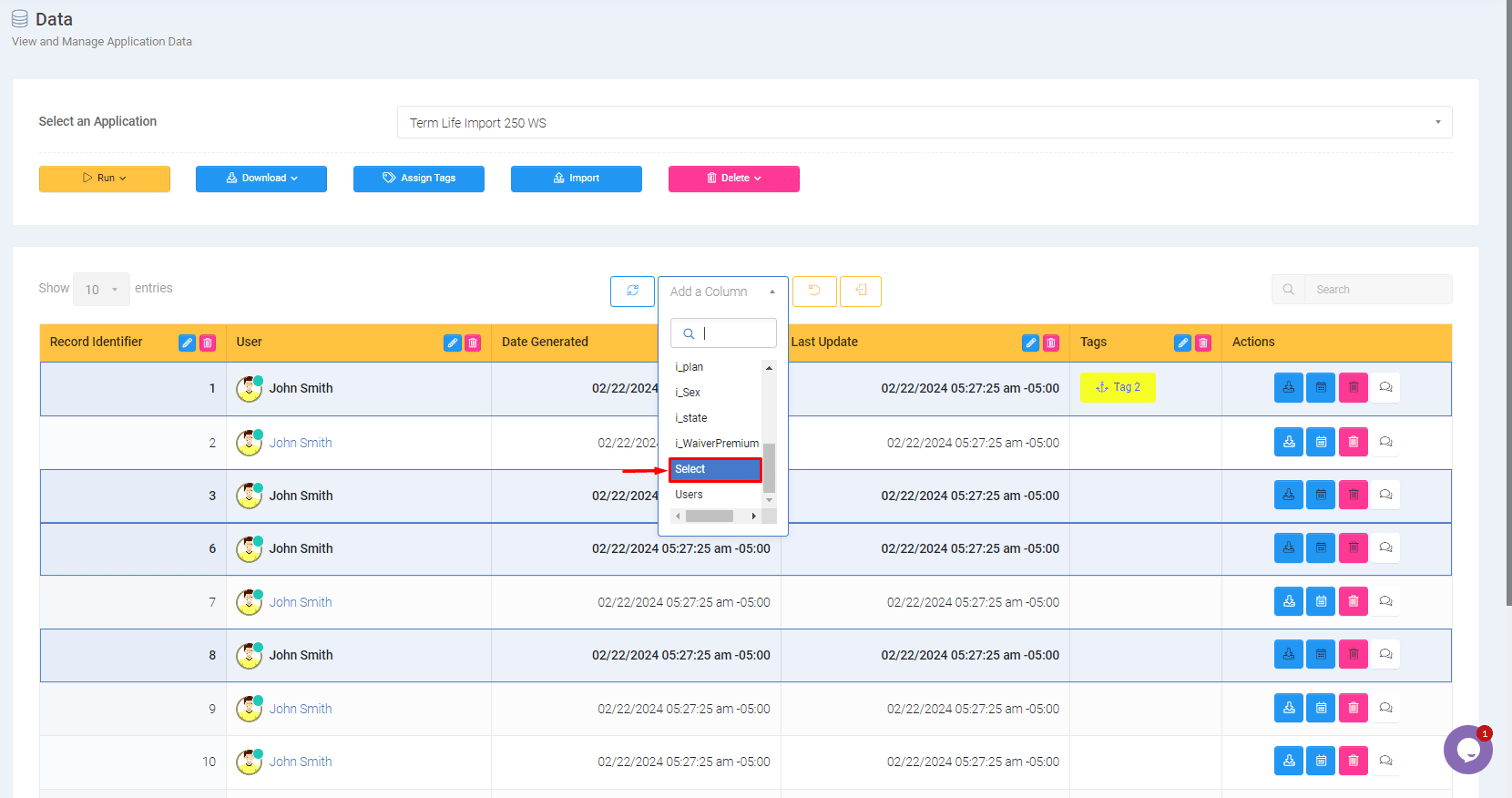
Additionally, users can enter Edit Columns Mode and add a new column titled “Select.” This column features checkboxes for each row, allowing users to enable or disable these checkboxes to select or deselect the corresponding rows.

All Records Download
Locate the download icon or option without selecting any specific record to download data for all documents. This action will prepare an Excel file encompassing all records’ data for the application.

After selecting the desired option, click on the download icon. The system will generate an Excel file containing the selected data.
Record Reports
The Excel file generated by SpreadsheetWeb Hub is structured to include various data points collected from the application, organized in a manner that facilitates easy analysis and reporting.
Each worksheet in the Excel file represents different aspects or categories of data collected through the application.
The first row of each worksheet describes the data fields, with subsequent rows containing the records. These fields may include time entries, client information, case details, billable hours, and other relevant metrics. The Excel file utilizes standard formatting to enhance readability and data segmentation, such as bold headers and cell borders.

When the Report.xlsx file is downloaded from a saved record of an application that includes only the Primary table, it contains four sheets.
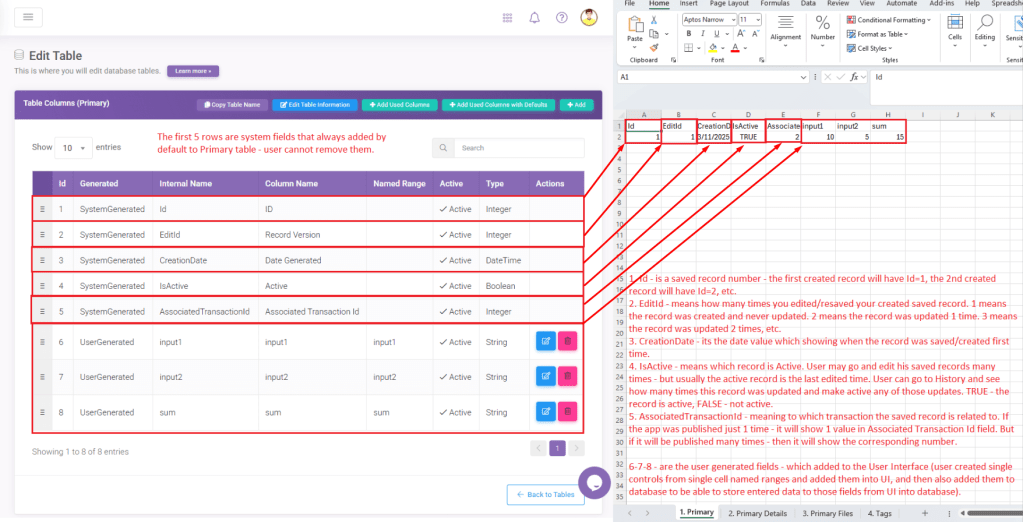
In a primary worksheet, five system-generated columns are automatically added by default from the Primary table:


Id: This is a record number that is assigned when a record is saved. The first created record will have an ID of 1, the second will have an ID of 2, and so on.
EditId: This indicates the number of times a saved record has been edited or resaved. A value of 1 means the record was created and never updated, 2 indicates that the record was updated once, 3 means the record was updated twice, and so forth.
CreationDate: This date value shows when the record was first saved or created.
IsActive: This indicates whether a record is active. A user may edit their saved record multiple times, but typically the active record is the one last edited. Users can access the History to see how many times a record was updated and activate any of those update iterations. A value of TRUE means the record is active; FALSE means it is not active.
AssociatedTransactionId: This indicates the transaction to which the saved record is related. If the app was published just once, this field will show a value of 1. However, if it has been published multiple times, then it will display the corresponding number.
All other columns are those that users manually add to the Primary table from controls created in the User Interface. These additions can only be single cell controls/named ranges to the Primary table. It also allows for the addition of a file from the Print Process or from a File Upload input control.
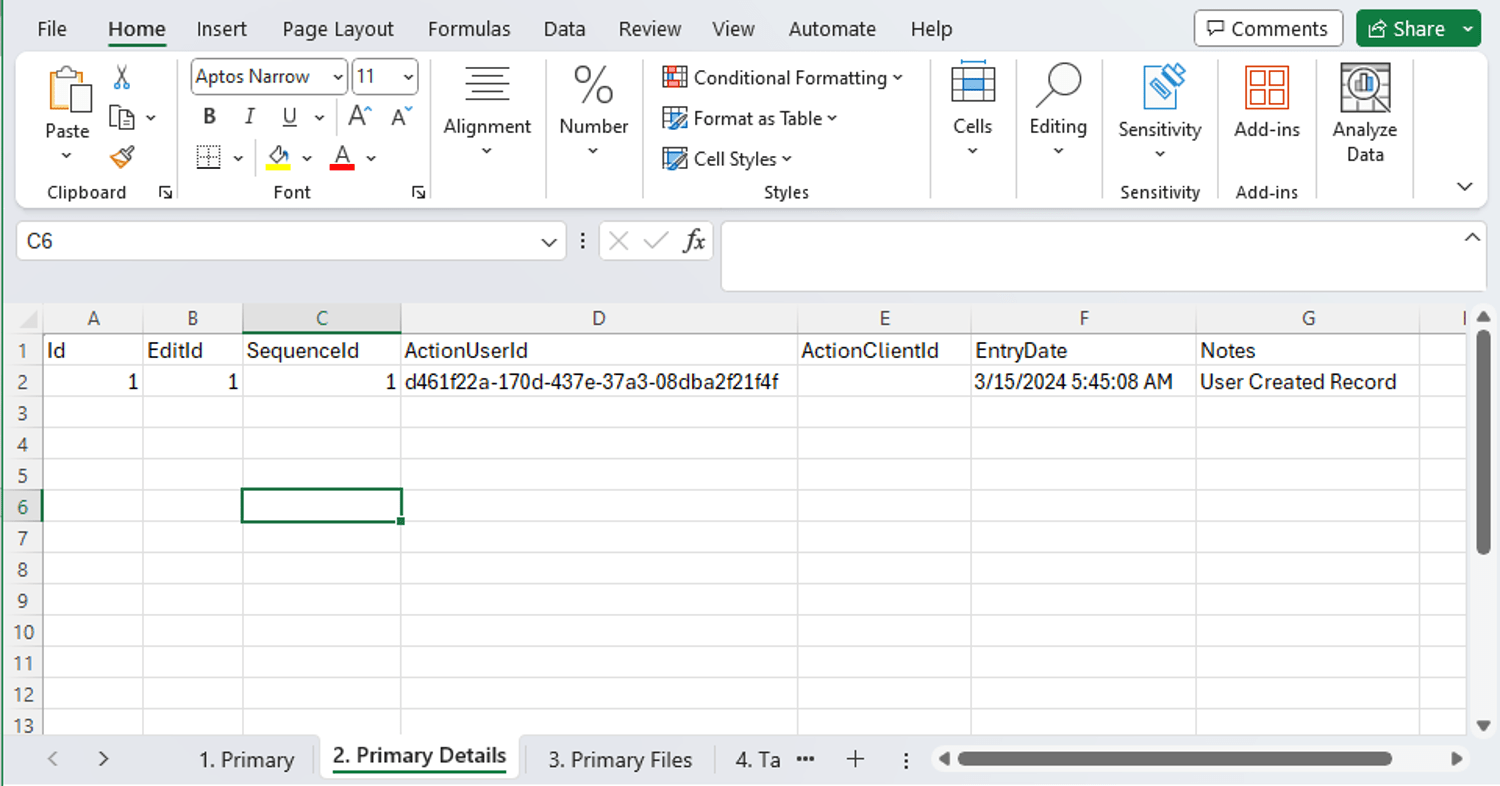
The Primary Details tab includes seven columns:
Id: This serves as the record identifier.
EditId: Indicates the number of times the record has been edited (with 1 meaning the record was only created and not updated, 2 indicating it was updated once, 3 for twice, and so on).
SequenceId: Used for ordering; the first row will have a SequenceID value of 1, the second row a SequenceId value of 2, and so forth.
ActionUserId: Holds specific information related to actions performed on this saved record. This value is utilized for SQL queries to the database to retrieve responses containing various details about this record and the actions taken on it by the user.
ActionClientId: Similar to ActionUserId, it initially shows no value. However, to display a value, this saved record must be accessed, saved, or updated by a Web-Service client (via API).
EntryDate: The date when the record was either created or accessed.
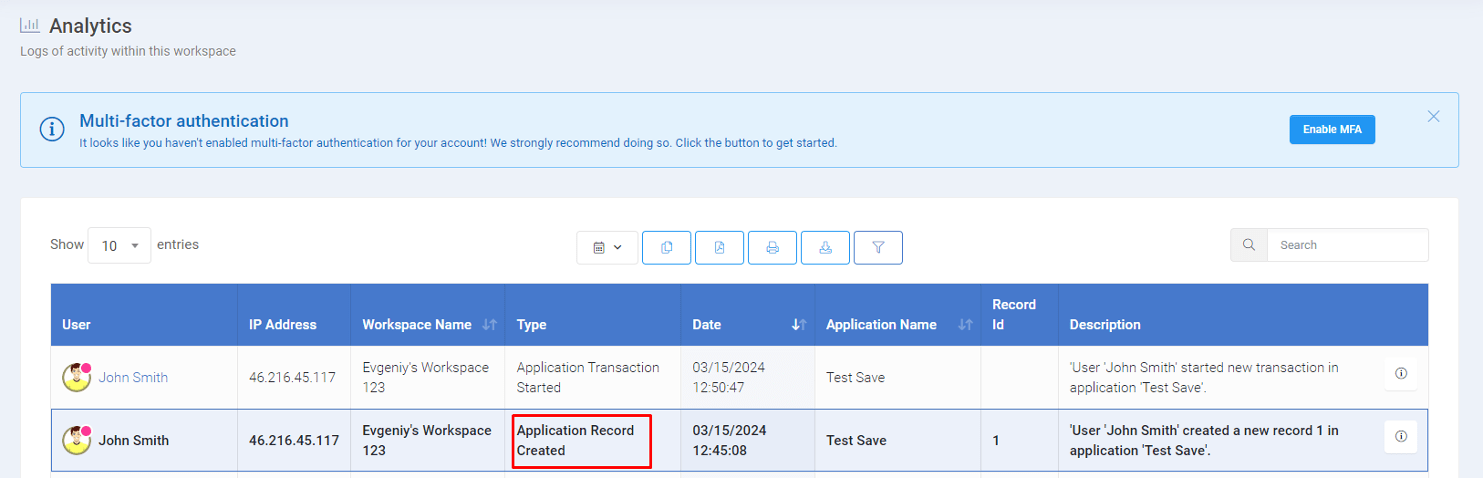
Notes: Provides details on what actions were taken on the record, such as creation or updates. This information is also displayed on the Analytics page.
The Primary Files tab includes seven columns:
Id: This remains as the record id, identifying each file record uniquely.
EditId: Indicates the number of times the record has been updated or edited.
SequenceId: Represents a value for ordering; the first file will have a SequenceId of 1, the second file will have a SequenceId of 2, and so forth.
FileId: Is a unique identifier for the file stored in the database server.
Name: The name given to the uploaded or generated file.
ContentType: Describes the file type; for images, this would be ‘image/png’, and for PDF files, it would be ‘application/pdf’.
Size: Indicates the file’s size.
It is showing blank in my sample – because I didn’t add any file column type to my Primary table. In case if I would add a file column type like from FileUploadInput or from PrintProcess – the file generated from Print or that was uploaded to FileUploadControl would be stored in database and show some info in those columns.

For instance, this is how it appears after a JPG image file is uploaded through the file upload input control and added to the primary table.


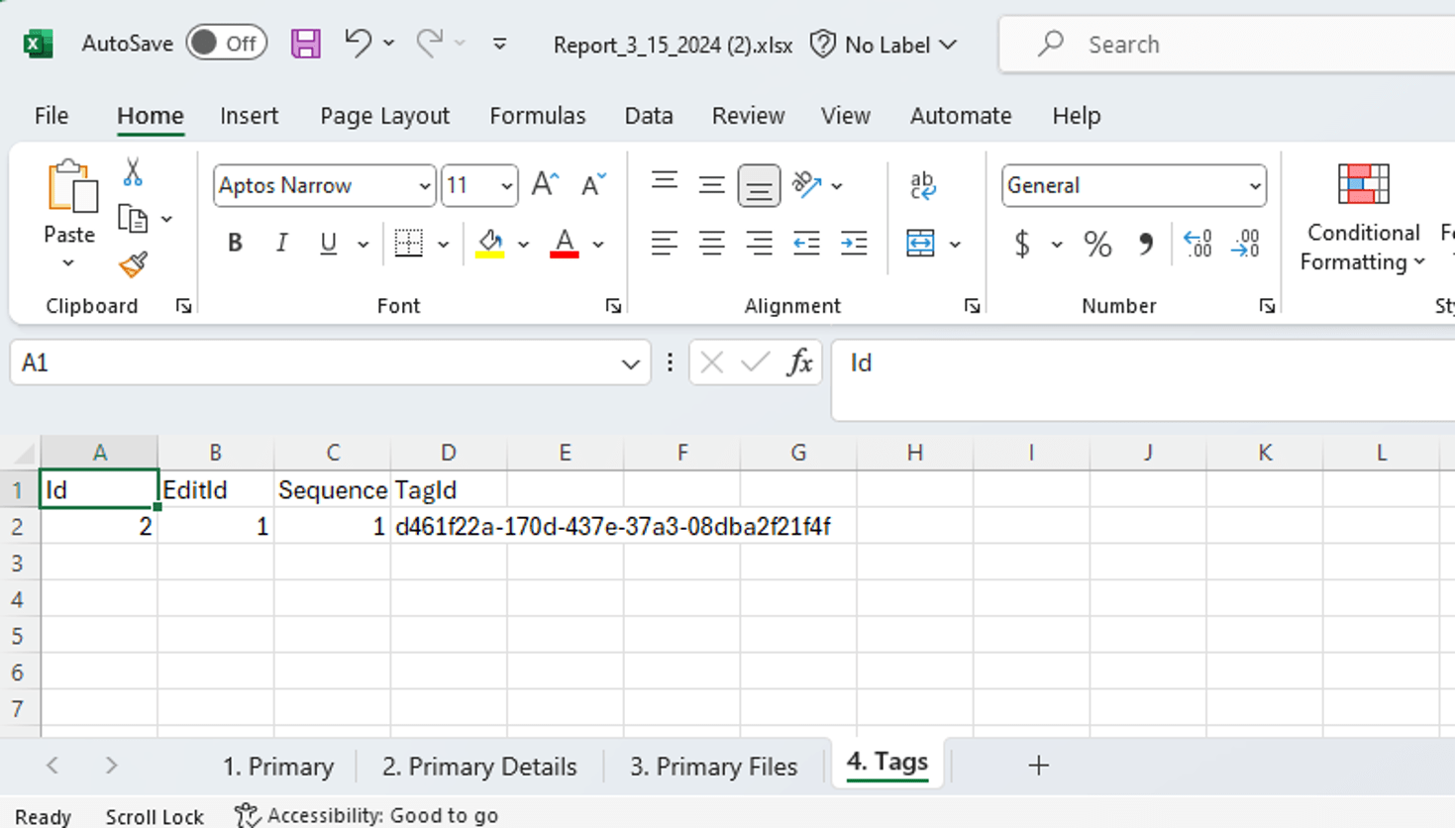
The ‘Tags’ section consists of four columns:
ID: This represents the record ID. For example, if two records have been created, it would display an ID of 2 in the provided screenshot.
EditId: This indicates the number of times a record has been saved or resaved. A value of 1 means the record was only saved (created) once.
Sequence ID: This is used to order the tags sequentially (1 for the first row, 2 for the second row, and so on).
TagId: This is a system-generated value for each tag added to the saved record. Typically, it displays the user-associated tag, which is often their email address tag.
System Columns and Data Organization in Downloads with One-to-One and One-to-Many Secondary Tables
In any given setup, only one Primary table can be created, alongside any number of secondary tables, whether they are one-to-one (1:1) or one-to-many (1:M) relationships. Each secondary table that is created, whether it adheres to a 1:1 or 1:M structure, will be represented on its own corresponding tab within the Downloaded Report file generated from a saved record.

A one-to-one (1:1) table shares a similar structure with the Primary table, permitting only the inclusion or addition of single-cell named ranges. It comes with two default system columns (ID and EDIT ID) and allows for the addition of any number of other columns, which users can manually include as single-cell named ranges.
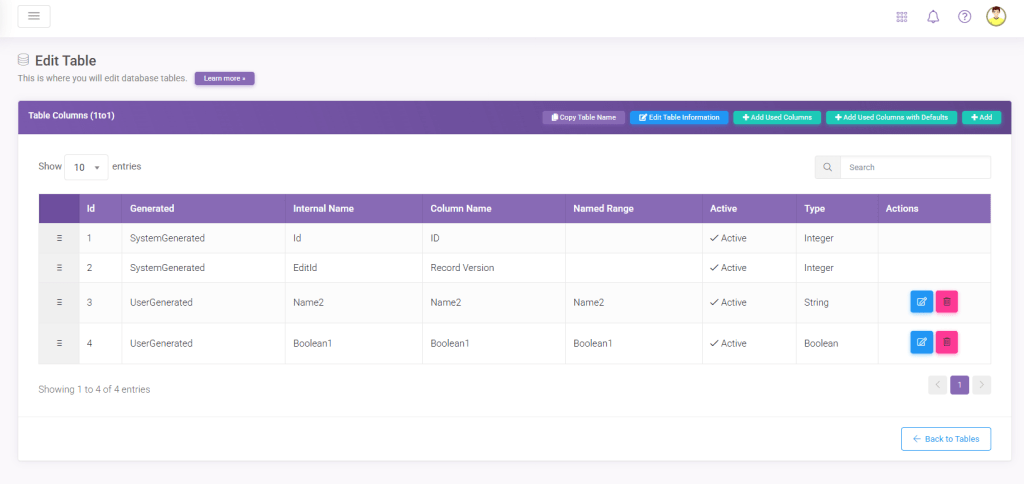
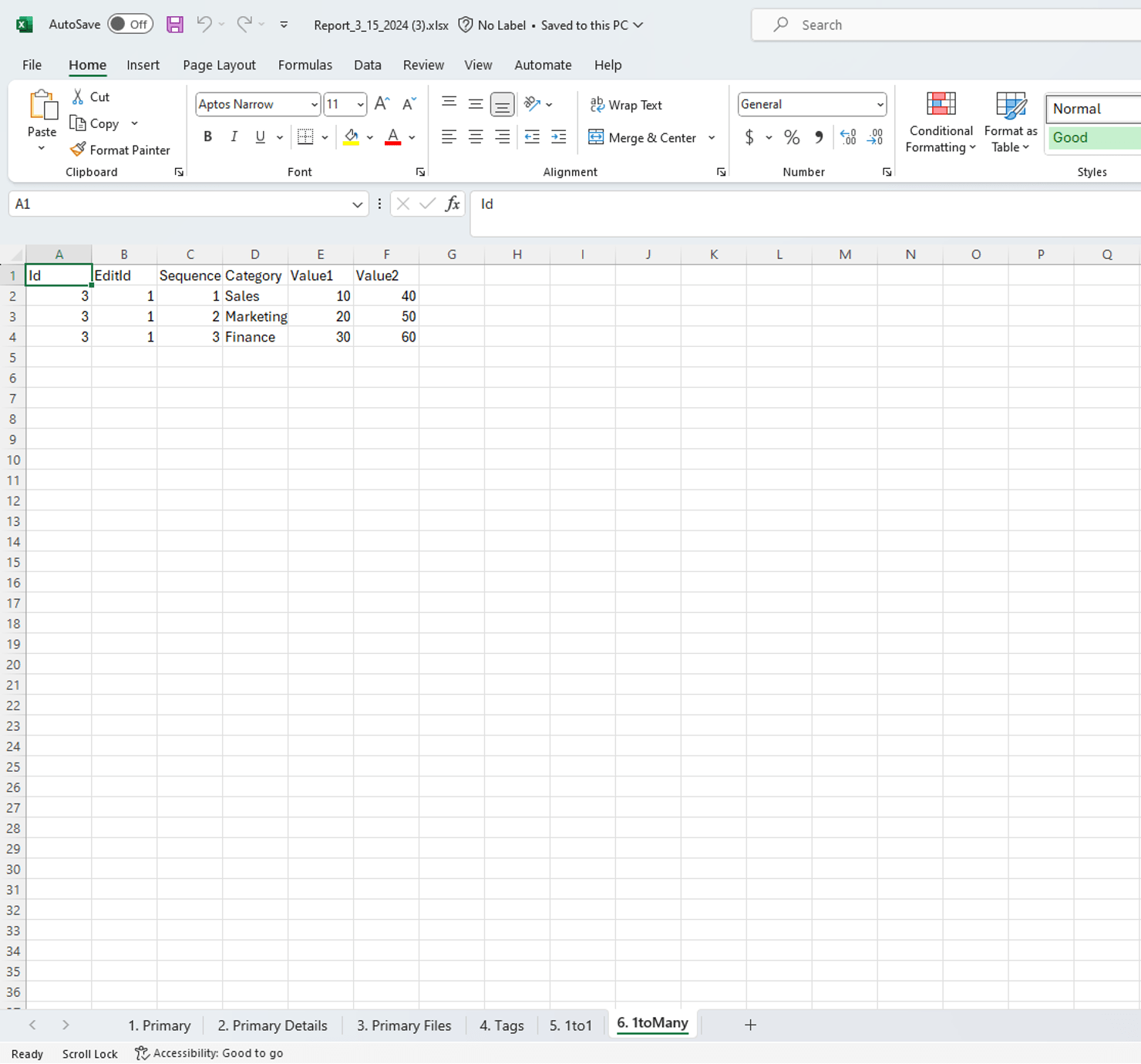
Once the app is published, new tabs appear in the Downloaded Excel file from a saved record. Originally, there were four tabs, but after the addition of a one-to-one table and a one-to-many table, the number of tabs increased to six. The 1:1 and 1:M tables are positioned on the far right, specifically in tabs 5 and 6.

The One-to-One tab is characterized by the inclusion of only two system fields: Record ID and Record Edit ID. All other columns consist of single cell named ranges that have been manually added or included in the one-to-one table by the user.
Conversely, the One-to-Many table incorporates three system fields: Record ID, Record Edit ID, and Sequence ID. The remaining columns feature table named ranges added by the user. It is essential to note that all Table Named ranges must be incorporated into the One-to-Many Secondary datatable type, as this is the exclusive method for storing data from input grids in the database.
In this structure, Primary and One-to-One tables are designated for single cell named ranges and files, whereas the One-to-Many table is specifically for grids, whether they are for input or output. Each grid must be associated with its respective Secondary One-to-Many table. Additionally, the creation of the Primary table is a prerequisite for the establishment of any Secondary Table.
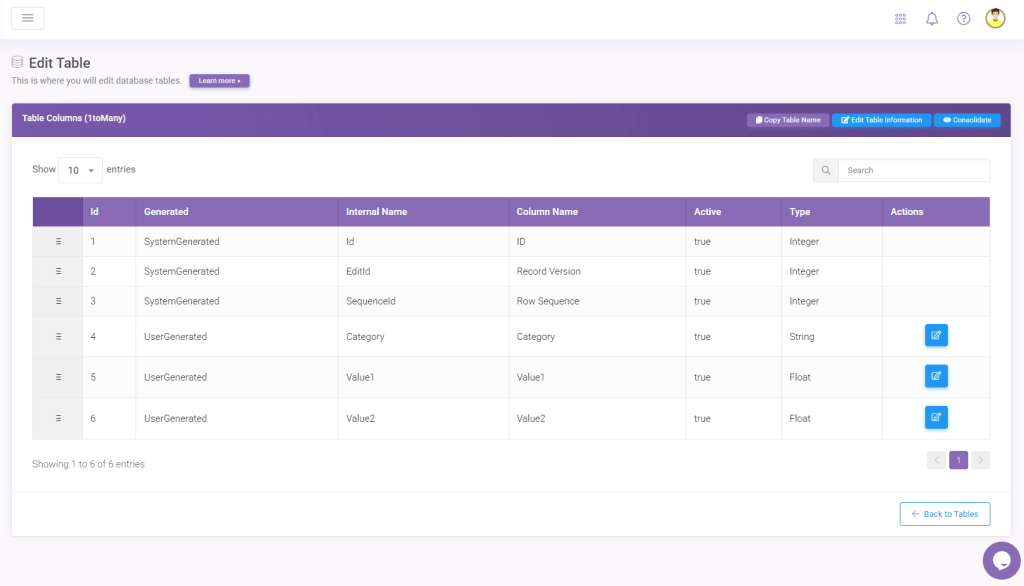
The table contains three rows, which is reflected in the appearance of the Downloaded file.