Containers
A container is a subsection that can help subdivide a section into multiple vertical segments.
Style
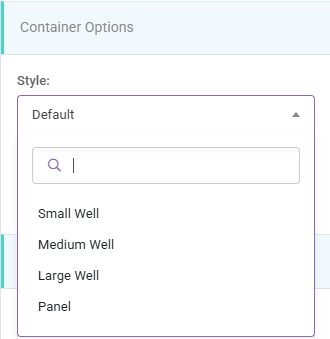
You can select a Well style from the Small, Medium, or Large options. The Panel option will make the container display like Card. After selecting Panel as style, Header and Footer inputs will appear where you can enter strings to be displayed on the header and footer sections of the container.
Users can customize the actual corresponding styles using Cascading Style Sheets (CSS) in the Stylesheet Designer.
If you select the style Panel and enter any text into the Header Text field, the Container can be made Collapsible.
Collapsible
When the Collapsible property is enabled, the Panel containers can be toggle to show or collapse the Container area and all controls inside it. When you Preview or Publish the application, you can click the header name of a collapsible panel to hide or expand the entire panel.
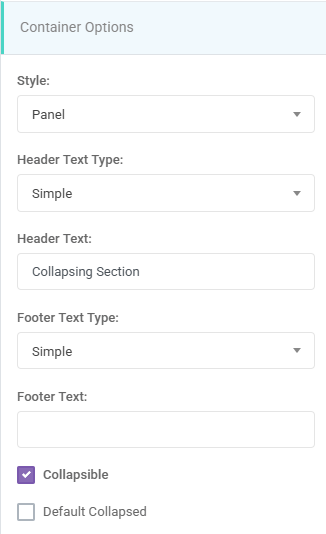
If the Default Collapsed property is enabled, collapsible panels will be collapsed by default during run-time.
Container Color Style
The Color Style property sets the color style of the container.
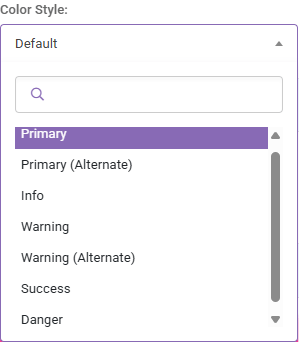
By default, the styles match the color schemes:
- Default (Standard grey)
- Primary
- Primary 2
- Info
- Warning
- Warning 2
- Success
- Danger
Users can customize the actual corresponding styles using Cascading Style Sheets (CSS) in the Stylesheet Designer.
Render as Tabs
The Render as Tabs property becomes available when multiple containers are placed inside a target container. Enabling this property displays each inner container as a separate tab within the outer container.

The Header Text field of each inner container defines the tab’s label.

Once the inner and outer containers are configured, the runtime view will appear as shown in the image below:

Subdivisions
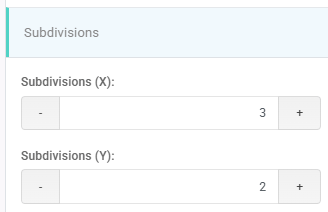
The Container Subdivisions feature in SpreadsheetWeb allows you to split a container into smaller, grid-like sections for more precise control over layout and alignment. Each subdivision acts as a mini-container that can hold controls, functions, or additional elements, making it easier to organize complex forms or dashboards. This feature supports both vertical and horizontal arrangements, enabling side-by-side or multi-row structures that maintain clean alignment across devices.
Subdivisions inherit the styling and behavior of standard containers, including data bindings and events, but offer greater flexibility in designing responsive, professional layouts without relying on custom CSS.
Visible
The Visible property sets the conditions under which the container will be visible. This can be set to Always or Never or By Value Of (this option is only visible in case when there are boolean named ranges exist in underlined Excel Workbook with TRUE/FALSE values).
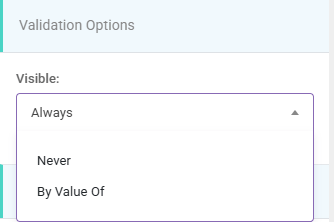
If there are any Boolean Named Ranges (BNR) defined in your workbook (i.e. single named ranges that evaluate to TRUE or FALSE), then an additional option (By Value Of) will be available. This option allows you to configure a Boolean named range that determines whether or not this section is visible. This can either be calculated or input-based.
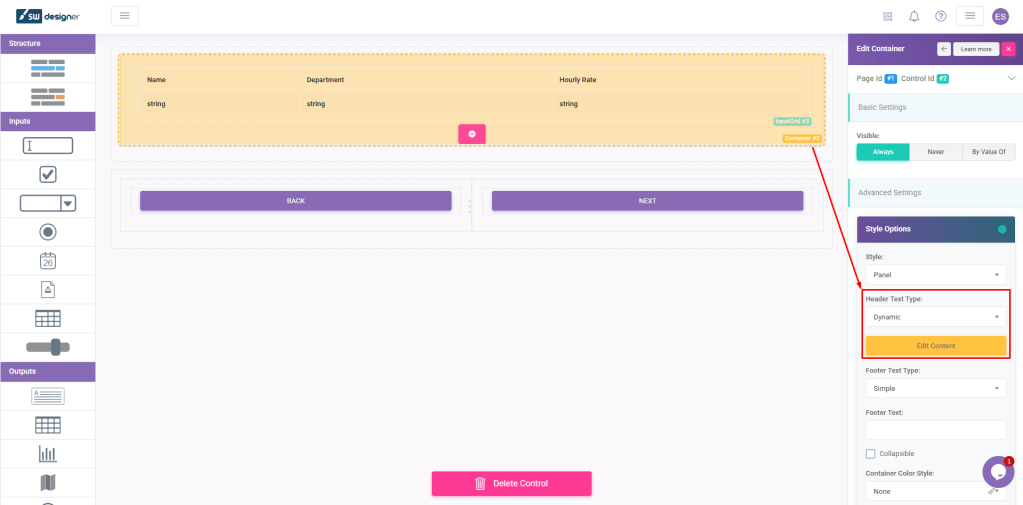
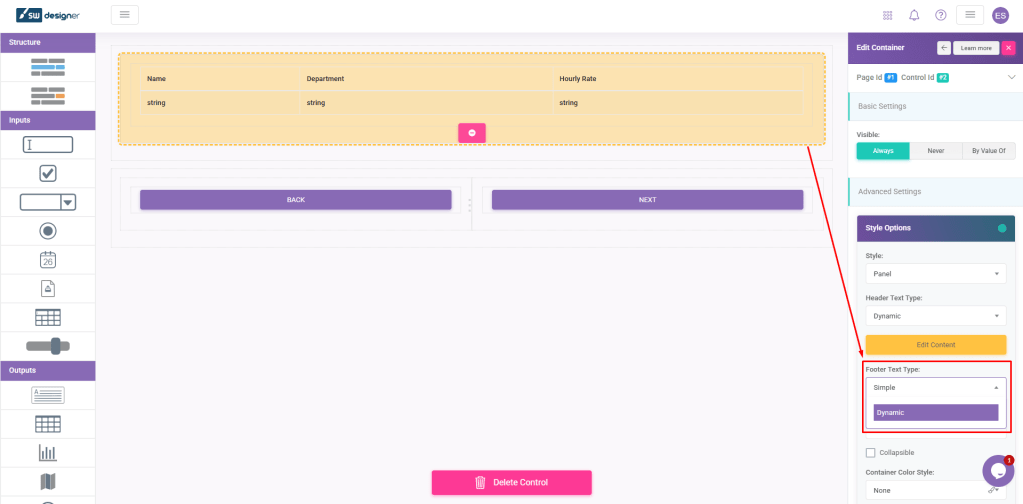
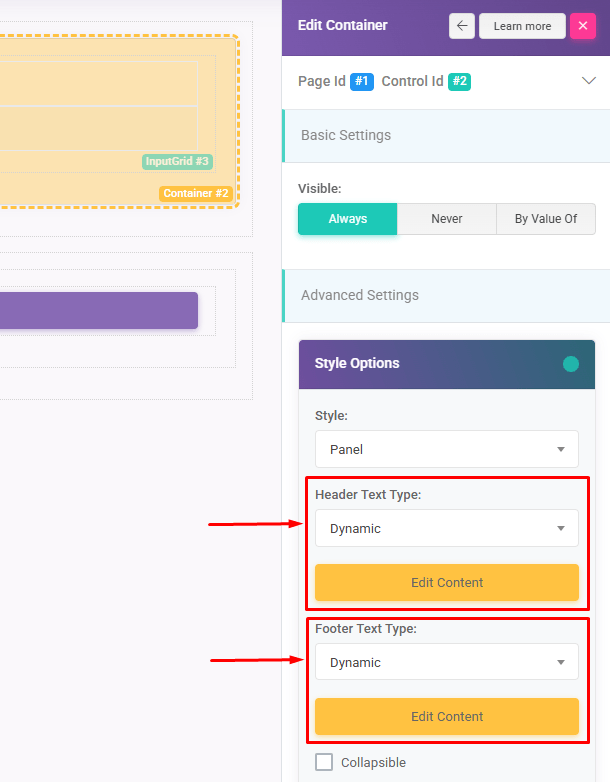
Dynamic Header and Footer
This feature is only applicable in Panel style. Go to the section settings and assign dynamic names based on your application’s logic.