
Scripts
Scripts allow you to modify the behavior of your applications by executing additional JavaScript functions at various points of the application session lifetime.
This is an advanced feature and requires some knowledge regarding scripting and programming. It is intended for complex use-cases, where the already robust tool set provided by the SpreadsheetWeb Designer does not handle the expected or desired behavior. This feature is only available on private Hub servers and to cloud users that own a Pro workspace license.
Before this feature exits beta, this page will be populated with the requisite hooks and actions that can be used while implementing scripts against our SpreadsheetWeb Designer Runtime JavaScript API. Additionally, we will be including sample scripts and functions for a variety of different common tasks. If you are looking for that documentation, please be patient while we finalize the public API over the next few months.
Some of this documentation is already available in-code viewing the scripts page. For example, entering “pagosApp.” into the scripts view will display an Intellisense prompt that will document the reference properties and object structures. Reviewing these tooltips is a means to begin working with the Scripts module while we wrap up developing the functionality to its fully-intended scope.
Creating Scripts
The Designer script editor is comparable to generating JavaScript code for utilization in any web application. All JavaScript features are valid for utilization in your script. For more information and tutorials regarding the creation of JavaScript code, please visit the w3schools website.
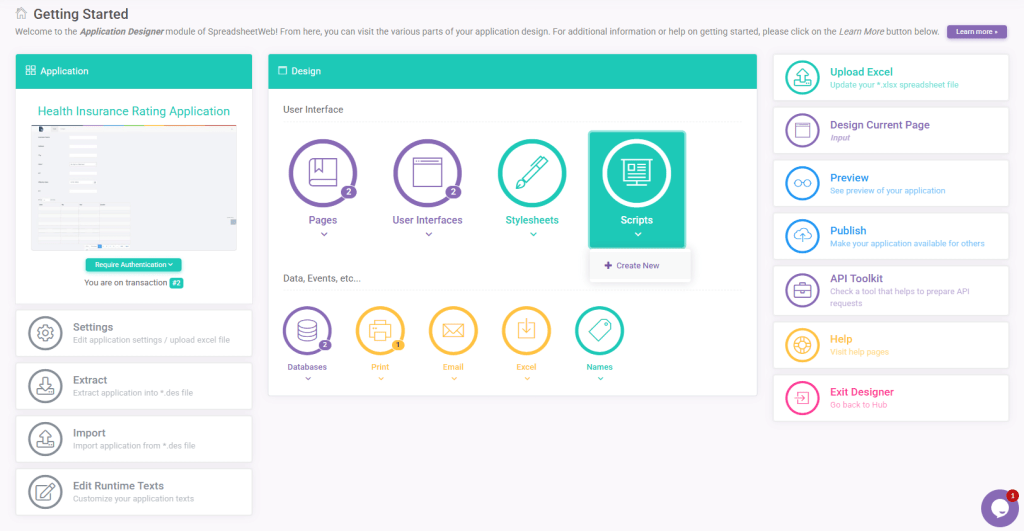
To create a new script, simply click on the Add Script button.
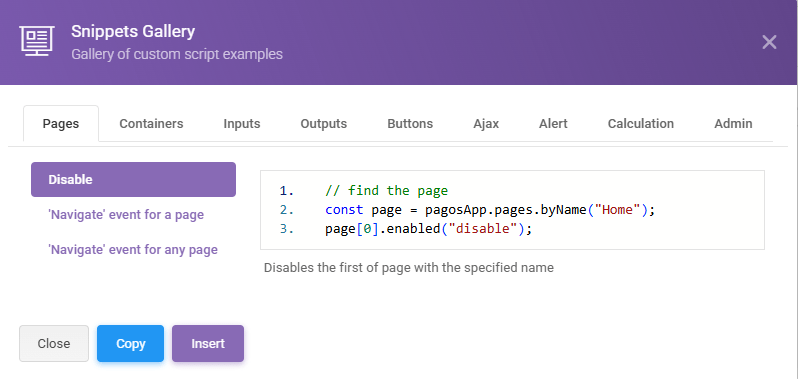
A library of code samples, organized into various subjects and categories, serves as a resource for users seeking practical guidance and ease of use. This extensive collection covers a plethora of topics. Each category is tailored to address specific areas of interest, enabling users to navigate effortlessly to the relevant section. These code samples are crafted and reviewed for clarity, accuracy, and best practices.
There are two primary types of code snippet: hooks and actions. A hook registers an action that will be executed upon the occurrence of a specific event (e.g., “when a button is clicked” or “when the value of a textbox is changed”). An action is the express execution of a specific functionality as it pertains to the underlying SpreadsheetWeb runtime (e.g., “set the value of a dropdown” or “go to this page”). Both can be used in conjunction with one another (e.g., “go to this page when the user enters a specific value into a textbox”) or in conjunction with standard JavaScript events (e.g., “go to this page when user clicks on this box” or “change the color of this textbox when the value is greater than 200”).
Many of these functionalities have corresponding snippets, and you can stitch them together as necessary to perform your desired functionality. Also, feel free to reach out to the SpreadsheetWeb Support Team for help crafting these scripts in order to meet your specific goals within the application.
Editing Scripts
To edit an existing script, simply click on the script container with the name of the script that you would like to modify.

Deleting Scripts
To delete an existing script, simply click on the Delete button in the upper right-hand corner of the script while hovering over the container.
Note that deleting a script is a permanent action. The script will not be recoverable (unless it was published on a previous transaction and the current transaction is deleted/restarted).