
Power Queries
The Power Queries module enables you to import your Power Query scripts directly from your Excel file into a SpreadsheetWeb application. This allows you to seamlessly import data connections, transform, and utilize data within your SpreadsheetWeb application without requiring additional coding. With this feature, you can create advanced reporting tools, interactive dashboards, or any data-driven applications. Please note that the Power Queries feature is available exclusively with Private Cloud and Server licenses.
Adding Power Queries
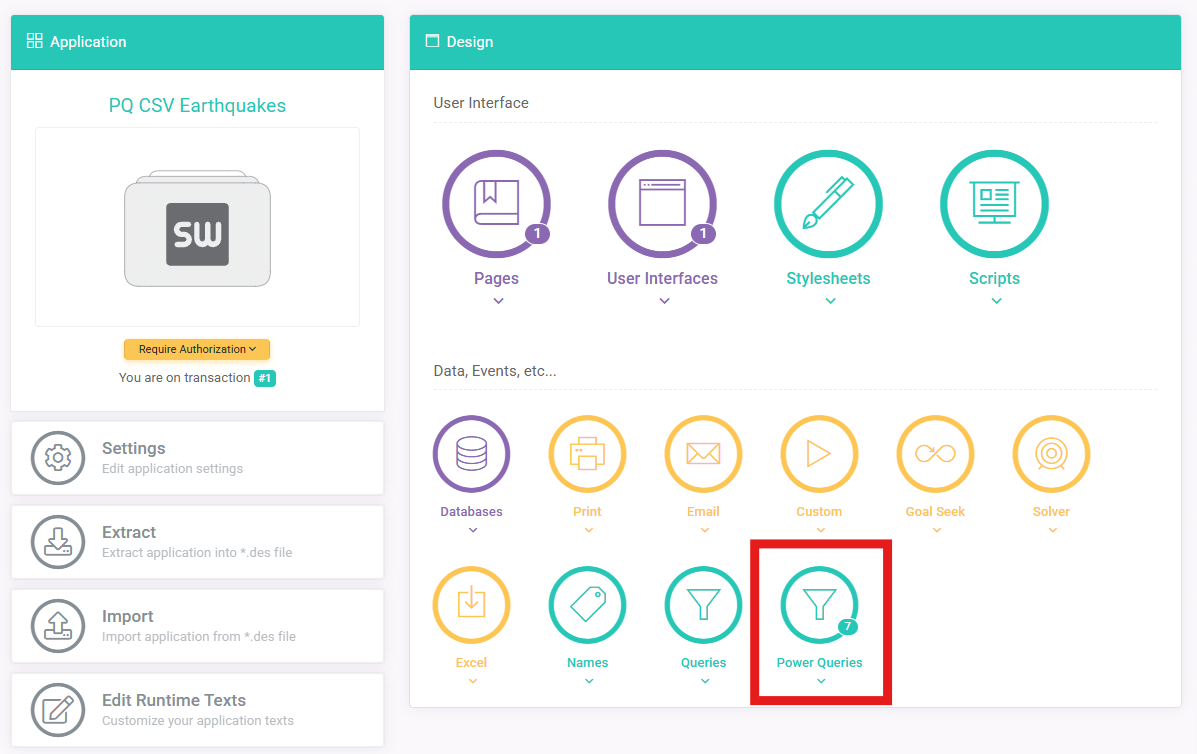
Currently, Power Queries can only be incorporated into your SpreadsheetWeb application by uploading an Excel file containing the queries. Once you’ve uploaded an Excel file that includes Power Queries, these queries will automatically become available within the Power Queries module of the Designer interface. You can then access, review, and manage these imported queries directly from the Designer.
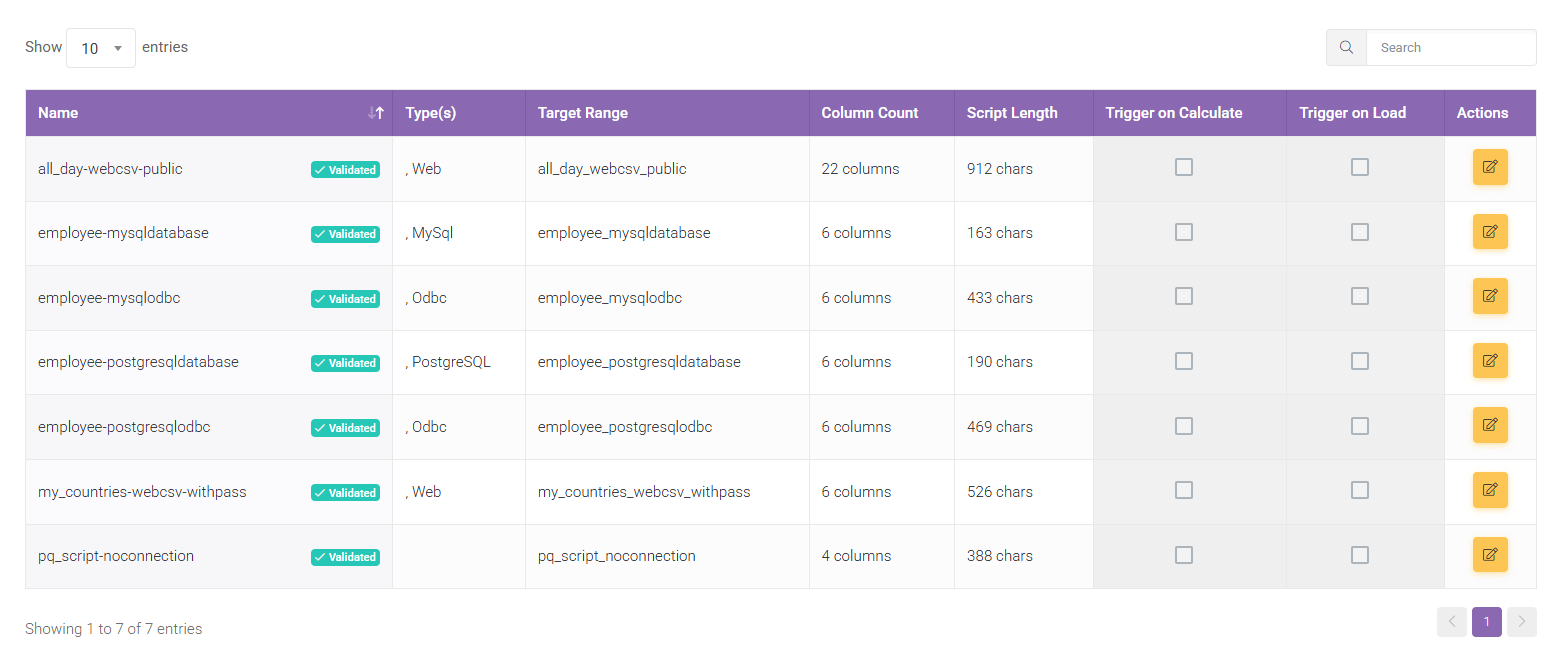
The list page displays the names of all Power Queries identified within the uploaded Excel file. Each entry in the list also indicates the type of data connection used by the respective Power Query, such as Web, ODBC, MySQL, or PostgreSQL. The “Web” type encompasses both file downloads from URLs—such as CSV or XLSX files—and direct connections to APIs.
Additional details provided on this page include:
-
Target Range: Specifies the named range within the Excel workbook where the output data from the Power Query will be inserted.
-
Column Count: Shows the total number of columns retrieved by the query.
-
Script Length: Indicates the size or complexity of the query, measured by the number of characters in the M script. “M” is the scripting language used by Power Queries to perform data transformations and manage connections.
Editing Power Queries
To modify or update a Power Query’s details, you can click the Edit button located in the Actions column. This allows you to review or adjust query settings directly within the Designer interface.
This page is divided into two main sections: Power Query Script Details and Edit Power Query Connection or Trigger Options.
1. Power Query Script Details (Read-Only)
The Power Query Script Details section is read-only and displays information about the query as loaded directly from your uploaded Excel file. The details shown here include:
-
Query ID: A unique identifier automatically assigned to the query for internal reference.
-
Query Name: The descriptive name assigned to the query within Excel, helping you easily identify and reference it.
-
Target Named Range: The designated named range in your Excel workbook where the Power Query results will be inserted.
-
Column Names: Lists all columns returned by the Power Query, reflecting the structure of the data retrieved.
- Found Named Ranges: Lists named ranges referenced in M-script if CurrentWorkbook method is invoked to dynamically link and pass references directly from your workbook into your PowerQuery operations.
-
Connection Count: Indicates how many distinct data connections or sources the query interacts with. Currently, a maximum of two connections per Power Query is supported.
-
Power Query Script: Displays the complete M-script, which contains the logic and transformation steps applied in the Power Query.
2. Edit Power Query Connection or Trigger Options
This section provides various configuration options for managing your Power Query within SpreadsheetWeb. These settings allow you to control how and when your queries are executed, manage authentication methods, and review connection details.
Configuration Options
-
Trigger on Calculate: When enabled, this setting runs the query every time a calculation event occurs in your application. Note: Use this option sparingly and only for simple, lightweight queries, as frequent execution of complex queries can significantly degrade application performance.
-
Trigger on Load: When enabled, the query runs once each time your application loads. Recommendation: This is the most commonly used and recommended setting for most scenarios, as it ensures data freshness without affecting ongoing application performance.
-
Connection Source Kind (Read-only): Displays the type of connection established by the Power Query, such as Web, ODBC, MySQL, or PostgreSQL. This information is extracted directly from the uploaded Excel file.
-
Connection String JSON (Read-only): Provides the detailed connection parameters in JSON format. This information is derived from the original Excel file’s Power Query configuration, clearly outlining connection specifics.
-
Source Path: Specifies the URL or file path to the external data source used by the Power Query. This is the link or reference from which the data is retrieved.
-
Authentication Kind: Allows you to select the authentication method required for accessing the external data source. Available options include:
-
Anonymous: Select this option if no authentication credentials are required.
-
Username Password: Use this option when authentication credentials are necessary. Since Excel’s security settings do not allow credentials to be extracted directly, you must manually provide the username and password here.
-
Action Buttons
-
Update: Saves all changes made to the Power Query configuration in SpreadsheetWeb.
-
Reset: Restores all configuration options to their original state, as defined in the Excel file. Important: Using this option will remove any manually entered credentials (username and password), requiring you to re-enter them if needed.
-
Validate: Performs a comprehensive check on the connection settings and the Power Query M script to ensure they are correctly configured and fully operational. Each query must pass this validation step before it can be integrated and used within your application.
-
Back to Power Queries: Navigates back to the main listing page, displaying all available Power Queries imported from your Excel file.
