
Names Editor
Names Editor
The “Names” module of the SpreadsheetWeb Hub Designer facilitates the management of named ranges in spreadsheet applications. Named ranges allow users to assign descriptive names to specific cell ranges, enhancing formula clarity by replacing cell references with easily understandable names. This documentation outlines the module’s functionality, including the recent updates and operational nuances, mainly focusing on default values, formulas, and formatting within named ranges.

Module Components and Functionality
The Names Editor in SpreadsheetWEB streamlines the process of managing named ranges, providing a more efficient way to update data. Instead of the slow, cell-by-cell data modification approach in Excel, this tool enables bulk updates and quick access to frequently-used named ranges. Such capabilities are especially valuable for datasets that require regular modifications, minimizing the effort and reducing the process to a few simple clicks.
Additionally, this feature eliminates the need for downloading, altering, and re-uploading Excel files for making changes to applications. Direct updates via the web interface enhance efficiency and save valuable time. This is particularly important for handling dynamic data, making the management process more user-friendly and straightforward.
Modal Window for Formatting
A modal window appears after double-clicking a selected cell, enabling users to modify the format string. This window validates the format, issuing errors for invalid inputs. It also allows for adjusting value types, with stringent checks for Boolean values to ensure they are either TRUE or FALSE.
Multi-cell Update
Users can select multiple cells (within the same column) using the CTRL key (or SHIFT for contiguous segments) and assign a uniform value to these selections, streamlining the data update process.

Copy and Paste Functionality
This feature allows data to be transferred directly from Excel files into the spreadsheet, simplifying data entry and updates.
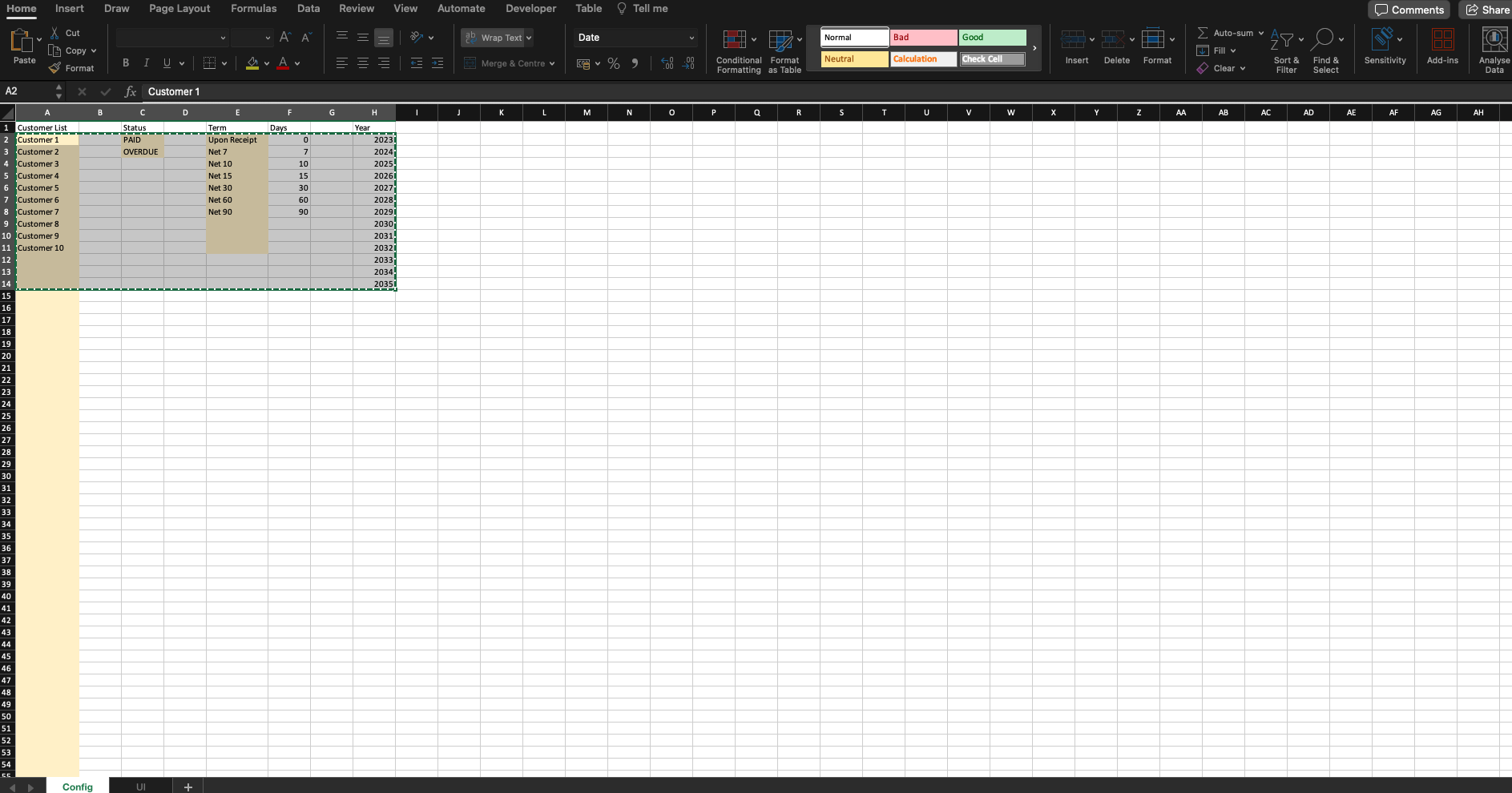
Also, empty cells in the source material will not result in data being copied.
Default Value
The module enables the assignment of initial values to named ranges, aiding in form resets and the creation of new records. Importantly, while default values can be set, formulas within these ranges cannot be overwritten through this module.
Value Type
Dictates the data type (e.g., String, Number, Boolean) expected within the named range, ensuring data consistency.
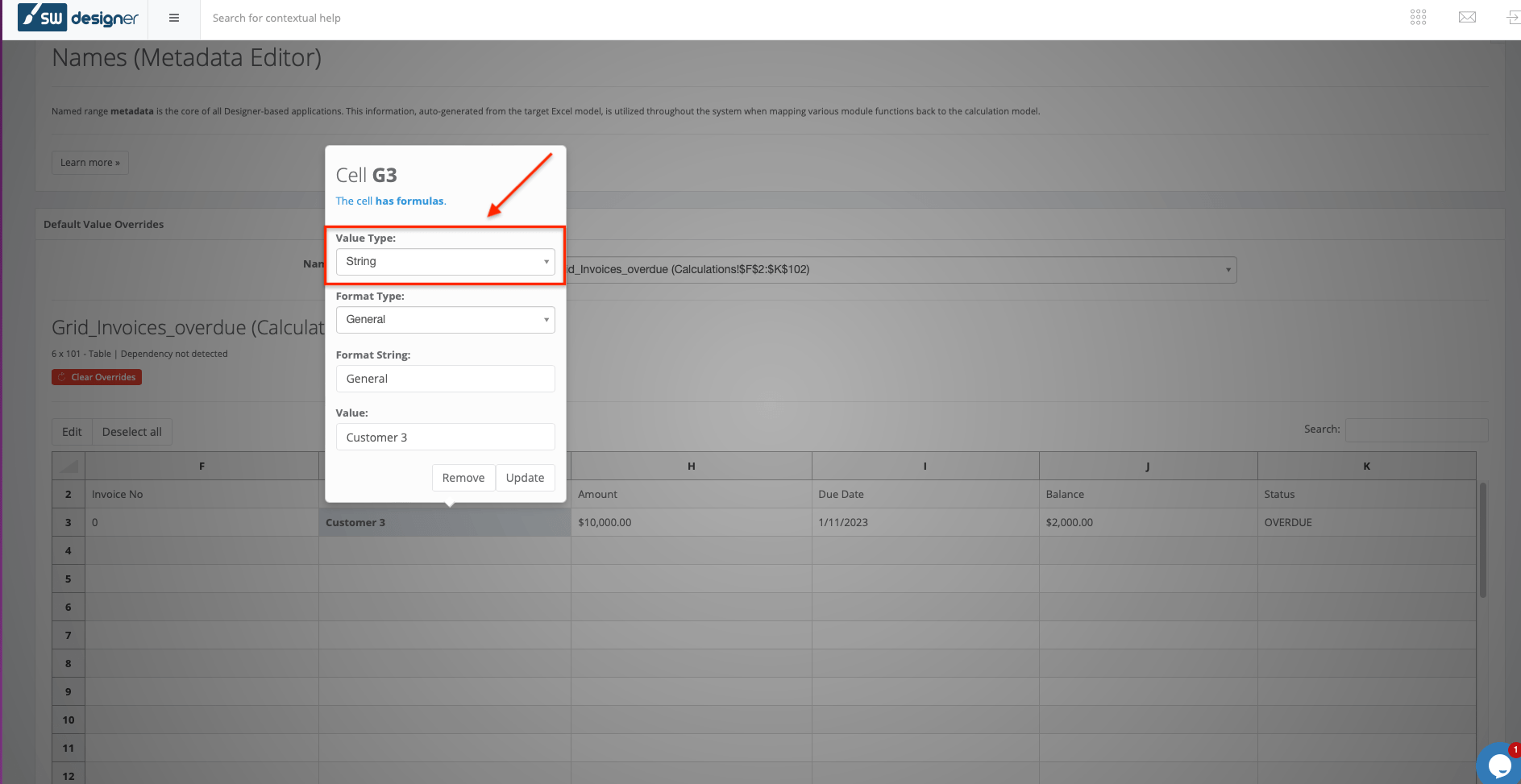
Format Type
Describes the cell formatting applied to the named range (e.g., General, Text), which is crucial for data presentation and interpretation.

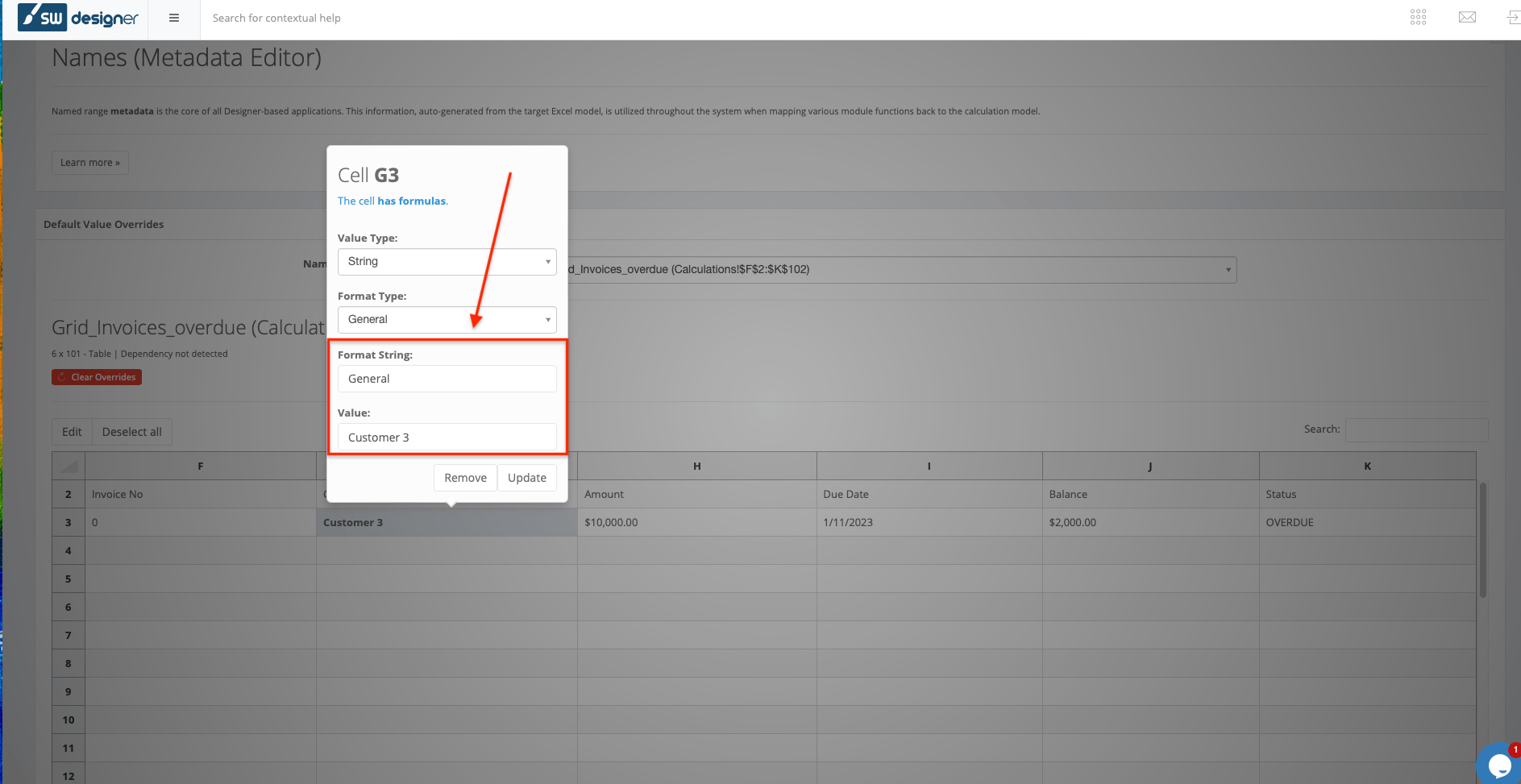
Format String and the Value
The format string is used as a template or pattern for formatting the cells within a named range. It helps in specifying the desired formatting, such as “$”,0.00″ for currency formats. For example, if the value is 100, it can be formatted as a currency, denoted by $100. These formats mirror the format behaviour in Excel.
Conditional Interface Adaptation
When creating a table named range, if the number of columns or rows exceeds 16 and the total cell count exceeds 1024, certain features will be applied to ensure stability and performance for extensive data sets. However, please note that the total cell count should not exceed 4096 cells in a table named range. If the total cell count is less than 4096, the table will display with the new UI in the Names editor. On the other hand, if the total cell count exceeds 4096 cells, the table will include the familiar older UI in the Names editor.

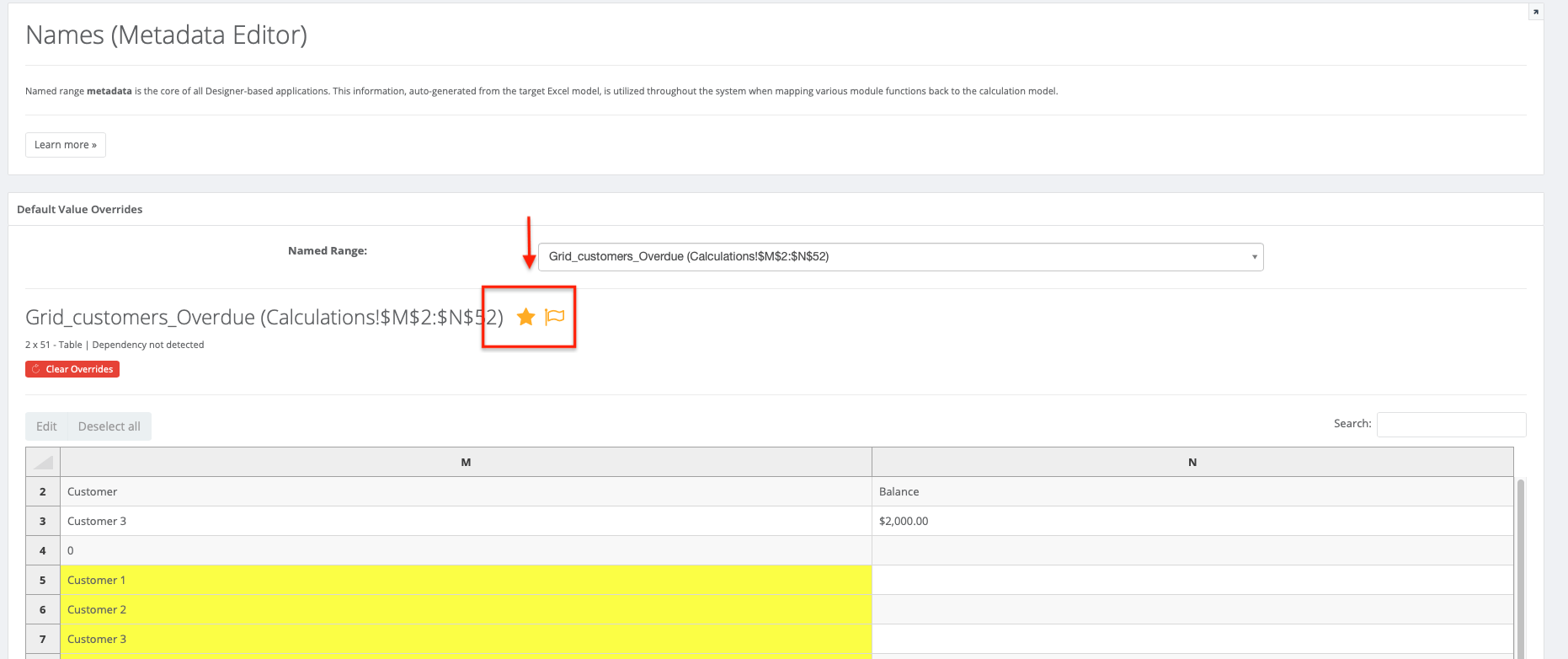
Favorite Named Range
Users can mark named ranges as favorites, facilitating quick access through prioritization in the dropdown list. This feature is handy for frequently-updated named ranges, enhancing data management efficiency.

Formatting Overrides
While the module prohibits modifying formulas within named ranges, it permits overriding formatting settings. This flexibility allows users to tailor the presentation of data within named ranges without altering the underlying computational logic.
Persistent Named Range Overrides
Marking a named range as including persistent named range overrides will ensure that the overrides persist across all requests to the engine. This is particularly useful for output ranges and reference data (e.g., a list of rates that is not modified by the UI).
If you do not enable this for a range that is not bound to an input, then the values will only be set as “defaults” (i.e., only on the first request) and will subsequently be overwritten. Conversely, if you enable this flag for a range that is bound to an input control, it will consistently overwrite that control’s values that are set from the interface.