Application Themes
Generate and refine SpreadsheetWeb themes with AI, review temporary previews, save workspace presets, and apply coordinated styles to your application.
An application theme coordinates colors, fonts, display mode, backgrounds, and page styles. From release 26.11.0, eligible workspaces can generate and refine themes with AI and reuse saved themes within their workspace.
You remain in control of the result. Generating a suggestion, previewing it, saving it as a preset, applying it to a draft, and publishing the application are separate actions. You can continue to use built-in themes or configure appearance manually without using AI.
Before you begin
- Open an application you are permitted to design.
- Use Version V2 for theme generation. Review custom stylesheet compatibility before switching an older application.
- AI generation availability depends on the workspace and server configuration. Saved presets are subject to the workspace plan's allowance.
- Plan to review the whole application. A theme is application-wide, not limited to the page currently selected in Designer.
Open Application theme
- Open Designer and go to Layout & Controls.
- In Page overview, choose Change app theme.
- Use Theme to choose an appearance or Generate Theme to create an AI suggestion, where available. The same dialog also includes Backgrounds, Fonts, and Charts & inputs.
If the application uses V1, review the Enable Version V2 setting. The compatibility warning explains that V2 changes the application's HTML and styles. Existing custom stylesheets may need to be disabled or reviewed for compatibility; you can cancel instead of switching.
After choosing to switch, select Save app theme to apply the V2 change to the draft. Designer refreshes; reopen Change app theme to continue. Test older custom CSS and all important pages before publishing. See Stylesheets for custom styling guidance.
Generate a theme with AI
- Open Generate Theme and choose Create new.
- Describe what the application does and how it should feel. The request field allows 250 characters. Give concrete guidance about colors, mood, typography, and audience.
- Review the current theme and Included page styles so you understand the starting point.
- Select Review & generate.
- Read the review showing the AI service, model, and context to be shared. Agree to generation only when you are comfortable with that information.
- Review the suggested theme before saving or applying anything.
For example, describe a workshop-planning application with warm paper tones, a rose accent for important actions, and readable typography. Describing the look directly is more useful than relying on a website address. The walkthrough's request to match a website produced an unverified suggestion; do not assume the service browses a supplied URL or verifies brand accuracy.
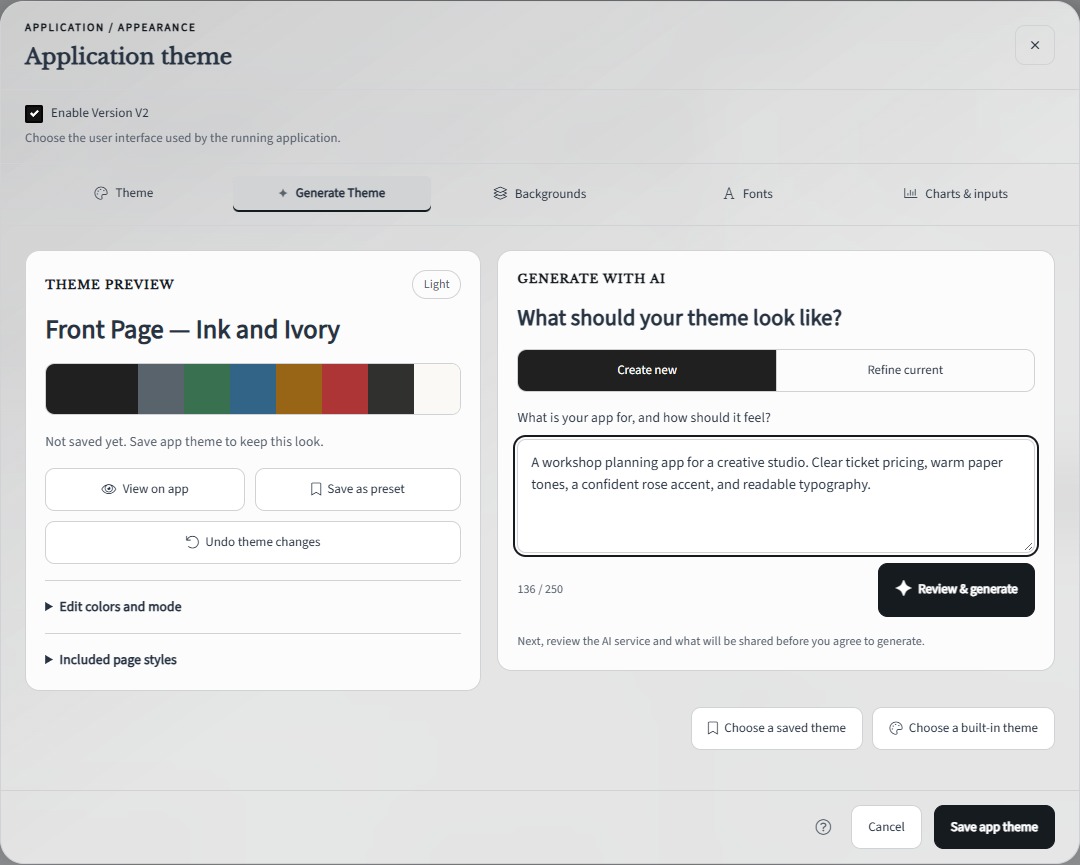
Official November release example. The preview name, colors, and sample request illustrate the workflow; they are not required values.
Review what is sent
The generation review explains that the request and theme choices are sent to the AI service. Workbook contents and application data are excluded from that described context. Check the current review before each generation rather than assuming an earlier provider or model is still selected.
Text you type into the request is part of the request being shared. Do not paste credentials, confidential records, or customer information into it. A statement that application data is excluded does not remove sensitive information that you enter yourself.
Theme generation and SEO suggestions contribute to workspace AI usage. Workspace owners can review token totals and activity details in Analytics.
Preview the result
The result can include a theme name, palette, font choices, display mode, background, navigation, loading appearance, and transitions. Compare the interactive sample rather than judging only the color swatches.
- Move through the sample pages and inspect headings, controls, and labels.
- Use Play loading screen and Replay transition when those controls are offered.
- Check background movement and the result in the selected display mode.
- Use View on app to inspect your own pages with the temporary theme preview. The walkthrough also refers to this as previewing on your app.
- Use Undo theme changes if you do not want to retain the temporary selection.
A preview is not a saved application change. Review the dialog or side-panel message indicating that the look has not been saved. Select Save app theme only when you want to apply it to the draft.
Refine a generated theme
If a generated theme is close to what you need, select Refine current. Describe the adjustment, such as a quieter palette or easier-to-scan headings, or use an available suggested refinement. Review the service and context again before generating the refinement.
Inspect the revised result using the same sample and application previews. A refinement request does not guarantee that every existing style choice remains unchanged.
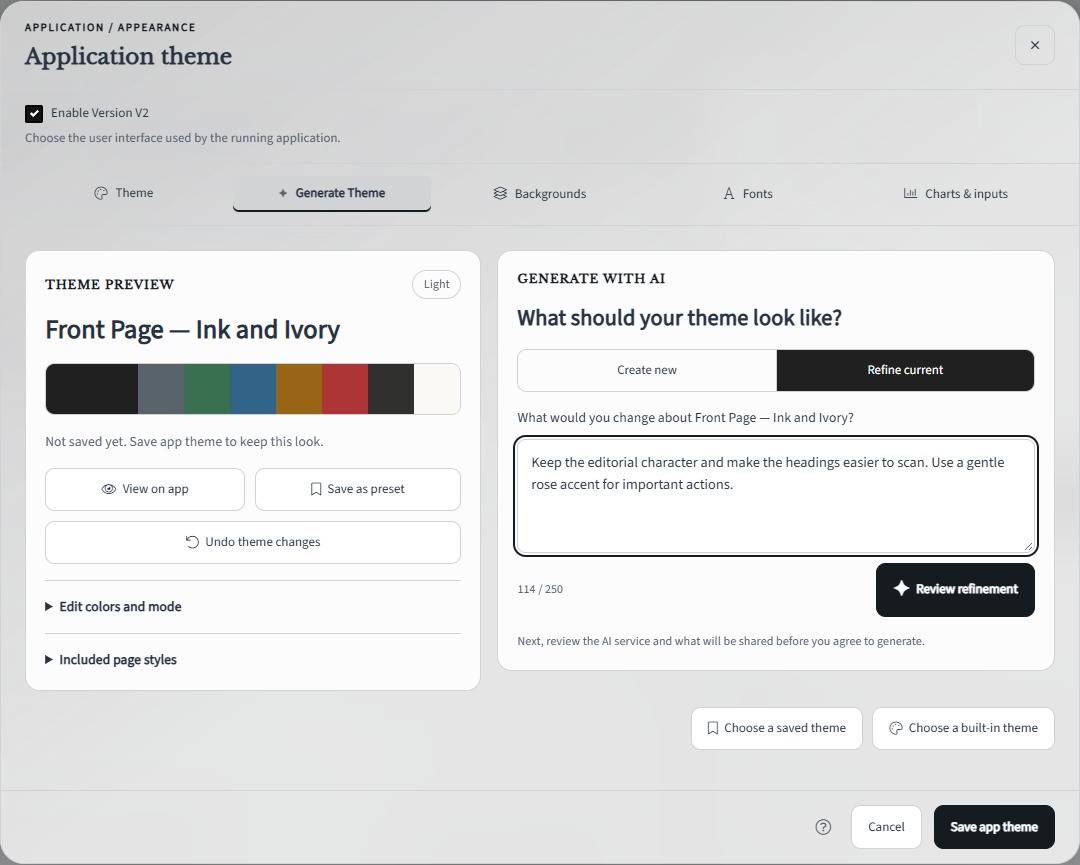
Official November release example: refining the current generated theme rather than starting a new one.
Save a theme as a workspace preset
When a generated look is useful for other applications, use Save as preset where available. Follow the dialog to save it to the current workspace.
A preset can retain a coordinated combination of colors, fonts, display mode, background, and included page styles. It is a reusable starting point for applications in that workspace, not a command to publish or update every application that might use it.
Saving the preset does not apply it to the current application. The walkthrough explicitly shows a confirmation that the theme was saved to the workspace while application settings had not changed. Apply it separately as described below.
The saved-theme count and allowance depend on the plan. If the library reports that the preset limit has been reached, review the offered replacement, deletion, or upgrade options. Do not assume the example library's limit applies to every workspace.
Choose and apply a saved theme
- Open Change app theme and choose Choose a saved theme.
- Browse the workspace library. Theme cards show the available palette and information such as mode and font.
- Select a theme to inspect its interactive sample. Merely choosing a card for preview is not the final save action.
- Review its controls, typography, background, navigation, loading treatment, and transitions. Read any message about included or retained page styles; an older preset may keep the application's existing page styles.
- Preview the look on the application and check the pages that matter to the workflow.
- Select Save app theme to apply the selected appearance to the application draft.
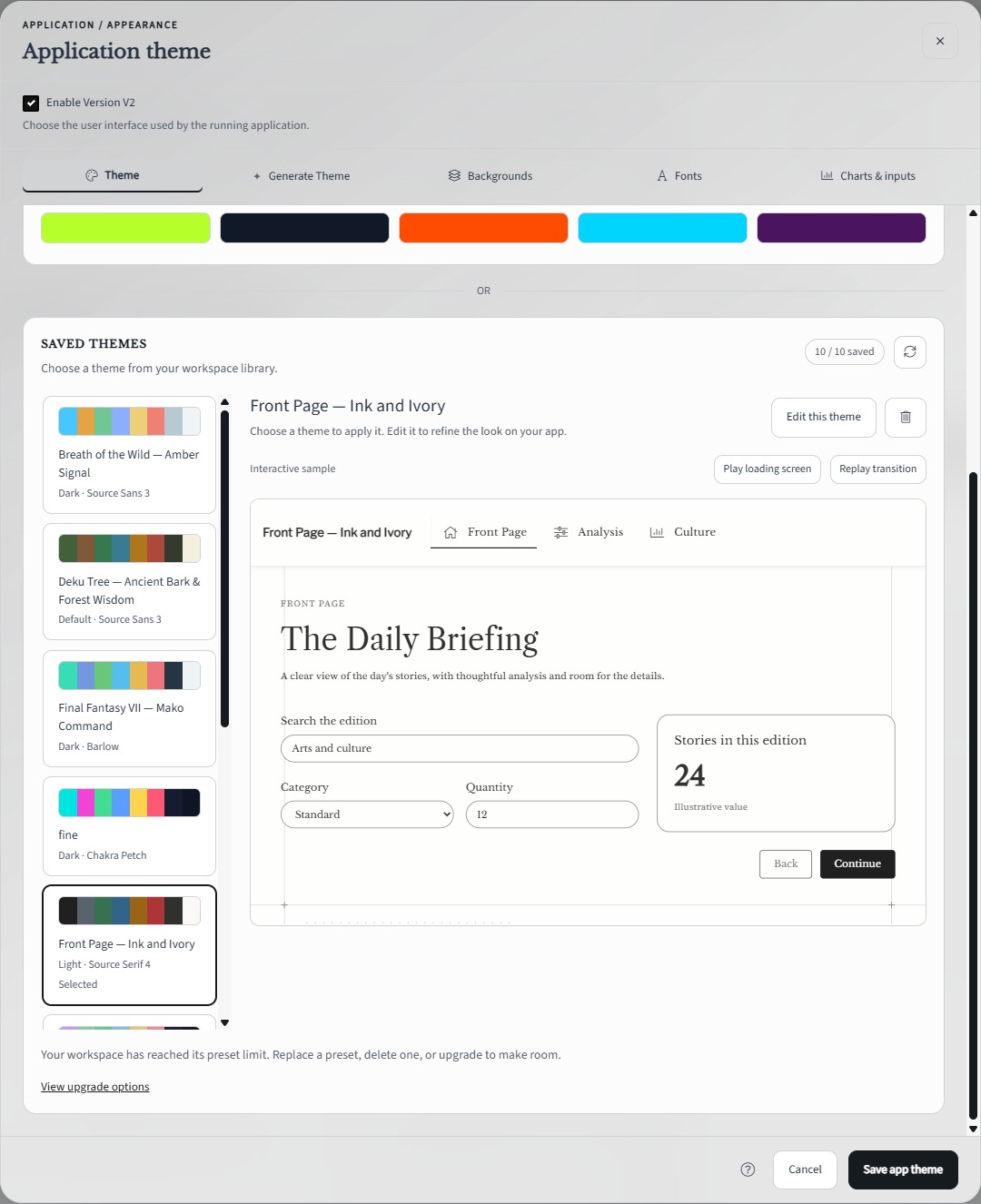
Official November release example: a selected saved theme with an interactive sample. The illustrated preset count is plan-specific.
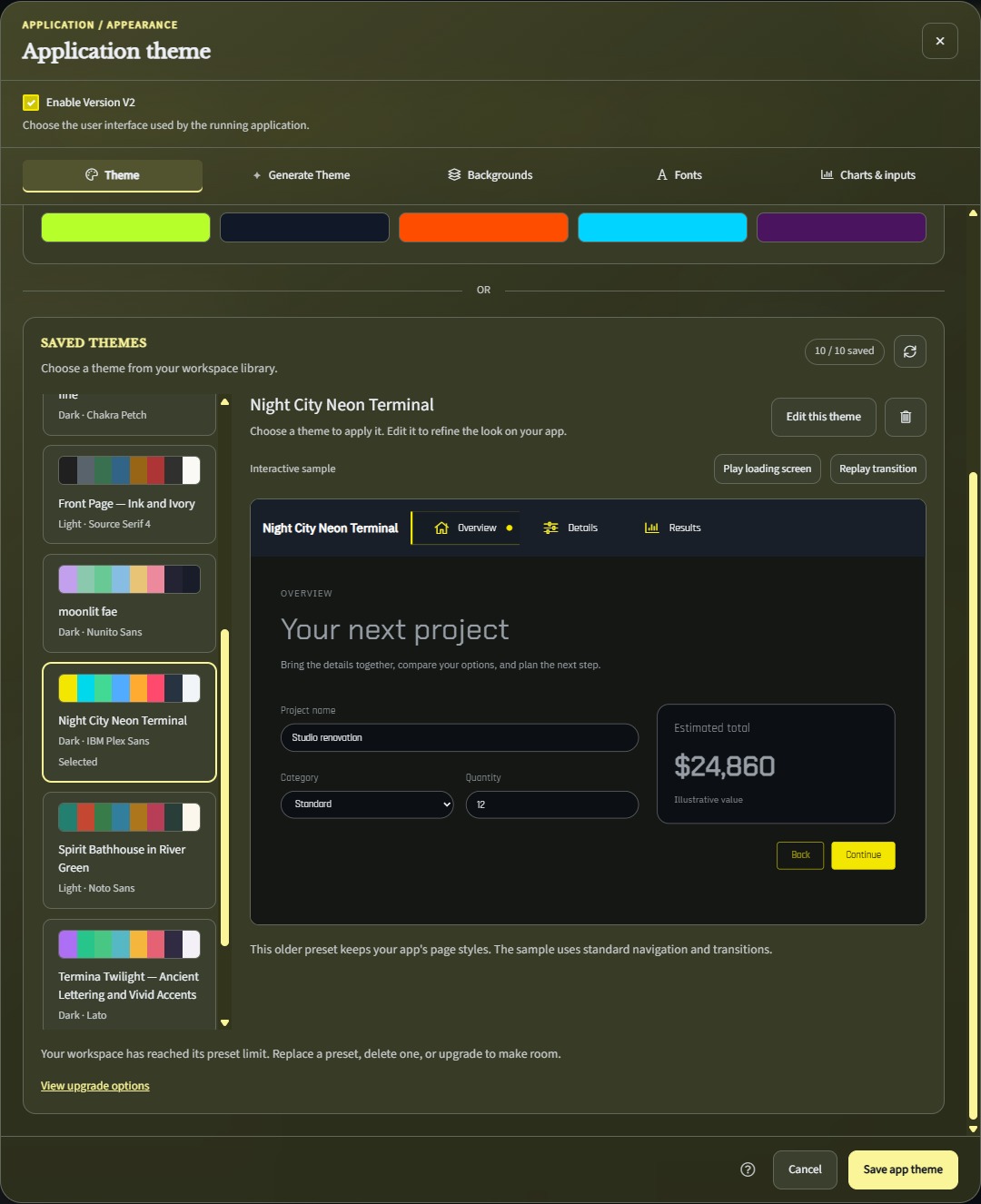
Compare a different preset before saving. Read the included-style guidance rather than assuming all presets contain identical settings.
Understand the save and publish actions
| Action | What it does |
|---|---|
| Review & generate or a refinement | Sends the reviewed request and context to the AI service to produce a suggestion. |
| Preview a theme or View on app | Lets you evaluate a temporary appearance without making it the saved application theme. |
| Save as preset | Stores a reusable theme in the workspace library. It does not apply or publish the application. |
| Save app theme | Applies the chosen appearance to the current application draft. |
| Publish the application | Makes the reviewed draft available to users of the published application. |
The explicit Save app theme action differs from page settings that save automatically as you edit. Do not use Done in a page editor as evidence that an application theme has been saved.
Verify the application before publishing
Check every important page in Preview, including mobile layouts, popup pages, charts, input controls, and validation messages. Review text contrast, long labels, keyboard focus, loading feedback, and transitions. If you migrated from V1, pay particular attention to custom CSS selectors and layouts.
For application-wide backdrop options, see Application Backgrounds. For page-specific navigation and animation, see Pages and Navigation. Popup overlays are covered in Popup Pages.
Publish the draft when the result is ready, then verify the published application. Neither a generated suggestion nor a saved workspace preset publishes an application by itself.
Watch the walkthrough
The video covers V2 migration, the AI request review, temporary previews, refinement, saving a preset, and applying a theme to an application.