Connect a Design to Your Workbook
Connect imported designs to workbook inputs and results, review labels and navigation, and resume guided setup from Page overview in SpreadsheetWeb Designer.
Workbook connections helps you finish a design by connecting its controls to your calculation model. It is particularly useful after importing a flow, page, or component from the Design Library, where the visual design is ready before the workbook references are assigned.
The guide checks across the application's pages for items needing attention, including workbook bindings, visibility, labels, and navigation. It helps you work through the design in context rather than maintain a separate list of disconnected controls.
Open Workbook connections
- Open Layout & Controls in the Designer.
- Open Overview to show the Page overview panel.
- Expand Workbook connections and let the connection check finish.
- Review the number of controls needing attention. When there are outstanding items, use the guide to work through them.
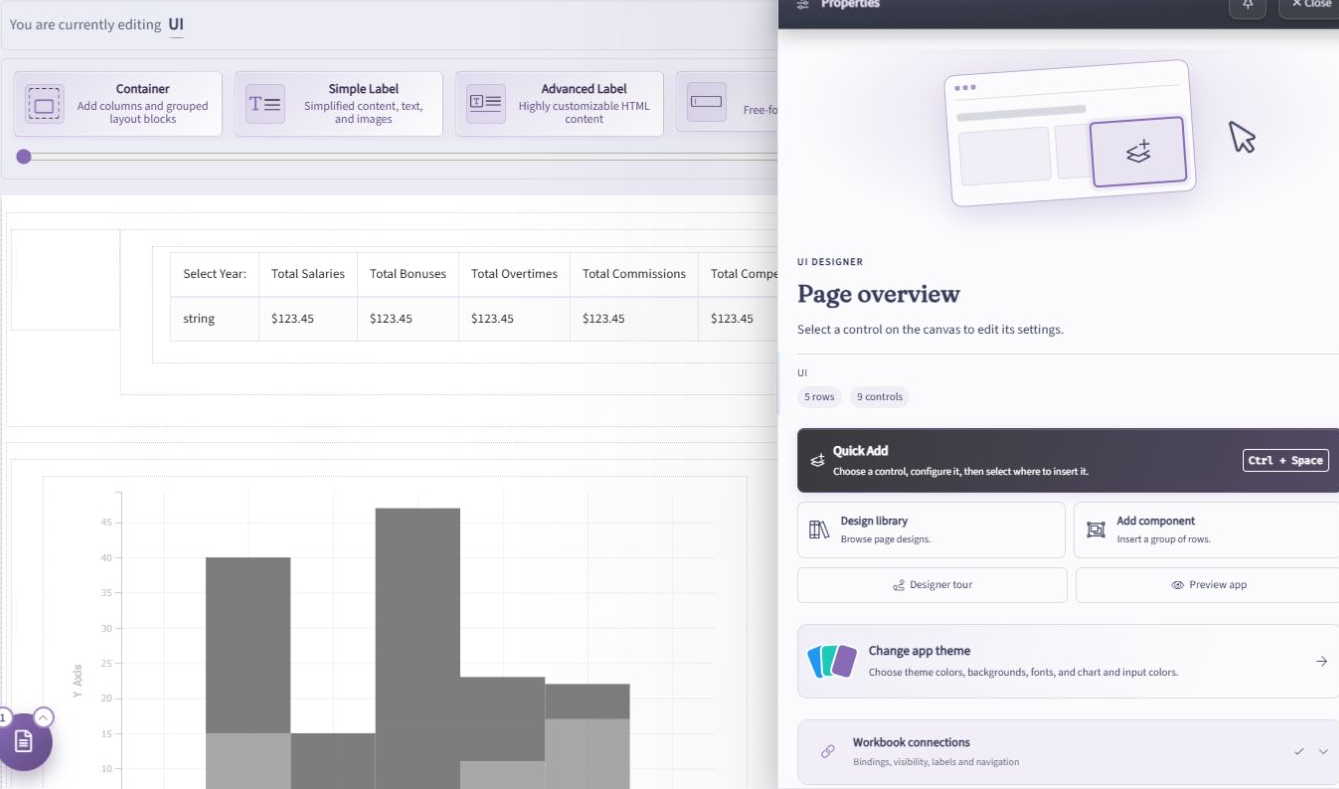
Connect controls to workbook values
During guided setup, the Designer highlights the control you are working on and keeps its settings available in the Properties panel. The guide can move between pages, so you do not need to find every control manually.
For each item, first identify what the control should do. An input should write to the intended input cell, while a calculated result should read the workbook's output. A selection list or grid may need a larger range rather than a single value.
- Read the current item's guidance and identify the highlighted control on the page.
- Review the control's Setup settings in the Properties panel.
- Select the appropriate workbook cell, named range, or table reference using the choices available for that control.
- Check that the reference has the right purpose and shape. For example, a single-value input and a two-dimensional grid should not be assigned the same kind of range simply because their names look similar.
- Continue to the next item, or skip the item and return when you have the information needed to finish it.
The available settings depend on the control type. See the individual UI control guides for details about required references and behavior. If you need to prepare or inspect workbook-based UI elements first, see Elements.
Review labels, visibility, and navigation
Do not stop at the numeric inputs and outputs. A complete imported design also needs meaningful labels and a working path through its pages.
- Labels: Replace sample wording or values with content that fits your application. If you kept sample label data during import, review the marked values and connect or replace them before publishing.
- Visibility: Check that conditions match your workbook and intended workflow. Test both the visible and hidden states where applicable.
- Navigation: Verify the destinations of buttons and links, especially when a multi-page flow was added beside existing pages. Review page order and the Home page in Pages and Navigation.
The connection guide assists with configuration; it does not decide which workbook values or business rules your application should use.
Pause and return later
You do not have to finish every connection in one session. Pause the guided work when you need to adjust a layout or investigate the workbook, then return to Overview and reopen Workbook connections to continue.
Use Check again to reassess the application after making changes. The check covers every page, not just the page currently on the canvas. Revisit skipped items before treating the design as complete.
Understand the ready status
When the check finds no outstanding connection items, the panel shows Connections are ready and 0 controls need attention. It also states that Preview will check the remaining app settings.
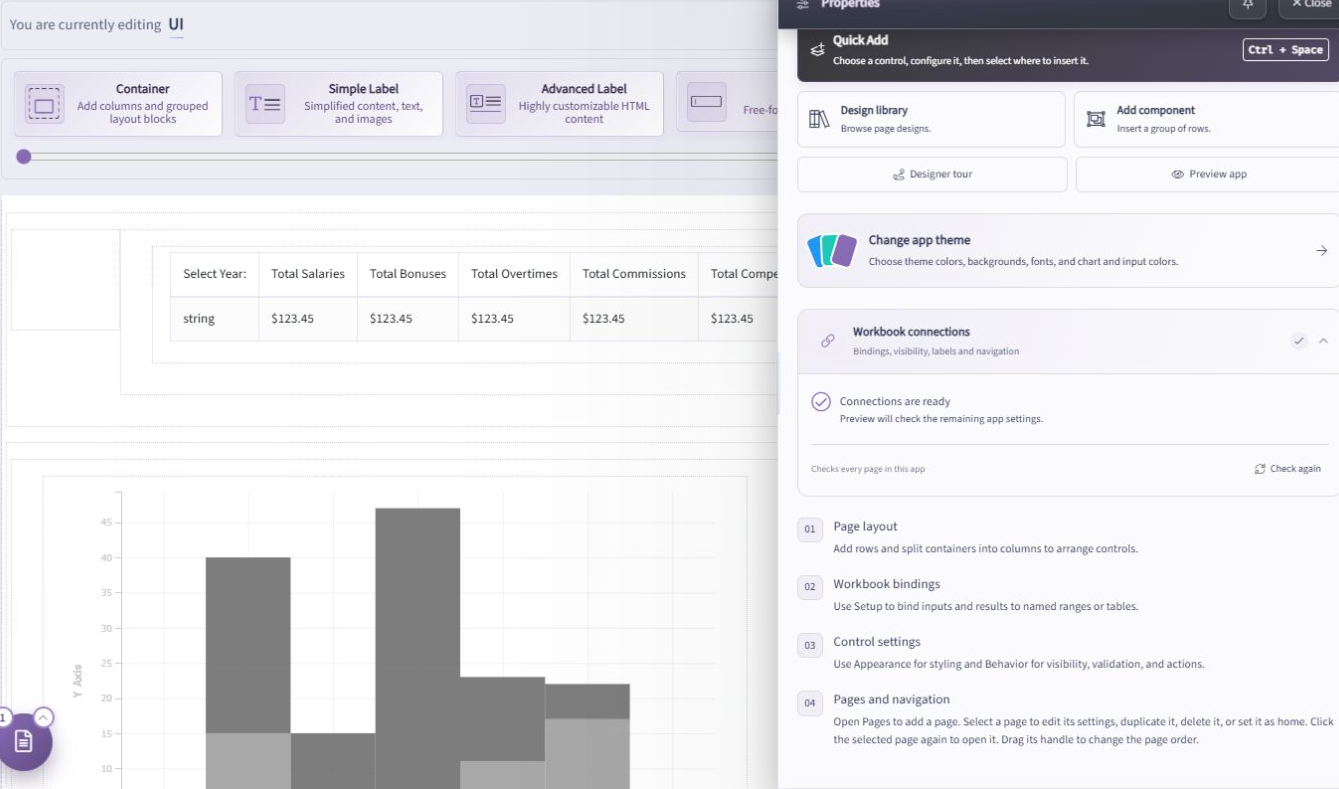
This status is not a substitute for testing calculations or confirming the application's business rules. A control can point to a valid range without pointing to the range you intended.
Preview before publishing
Use Preview app from Page overview and work through a realistic scenario. Change the inputs, confirm the calculated results against the workbook, and follow the page navigation from beginning to end. Include validation cases and any conditional controls.
Check mobile and tablet layouts as well as desktop. After applying library appearance suggestions, also review pre-existing pages that share the application's theme, fonts, or background.
Resolve the remaining issues in the draft, then use the normal publishing workflow when the application is ready. Completing workbook connections does not automatically publish changes.
See guided setup in action
This portion of the October 2026 demonstration shows the Designer moving through workbook connections after a design import.