Build an Application with the Design Library
Browse ready-made flows, pages, and components in SpreadsheetWeb Designer, preview responsive layouts, and import a design before connecting your workbook.
The Design Library gives your application a designed starting point. Browse complete multi-page flows, individual pages, or reusable components, inspect their responsive layouts, and add the design to your application. Then connect its controls to your own workbook in the Designer.
Use this workflow when you want to start with the experience your users will see rather than assemble every control individually. You still control the final layout, workbook connections, and application behavior.
Before you begin
Open an application with a user interface in SpreadsheetWeb Designer. If you have not created one yet, follow Creating an Application.
The library supplies layouts and controls, not your calculation model. Preview values illustrate the design; they do not establish connections to cells in your workbook. Have the workbook available so you can map the imported inputs and results afterward.
Open the Design Library
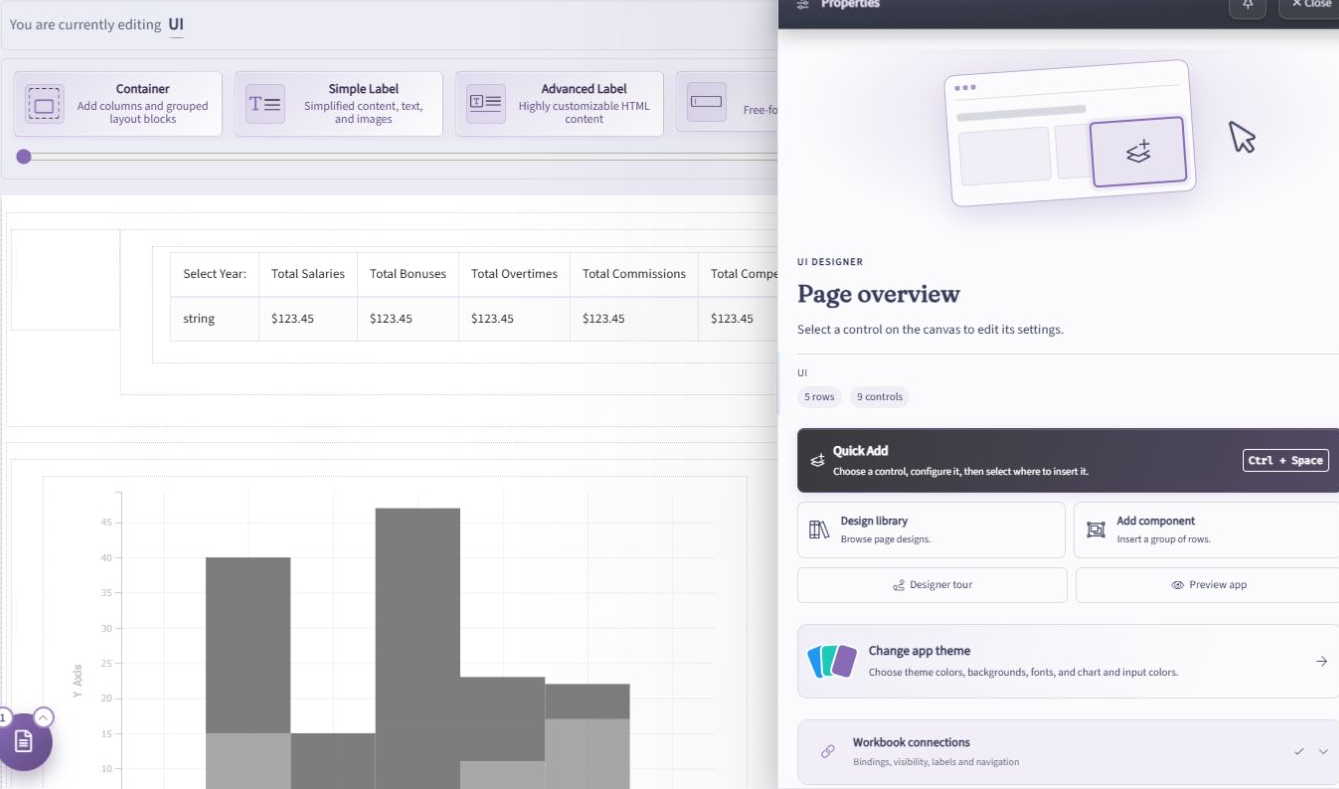
- Open Layout & Controls in the Designer.
- Open Overview to display Page overview in the Properties panel.
- Select Design library to browse flows and pages. To add a smaller group of controls to an existing page, select Add component instead.
Find the right starting point
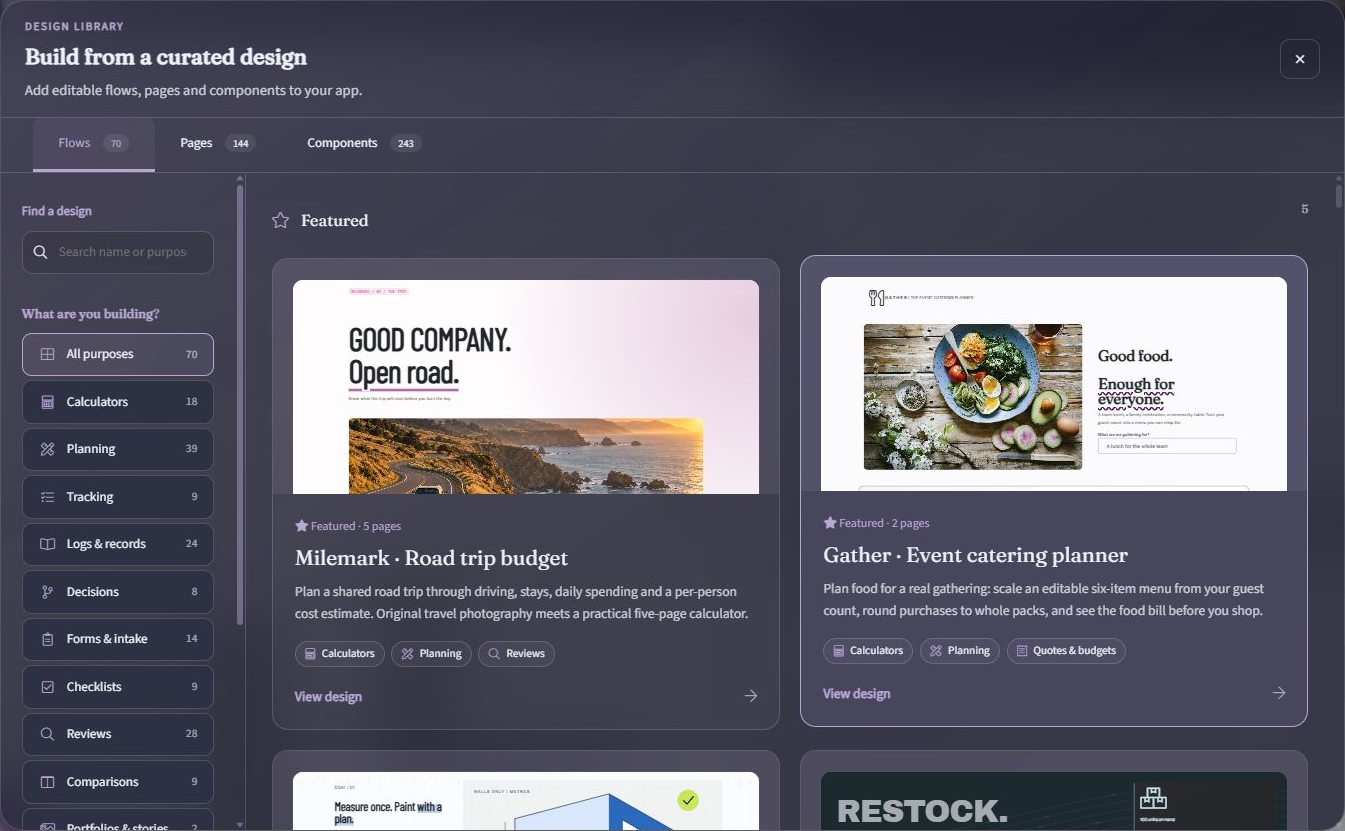
Choose a library tab according to how much of the application you want to add:
| Library type | What it adds | When to use it |
|---|---|---|
| Flows | A coordinated set of pages | Start with a complete journey, such as collecting inputs and reviewing results. |
| Pages | An individual screen | Add a landing page, form, calculator, or results page to an existing application. |
| Components | A reusable group of rows and controls | Add a smaller section without importing an entire page. |
Use Find a design to search, or narrow the gallery with a purpose filter such as Calculators, Planning, or Forms & intake. Select View design on a card to inspect it before importing.
Review a design before adding it
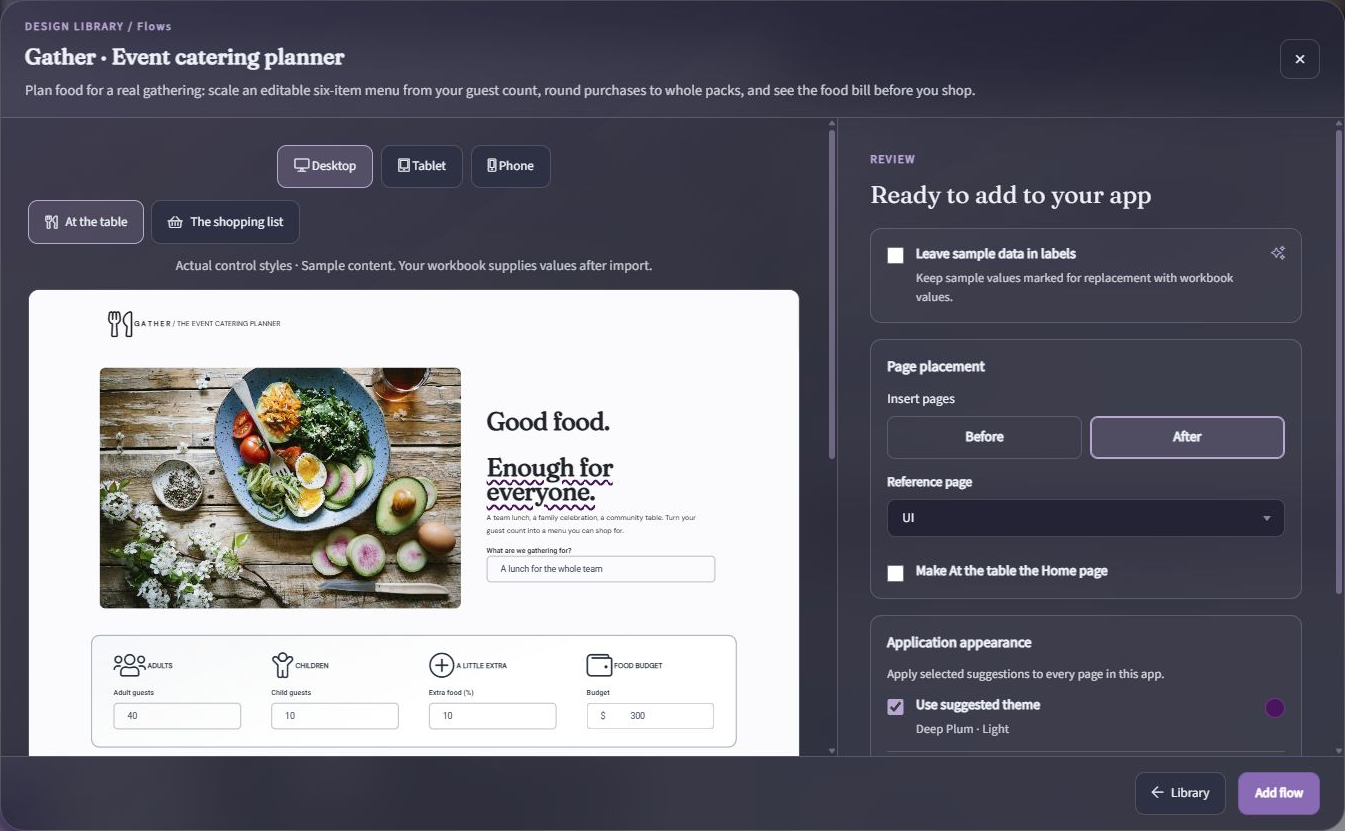
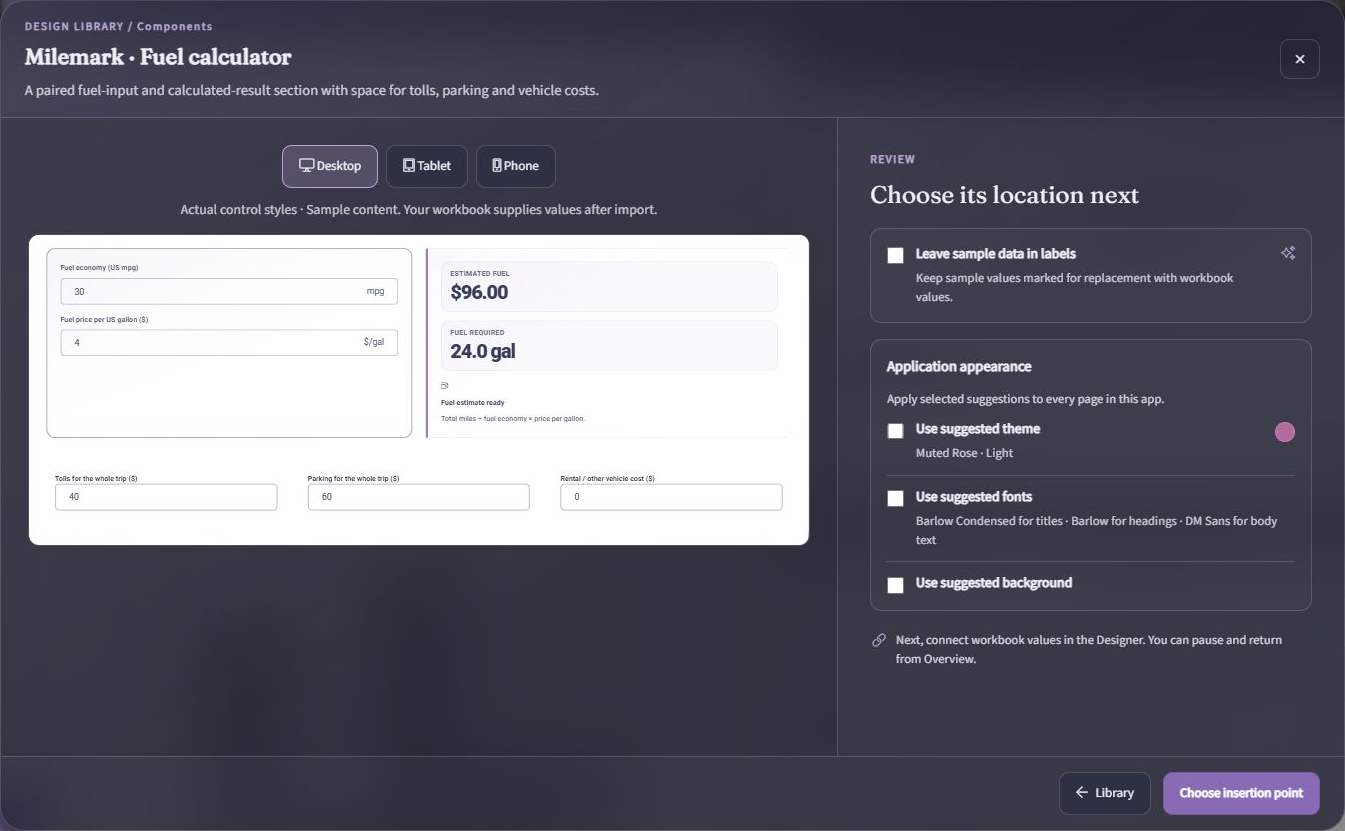
The preview uses the design's actual control styles with sample content. Switch between Desktop, Tablet, and Phone to inspect the layout at different screen sizes. For a flow, select each page in the preview to review the full journey.
For example, Gather · Event catering planner includes an input page and a shopping-list page. Reviewing both helps you identify which workbook inputs, calculations, and output ranges you will need after import.
Sample data in labels
Leave sample data in labels is off by default. Enable it only if you want to keep the example label values while you connect the design. Retained sample values are marked for replacement with workbook values; review these labels before publishing so example numbers are not mistaken for real results.
Add a flow or page
- Review the design and its sample-data option.
- In Page placement, choose Before or After.
- Choose the Reference page that determines where the imported pages belong in the existing page order.
- If appropriate, select the option to make the design's first page the Home page. Otherwise, keep the application's current Home page.
- Review Application appearance before confirming the import.
- For a flow, select Add flow. For an individual page, confirm the page import using the action shown in its review panel.
The imported pages become part of your application draft. Use the Pages drawer afterward to check their order, names, navigation, and Home page.
Review application-wide appearance changes
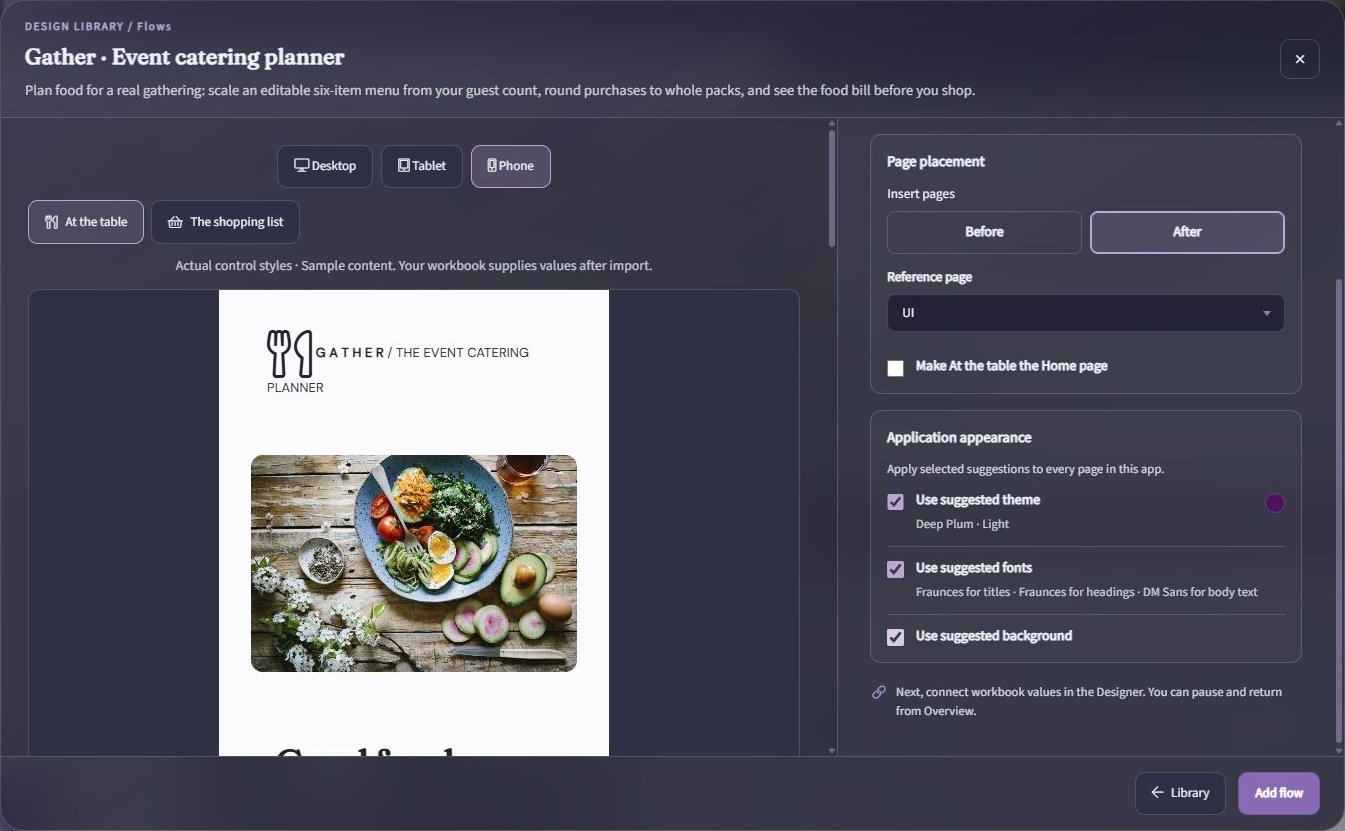
The review panel offers Use suggested theme, Use suggested fonts, and Use suggested background. Check the selections for the design you chose rather than assuming they are the same for every import.
These suggestions apply to every page in the application, not just the pages being added. Clear an option if you want to retain that part of the application's existing appearance. This is especially important when adding a design to an application that already has branding or custom pages.
Use suggested background changes the application's backdrop rather than creating a page-specific background. After import, open Overview → Change app theme → Backgrounds to review or replace it. See Application Backgrounds for gallery artwork, semantic accents, animation eligibility, and uploaded images.
Add a component to an existing page
- Open the destination page in Layout & Controls.
- Open Overview and select Add component.
- Find and preview a component, then review its sample-data and appearance options.
- Select Choose insertion point and choose the location on the canvas where the group should be added.
- Review the inserted rows and controls in the surrounding layout.
Unlike a flow or page import, a component is placed within the current page. It does not use the Before or After reference-page workflow. Its selected appearance suggestions can still affect the whole application.
Connect the workbook and verify the result
After importing, use Workbook connections from Page overview to connect inputs and results to the correct workbook data. You can pause the guided work, edit the layout, and return from Overview later.
Before publishing:
- Replace or connect retained sample labels and check that input and output controls use the intended workbook references.
- Check navigation between imported pages and any existing pages.
- Use Preview app to test representative inputs, calculated results, validation, and the complete journey.
- Review the application at desktop and smaller screen sizes, including existing pages affected by appearance changes.
- Publish only when the draft is ready for end users. Importing a design does not publish the application.
Other ways to build the interface
You can combine the library with the other Designer tools. Use Elements when you want to select workbook cells first and generate an interface from them. Use Quick Add or the control toolbar for individual additions and fine adjustments.
Watch the workflow
The October 2026 feature demonstration shows the library, import review, workbook connection guide, and page organization.