Application Backgrounds
Choose application background artwork, colors, or uploaded images in SpreadsheetWeb Designer, with semantic accents, animation options, and theme previews.
An application background provides the backdrop behind your pages. In the current Designer's Application theme dialog, you can choose gallery artwork, a solid color, the theme's default background, or an uploaded image without maintaining a custom background stylesheet.
The background is an application-wide appearance choice, not a separate background for the page currently open in the Designer. Review it with the content and controls on all of your pages.
Open the background settings
- Open your application in SpreadsheetWeb Designer and go to Layout & Controls.
- Open Overview to display Page overview in the Properties panel.
- Select Change app theme.
- Open Backgrounds in the Application theme dialog.
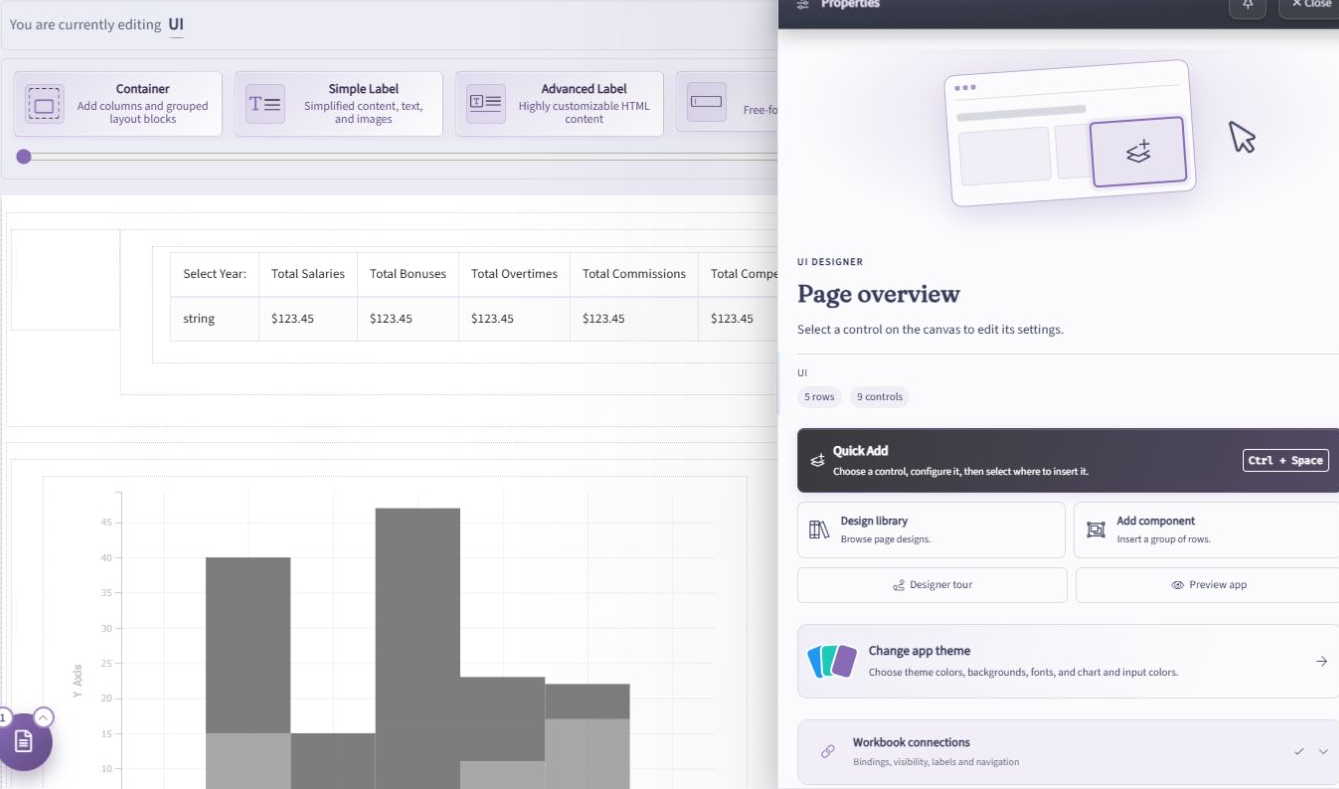
These instructions describe the current Version V2 appearance interface. Older videos may show background settings directly on the Application settings page. Do not switch an existing application's rendering version simply to follow a screenshot; review and test any rendering-version change separately.
Choose the background type
| Option | Use it when |
|---|---|
| Design gallery | You want built-in artwork that adapts to the application's theme and mode. |
| Solid color | You want a fixed background color rather than artwork. |
| Theme default | You want to use the background provided by the selected theme. |
| Uploaded image | You want to use your own background image. |
Selecting an option updates the dialog's preview. Use Save app theme to apply your choices to the draft, or Cancel to discard the unsaved preview selections.
Select gallery artwork
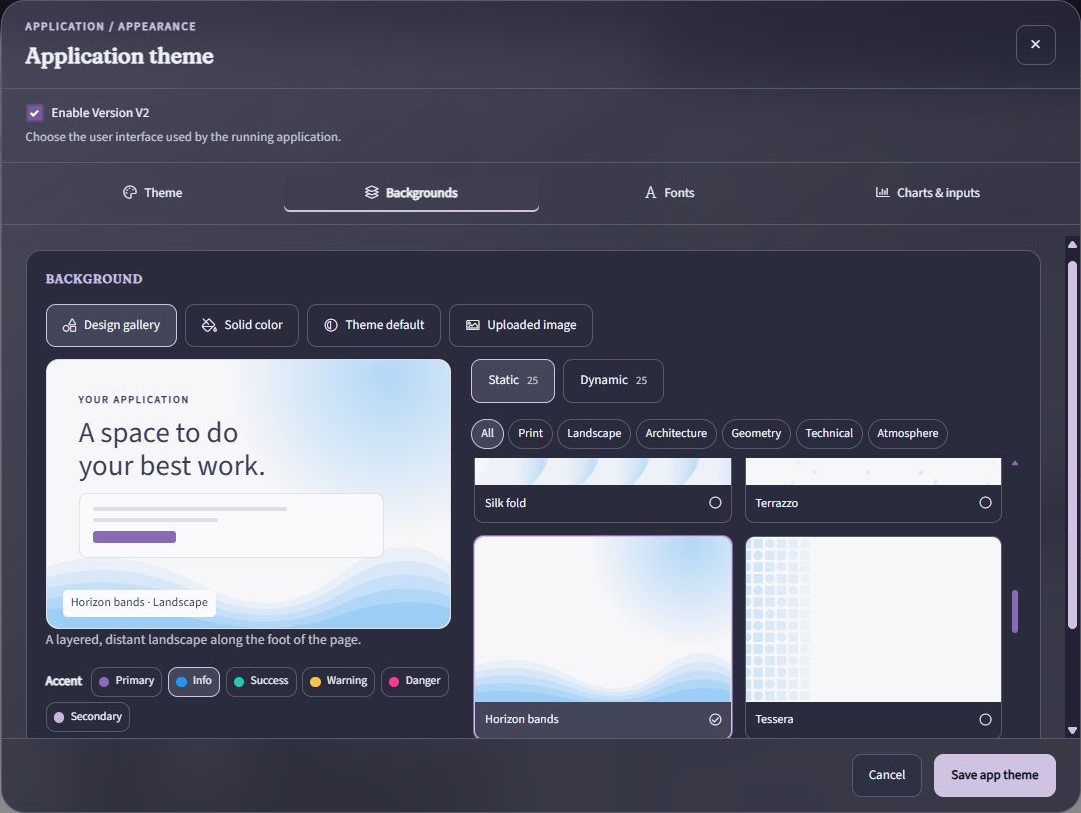
- Choose Design gallery.
- Choose Static for still artwork or Dynamic for animated designs.
- Browse all designs, or filter by Print, Landscape, Architecture, Geometry, Technical, or Atmosphere.
- Select an artwork and review its preview and description.
- Choose an Accent to adjust the design's accent color.
For example, Horizon bands provides a landscape along the foot of the page. Its preview lets you compare the artwork with a representative content area before applying it.
Semantic accents and theme modes
The accent choices are Primary, Info, Success, Warning, Danger, and Secondary. These refer to the application's theme colors rather than requiring a separately maintained background color palette. Choosing an accent changes the artwork's accent treatment; it does not assign validation or business behavior to controls.
Gallery designs adapt when you change the theme or its Default, Light, or Dark mode. Review the result alongside the controls and labels. A fixed Solid color is a different choice and should not be assumed to adapt in the same way.
Use an animated background
Open Dynamic and choose a design to preview gentle movement. The preview includes a pause control so you can inspect the artwork without continuous motion.
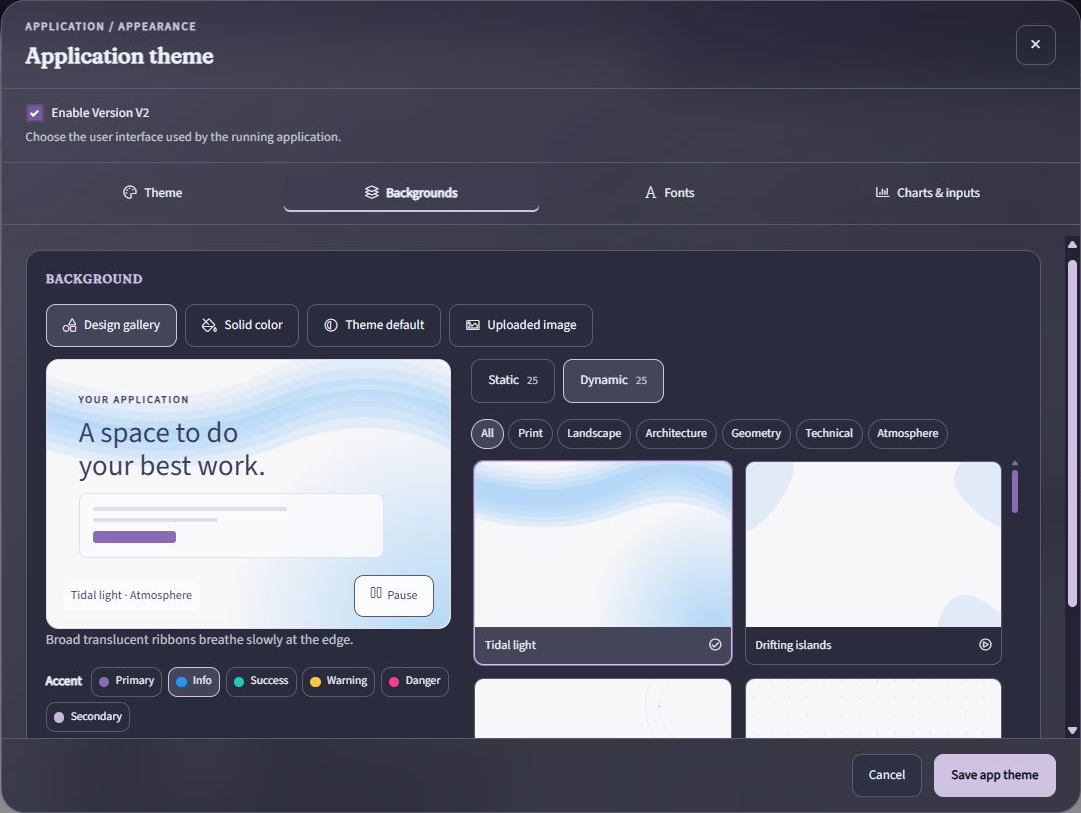
Animated artwork runs on eligible paid plans. Other workspaces receive a still version of the artwork. Reduced-motion preferences pause animated backgrounds automatically. A still result therefore does not necessarily mean that the background failed to load.
Choose artwork that supports the task rather than distracting from inputs, results, and navigation. Verify readability with realistic page content, not only the gallery's sample card.
Set a solid color or return to the theme default
Select Solid color and use Background color to choose the fixed color you need. Select Theme default instead if you want the selected theme to supply the background again.
Review your choice in the dialog, then select Save app theme. Neither workflow requires writing a background CSS rule.
Upload your own image
- Choose Uploaded image.
- Drag an image into Add a background image, or select the upload area to browse files.
- Use a PNG, JPEG, or GIF file up to 8 MB, as shown by the current uploader.
- Review the selected image and any layout options offered by the dialog.
- Select Save app theme to apply the image and layout options.
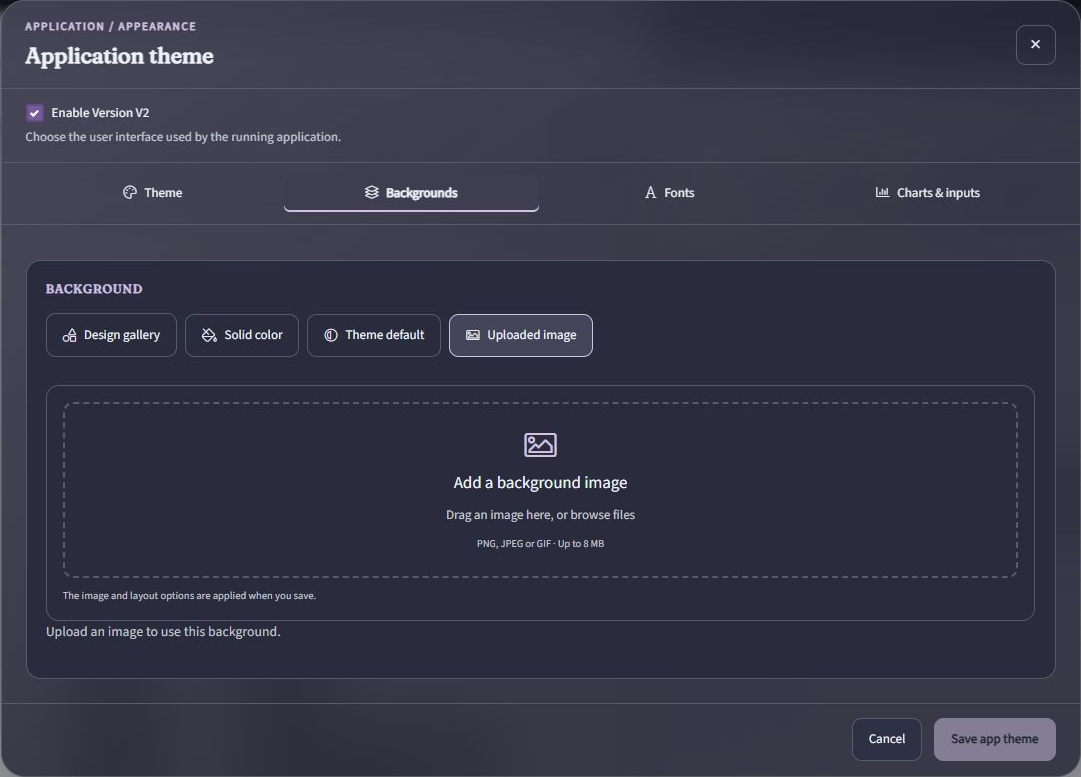
Use an appropriately sized, optimized image rather than treating the maximum upload size as a target. Keep important wording and instructions in accessible page content rather than embedding them only in the background artwork.
Preview and publish
After saving the appearance, use Preview app from Page overview to inspect the actual application. Check:
- Short and long pages, including scrolling content.
- Text, input, and result readability against the backdrop.
- Desktop and smaller-screen layouts.
- Relevant theme modes and reduced-motion behavior.
- Pages that existed before the background change.
Publish the application draft when the appearance and behavior are ready for end users. Saving the theme is not the same as publishing the application.
Backgrounds imported from the Design Library
The Design Library can offer Use suggested background during a flow, page, or component import. That selection affects the application-wide appearance, including existing pages. Clear it if you want to keep the current background.
You can return to Change app theme → Backgrounds after import to review or replace the result. For styling beyond the built-in appearance options, see Stylesheets.