Lesson 10 of 15
Advanced Label
Add formatted text, rich HTML content, and dynamic named-range values to an application with the SpreadsheetWeb Advanced Label control.
4 min readAdd the Advanced Label in Layout & Controls
Open Layout & Controls and choose an Advanced Label from the control gallery across the top of the workspace. You can also press Ctrl+Space to open Quick Add, choose the control, and bind it before placing it on the canvas.
Select the control on the canvas, then configure Setup, Appearance, and Behavior in the Properties panel on the right.
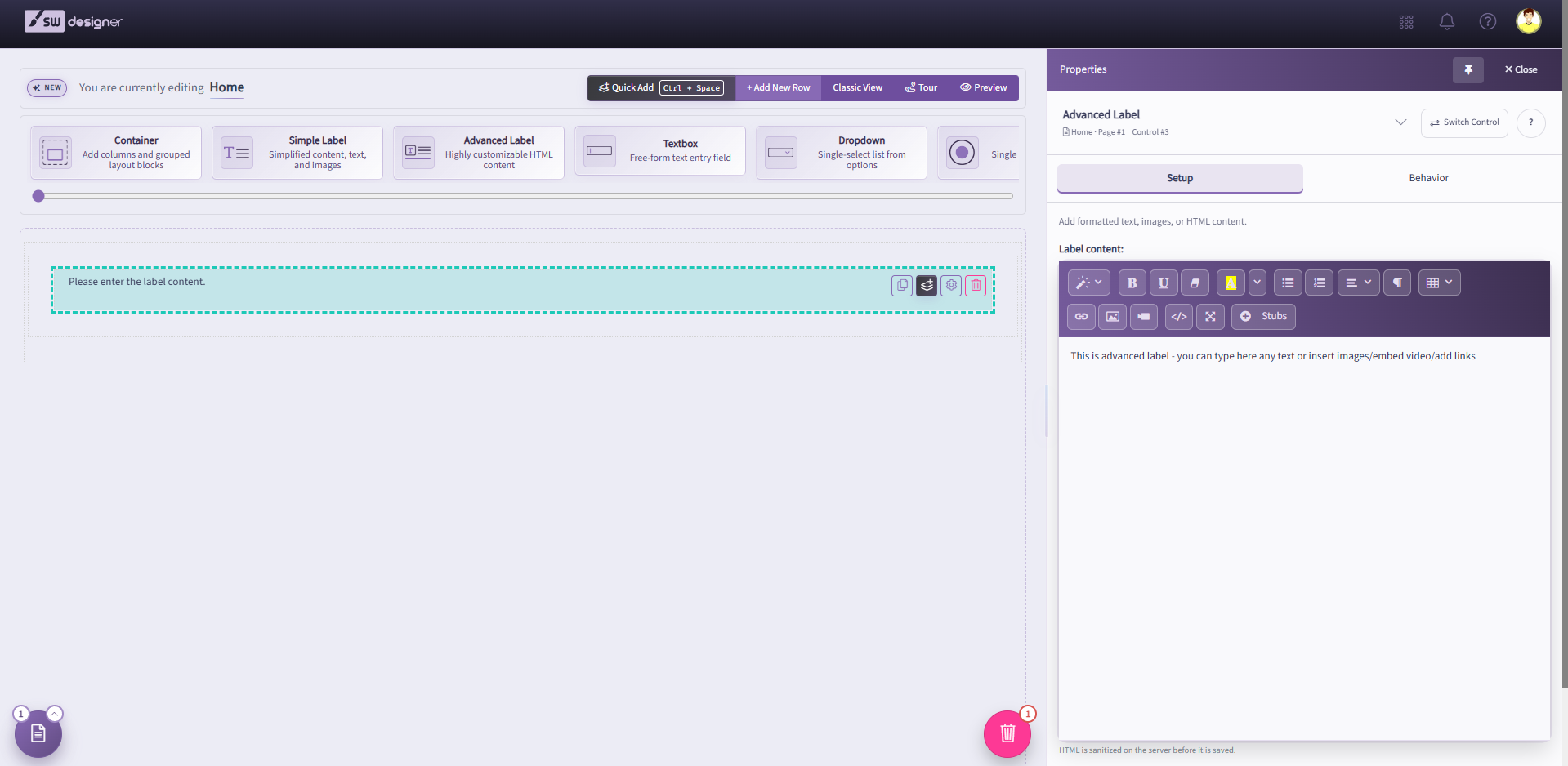
The Advanced Label control, previously named Content, can display static content and dynamic values from named ranges in the spreadsheet model. Existing applications that use the earlier control name continue to work.
For block-based editing without custom HTML, consider Simple Label. Its current options include collapsible disclosures, styled tables, tables of contents with optional completion tracking, image framing, and inline emphasis. Use Switch Control in the control header to change label types; supported formatting is preserved, but review the result rather than assuming every advanced HTML construct converts. See Switch between Simple and Advanced Labels.
Through the dynamic content injection engine, users can utilize a special tag in order to inject the value of named ranges of all types (i.e. single, list, and table) into the content of these controls.
Clicking on the Edit Content button will launch an instance of a rich-text editor with full HTML support. The editor includes a simple menu for the insertion of certain control sets, such as tables, lists, images, videos, and links, as well as text formatting controls, such as boldness, highlighting, and font.
Clicking on the HTML () button will change the mode of the editor to HTML-mode. From this mode, users can enter their own HTML contents, including references to classes that are defined in the Stylesheets module. Click the ‘X’ button in the right corner to close this window and save your changes.
Styles defined in the Stylesheets module are applied in Preview and published applications, but they are not rendered on the Layout & Controls canvas. Scripts injected into the HTML are stripped from Advanced Label content for security.
The value of calculated and input named ranges can be injected directly into the HTML contents of a content / label control. All dynamically injected variables will be nested between {{ }} brackets. To begin the process of injecting a variable into the contents, simply begin entering the curly brackets and some helpful hints will show up to guide you through the process.
Upon opening the curly brackets, you will note a list of Single Named Ranges (SNR). Selecting one of these from the hints will populate the content control with the named range’s name.
If you would like no formatting to be applied, you can simply close the two brackets and the value will be injected as an unformatted value.
Alternatively, several formatting options are available when injecting the value of a Single Named Range (SNR). To utilize any of the formatting options, simply type in a colon character (:) after the named range’s name to see a list of supported data types.
These data types (Integer, Decimal, DateTime or Text) are necessary for the determination of the actual format, so select one that fits the assumed value of the Single Named Range (SNR). Text data type is different from the others since it will get the formatted value directly from the PSC. Text data type has an optional paramater None for format which has no effect on the output.
Upon selecting the data type, add an additional semicolon character (;) to begin defining the desired format for the output value.
List and Table Named Ranges are entered in the same format as Single Named Ranges (SNR), except they do not support formatting of the output values. Using a List or Table Named Range within two sets of curly brackets will inject a full table into the content / label control.
This is best utilized when looking to test the values that exist within a named range, rather than for final presentation of a list or table named range. To present a readable and customizable format, utilize an Input or Output Grid control to display this type of data.
Visible indicates whether the content / label control is visible. This can be configured as Always or Never to indicate whether the content / label is statically visible or not. Alternatively, if any Boolean Single Named Ranges (SNR) exist (i.e. ranges pointing to a single cell that evaluates to TRUE or FALSE), then the visibility of the content / label can be configured to reflect the value of that named range using the ‘By Value Of’ setting.