Lesson 4 of 15
Dropdown
A dropdown control allows users to select a value from a defined list for data entry. Each dropdown must be associated with a Single Named Range (SNR) in…
8 min readAdd the dropdown in Layout & Controls
Open Layout & Controls and choose a dropdown from the control gallery across the top of the workspace. You can also press Ctrl+Space to open Quick Add, choose the control, and bind it before placing it on the canvas.
Select the control on the canvas, then configure Setup, Appearance, and Behavior in the Properties panel on the right.
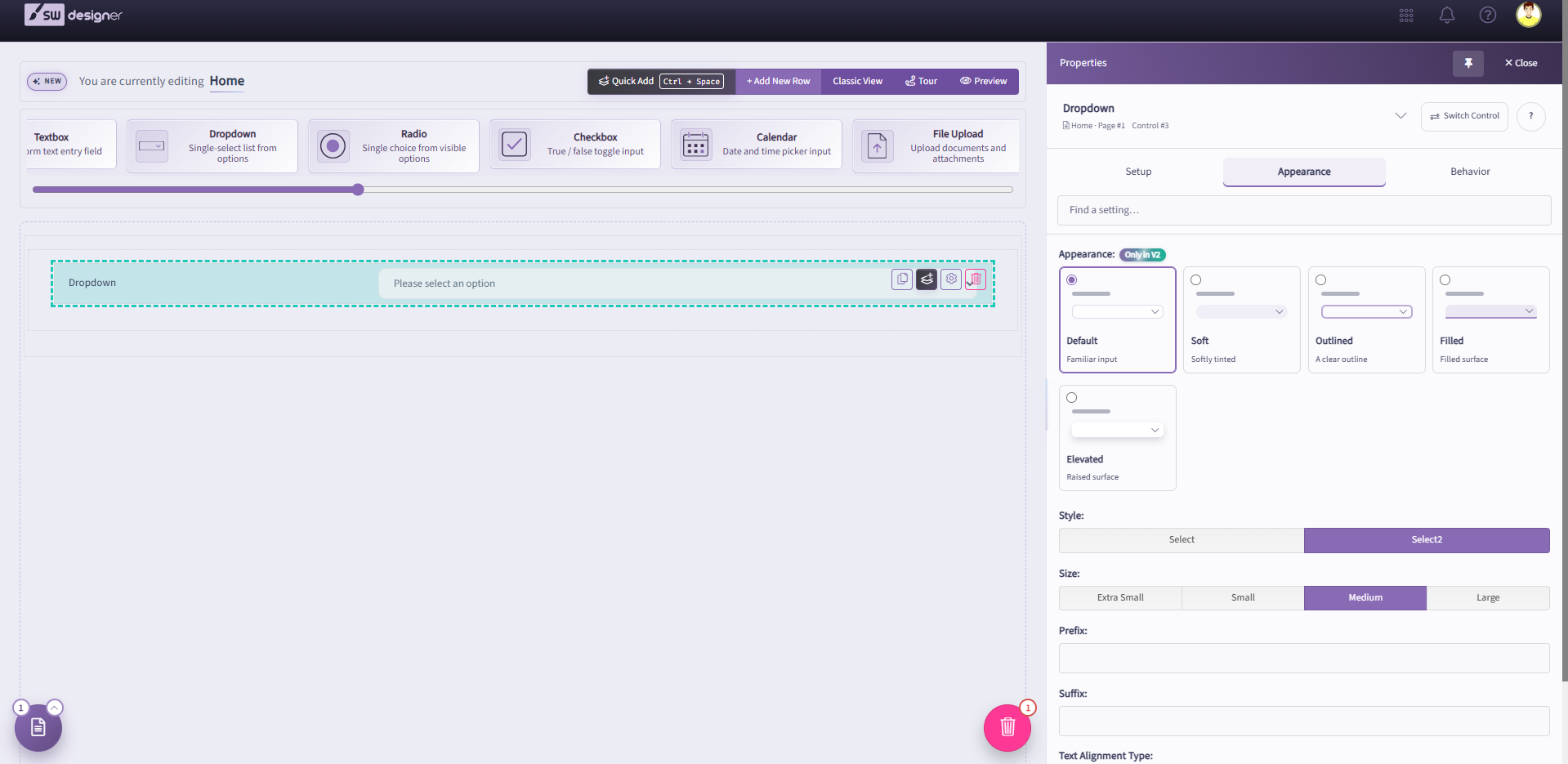
A dropdown control allows users to select a value from a defined list for data entry. Each dropdown must be associated with a Single Named Range (SNR) in the workbook, which will constitute the location where the value will be set for calculations, as well as a List Named Range (LNR) that defines a series of valid values from which the user can make their selection.
Selecting a named range from the list may default some of the other dropdown properties based on some metadata captured from the spreadsheet model, such as the default value.Named ranges containing formulas are excluded from the list, as well as named ranges that have already been bound to a different input in your user interface.
The options of the dropdown will be populated from the List Named Ranges dropdown. List Named Ranges are one-dimensional ranges (i.e. either 1 in width or height).
When enabled, Show Formatted List Options feature displays the formatted value of the list options in the dropdown, as they would be displayed in Excel. The value that is submitted for calculations is still the underlying, non-formatted value.
Is List Static value is determined automatically based on the contents of the associated list named range. If that range has formulas, then the list is considered static. Do not override this behavior unless you have clear instruction or understanding of this functionality.
When this option is enabled, the system assumes that the selected list for this dropdown control is a range containing solely static values. This means that the list does not have values that are dynamically controlled by formulas. As a result, the system will not re-retrieve and populate this list on each request. Having this option enabled will improve calculation performance for applications with large, static lists. However, it will also prevent the list’s options from updating dynamically.
The Name property constitutes the label that will appear in the user interface. Other properties, such as Tooltip, will also derive their dynamic {FriendlyName} value from this property.
The Style property defines the whether the control type is a standard select dropdown or a select2 control. The select2 control includes a search/auto-complete feature.
Support Multi-Select feature allows the user to select multiple values from the dropdown list instead of a single value. Also when this option is enabled, an extra Delimiter option is available (see the description below). This feature is only available when the Style property is set to select2.
Delimiter option is available only when Support Multi-Select is enabled. Currently, there are three supported predefined delimiters:
- Semicolon (;)
- Asterisk (*)
- Tilde (~)
The Delimiter property defines the delimiter character that is used to separate multiple selected values of a dropdown control before it is sent to the calculation engine and stored in a corresponding cell referenced by a Named Range.
For example, if a list has three options Dog, Cat, and Fish, and options Dog & Fish are selected, the dropdown’s value is being formed by concatenating those selected values together with the selected Delimiter. This would result in one of the following:
- Dog;Fish
- Dog*Fish
- Dog~Fish
For these dropdowns, it will be necessary to add some additional formulas in the underlying Excel spreadsheet model in order to determine whether a single value is selected or not. For example, if you want to determine whether the Dog value is among the selected dropdown list values, you could use the following formula:
- =ISNUMBER(SEARCH(“Dog”,A1))
Note: This example assumes that the Named Range points to the cell A1. In this case, the formula would return a TRUE value.
The Size property denotes the size of the calendar in the user interface. Note that altering the style of the calendar via Cascading Style Sheets (CSS) may affect whether or not the size property is visibly relevant in your published application.
The Label Horizontal Alignment property determines the horizontal orientation of the label. This value can be set to Left, Center, or Right. The default horizontal alignment is Left.
The Label Vertical Alignment property determines the vertical orientation of the label. This value can be set to Top, Middle, or Bottom. The default vertical alignment is Middle.
The Label Size property is the spacing distribution of the input control’s label vs. the input control. The maximum width of both controls cumulatively is considered to be 12 – a width of 12 for the label would indicate that the label occupies a full row within its container and the input control occupies a full row beneath it.
Any label distribution below 12 will indicate that the label and the input control occupy the same row in the user interface. The label’s width will be used to calculate the control’s width such that the two controls cumulatively occupy the full width of 12.
For example, setting the Label Size to 6 will indicate that the control width is also 6. This means the label will occupy 50% the width of the row and the control will occupy 50% the width of the row.
Likewise, setting the Label Size to 3 will indicate that the control width is 9, meaning that the label will occupy 25% the width of the row while the input control occupies 75% the width of the row.
Setting the Label Size to 0 will hide the label in the user interface.
The Default Value property specifies the value that will be visible in this dropdown when the user interface is first loaded. This property may have a suggestion populated if the target named range for the dropdown includes a default value.
For dropdown controls, the default value will be selectable based on the values from the corresponding List Named Range that was selected.
Tooltips are informative message boxes that are displayed when you mouse-over or click on a control. The Tooltip Type property determines the message style, and when the information will be shown.
- Tooltip: The content will appear in a small bubble when the user enters focus on the target input by moving their mouse over the control.
- Popover: The content will appear in a pop-up box when the user clicks on the target input.
If Trigger Calculations is selected, changing the value in this input control will trigger a calculation. Calculations perform a server call with all of the inputs from the user interface and populate the output controls with the values from the updated calculation.
In workbooks with complex calculations, enabling calculations may lead to delays in the user experience.
The best practice when determining whether an input should trigger calculations should take into account the following factors:
- Does this input affect any calculated values? If the field is simply informational, then there is no reason to trigger a calculation.
- Does this input affect my user interface? If the field can change the visibility or enabled-ness of pages or other controls, then it is a good idea to trigger calculations when changes occur to the input.
- Will something else trigger calculations before this input is relevant? If the user won’t see the results of the calculations until reaching a different page, then you can hold off on triggering calculations until a button press or a different control’s value is changed.
The Validation Trigger selection will indicate the events that will cause the validation rules to be processed against the control. Validation constitutes any of the other validation options, such as Required and Minimum/Maximum Length. If validation fails (e.g. input is required but no entry exists), then the request calculation will be skipped.
You can select multiple events to trigger validation. The following triggers are available:
- After Change – As soon as the value in the control is changed.
- Before Calculate – Before any calculation event is triggered. This could include navigation or button clicks, as well as any other control triggering calculations. It has the ability to cancel the calculation action when failed.
- Before Navigate – Before any navigation event is triggered. This could include navigation via user clicking a page in the navigation bar or a button-trigger navigation action. It has the ability to cancel the subsequent action when failed.
- Before Save – Only before a save action is triggered. It has the ability to cancel the subsequent action when failed.
Required indicates whether the input field is required during validation. Enabled indicates whether the input field is enabled. Visible indicates whether the input field is visible.
Required, Enabled, and Visible properties can be configured as Always or Never to indicate whether the input is statically visible or not. Alternatively, if any Boolean Single Named Ranges (SNR) exist (i.e. ranges pointing to a single cell that evaluates to TRUE or FALSE), then the visibility of the input can be configured to reflect the value of that named range using the ‘By Value Of’ setting.