Lesson 8 of 15
Input Grids
An input grid is a control that allows the user to select and edit a range of items corresponding to a Table Named Range (TNR) from the spreadsheet model.…
10 min readAdd the Input Grid in Layout & Controls
Open Layout & Controls and choose an Input Grid from the control gallery across the top of the workspace. You can also press Ctrl+Space to open Quick Add, choose the control, and bind it before placing it on the canvas.
Select the control on the canvas, then configure Setup, Appearance, and Behavior in the Properties panel on the right.
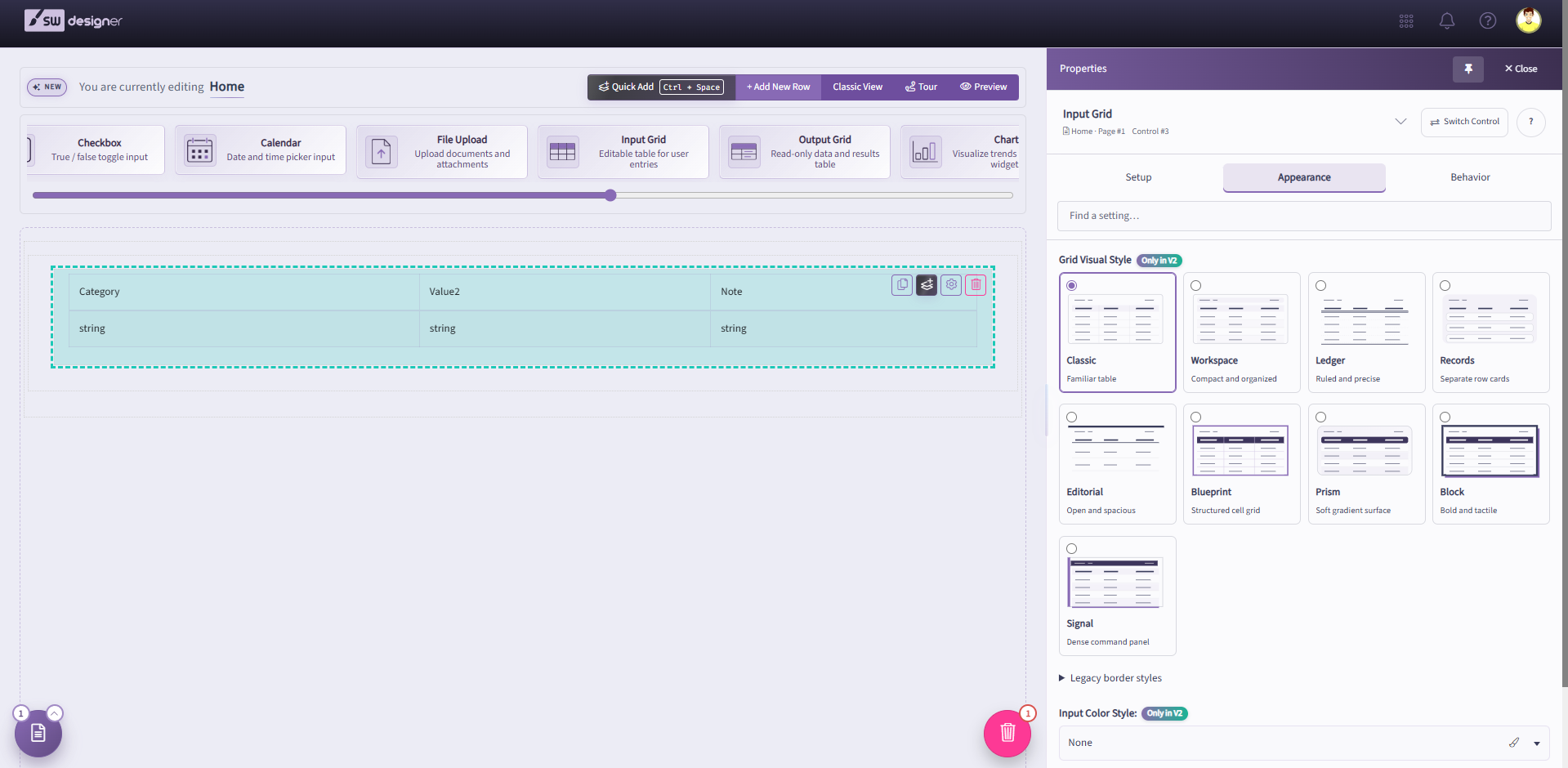
An input grid is a control that allows the user to select and edit a range of items corresponding to a Table Named Range (TNR) from the spreadsheet model. These controls must be bound to a Table Named Range (TNR) (i.e. a two-dimensional range, including a width and height larger than 1 cell) and will contain an amount of rows and columns equivalent to the target range. Please note that input grids are limited to 10,000 cells by default to prevent any performance issues. If your table named ranges contain more than 10,000 cells (i.e. a grid with 10 columns and 1000 rows) you will get an error. This limit can be changed in server and private cloud licenses.
For Form-based Input Grids, see the video below.
The Table Named Range property lists all Table Named Ranges (TNR) defined in your spreadsheet model (i.e. a two-dimensional range, including a width and height larger than 1 cell). These named ranges may correspond to both input (user-entered) and output (formula-based) cell values. This list will exclude Table Named Ranges (TNR) that are already bound to existing input controls.
Upon selecting a target named range, a process will begin to generate all of the metadata for the cells contained within this named range. Once this process has completed, a list of detected columns will be present below, including a Confirm button to validate the existence of each detected column.
Users should confirm the existence of the columns and then subsequently Submit the control in order to save and update the column properties for subsequent edit.
Note: To mitigate detrimental performance side effects, the maximum allowable cells within a target range is configurable by the system administrator in the Configuration Settings section of the Designer. By default, the maximum cells allowed in a given Table Named Range is 1000.
As a result, users attempting to generate grid controls using named ranges exceeding this value will not be able to generate columns for these controls, preventing submission. To exceed the maximum target cell count, please reach out to your system administrator.
Has Header property is used if the selected named range contains headers in its first row. This has an important effect upon calculations and can also aid in the auto-generation of columns for this grid control, so ensure that this value is updated appropriately
Enable Hide Header feature if you’d like to hide the column headers in the first row.
The Type of Input Method option governs the way a user can edit data displayed in the input grid. There are three types of input styles:
- Inline: Allows editing each grid cell separately by clicking the cell (or navigating with cursor keys on your keyboard into a cell from another cell) and typing the desired value.
- Form Based: An this mode you can edit grid data row by row, instead of doing this cell by cell. There are three buttons located above the grid that control Form Based grid actions:
- New: Adds a new row through a special modal window that contains a form (hence the name of this style) containing input controls, representing each corresponding field. Adding new rows is only possible if the user has previously removed any rows from the grid, because the grid can contain a maximum number of rows equal to the maximum height of the corresponding Table Named Range (TNR). For example, if the corresponding Table Named Range (TNR) defined in the Excel model has a maximum 10 rows, and the grid is already displaying 10 rows, then clicking the New button will not allow adding another row. Instead, you will see an error message.
- Edit: The entire row can be edited at once, through a modal window containing a form. To edit a row, you must first select it by clicking, then click the Edit button and make any necessary changes. You can also edit multiple rows at once. To do this, you need to select multiple rows in the grid before clicking the Edit button. You can use the SHIFT or CONTROL buttons to select multiple rows.
- Delete: Once the row(s) is selected, you can remove them from the grid by clicking the Delete button.
- Form Based Start Empty Grid: Works the same way as the Form Based grids, except that the input grid will be empty (regardless of the Table Named Range (TNR) contents) once the application is loaded. The table can be populated with data manually through a modal window containing an input form.
The Responsive property determines whether or not to collapse columns that exceed the width of the viewable screen under the record’s row. This is advised for output grids, as it can aid in displaying information to end users that are accessing the application from mobile devices. This is not advised for input grids, as it can cause undesirable column resizing and recalculation.
The Scrollable option is available only for input grids where the Type of Input Method is set to Form Based or Form Based Start Empty Grid. If this option is enabled, the modal form that is displayed when adding or editing a row will have a fixed size on the page, and a scroll bar. This feature is intended to help with screen real estate in tables with too many columns.
Enable Pagination feature to allow for pagination on your grid. All functions will work appropriately across pages, such as sorting, searching, and copy/paste. This is particularly useful for large grids that often cause significant performance detriments in the user interface due to grid rendering. Only default pagination options are currently available, but future releases will enable more user control over these features.
Selecting Enable Copy to Clipboard will add a Copy button to the top of the input grid table which can be used to copy the entire table into the clipboard. You can then paste this data into other sources or documents.
Selecting Enable Print Button will add a Print button to the top of the input grid table which will allow users to get a printout of the entire table from the user interface. All existing data will be carried over to the export file.
Selecting Enable Export to CSV will add a CSV button to the top of the input grid table which will allow users to get an export of the entire table from the user interface in CSV format. All existing data will be carried over to the export file.
Selecting Enable Clear All Button will add a Clear All button to the top of the input grid table that will allow users to clear the grid’s contents. The behavior of this action will depend on the input style of the grid:
- Inline and Form Based: will set an empty value to each of the cells.
- Form Based Start Empty Grid: will remove all rows, resetting the input grid to its initial state.
Use Metadata Formatting option configures the grid to handle data formatting per-cell rather than per-column, which allows each cell of a table utilize a different value format.
The information for these cells will be pulled from the target Table Named Range (TNR), based on the information found within the Excel model. For example, a cell that has a Date type with formatting MM/dd/yyyy will automatically become a calendar-based input and will display the associated date in the target format.
Note that data entry will still comply with the pre-existing formats (as if you were to have set the column to Date). Thus, the input mask (while entering the input’s value) may differ from the output format (the value that is displayed once the user has submitted or modified the value).
This feature may not be available for very large tables – this is dependent upon the size of the Table Named Range (TNR) and your server configuration. If the table’s cell count exceeds configuration setting (called MaximumCellCount, defaulted to 1000), then the server does not generate a full set of the required metadata for these ranges. Thus, the Use Metadata Formatting feature cannot be utilized in these cases.
If you want to use the Use Metadata Formatting feature for large tables, then you may want to consider increasing the MaximumCellCount configuration setting to an appropriate value. For example, if the Table Named Range (TNR) represents a table having 10 columns and 200 rows, then the MaximumCellCount should be set to at least 2000 (10 x 200).
The default mode (when Disabled feature is disabled, or Use Metadata Formatting is unchecked) allows the user to set a Mask Type for each column separately. In this case, all cells in that column will use the same value formatting. For example, all data in the column are displayed either as percentages, dates, currencies, etc. For more information, see the Mask Type section on the Input Grid Column help page.
Once you have enabled Enabled feature (Use Metadata Formatting option is checked), each cell will be able to receive its own data formatting. This feature is called metadata formatting because it is based on the metadata information that is primarily collected from the provided spreadsheet model.
In this mode, the input grid table will allow each cell to use the same format that is set in the spreadsheet file, meaning that the values in each cell will be displayed in the same way as they appear in Excel.
Moreover, these formats can also be overridden in the Metadata Editor (Names) when required. For example, if you want to modify a cell’s format from decimal to integer but prefer to leave the cell’s format in the spreadsheet file as-is, you can simply set the new format for that cell in the Metadata Editor.
Also note that – in this mode – the column Mask Type options are not available, since the grid will be formatted on a cell-by-cell basis, rather than column-by-column.
Header Alignment feature will determine the alignment of all text within the header row of the grid. Content Alignment feature will determine the alignment of all non-header text within the body of the grid.
Visible indicates whether the input grid control is visible. This can be configured as Always or Never to indicate whether the input grid is statically visible or not. Alternatively, if any Boolean Single Named Ranges (SNR) exist (i.e. ranges pointing to a single cell that evaluates to TRUE or FALSE), then the visibility of the input grid can be configured to reflect the value of that named range using the ‘By Value Of’ setting.
If Trigger Calculations is selected, changing the value in any cell within this control will trigger a calculation. Calculations perform a server call with all of the inputs from the user interface and populate the output controls with the values from the updated calculation.
In workbooks with complex calculations, enabling calculations may lead to delays in the user experience.
The best practice when determining whether an input should trigger calculations should take into account the following factors:
- Does this input affect any calculated values? If the field is simply informational, then there is no reason to trigger a calculation.
- Does this input affect my user interface? If the field can change the visibility or enabled-ness of pages or other controls, then it is a good idea to trigger calculations when changes occur to the input.
- Will something else trigger calculations before this input is relevant? If the user won’t see the results of the calculations until reaching a different page, then you can hold off on triggering calculations until a button press or a different control’s value is changed.