Lesson 2 of 15
Textbox
A textbox is a basic control that allows user to input values for capture, storage, or calculation. Each textbox must be associated with a Single Named…
4 min readAdd the textbox in Layout & Controls
Open Layout & Controls and choose a textbox from the control gallery across the top of the workspace. You can also press Ctrl+Space to open Quick Add, choose the control, and bind it before placing it on the canvas.
Select the control on the canvas, then configure Setup, Appearance, and Behavior in the Properties panel on the right.
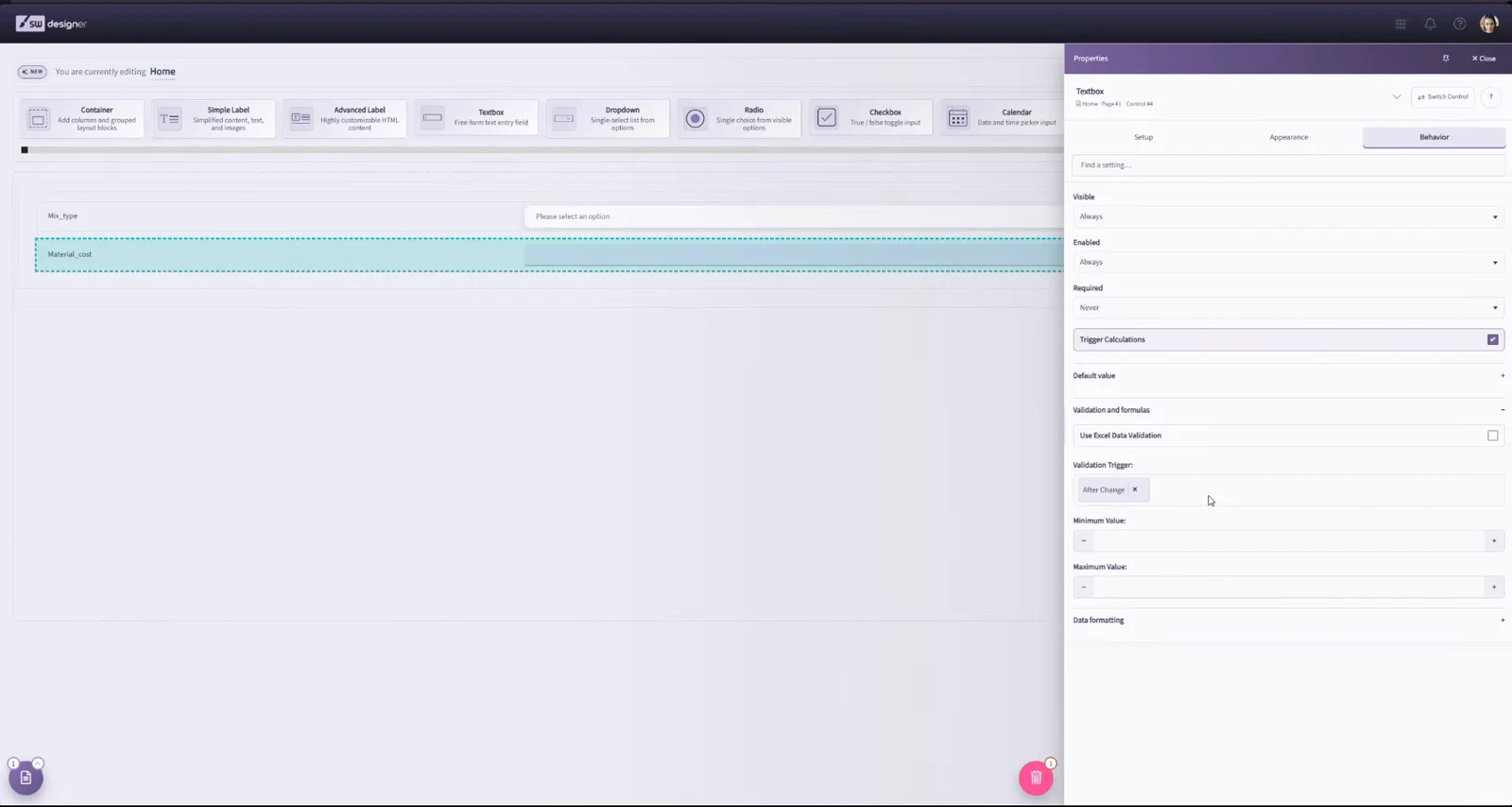
A textbox is a basic control that allows user to input values for capture, storage, or calculation. Each textbox must be associated with a Single Named Range (SNR) in the workbook.
Selecting a named range from the list may default some of the other textbox properties based on some metadata captured from the spreadsheet model, such as the default value.
Named ranges containing formulas are excluded from the list, as well as named ranges that have already been bound to a different input in your user interface.
The Name property constitutes the label that will appear in the user interface. Other properties, such as Placeholder, will also derive their dynamic {FriendlyName} value from this property.
The Placeholder property defines the text that will be visible in the textbox when no input has been entered. This will only appear if no default value is selected or if the user clears the input’s value. This property supposed the special {FriendlyName} tag to insert the value of the Name property into the placeholder.
The Type property designates whether the textbox will be a single or multi-line textbox.
The Size property denotes the size of the textbox in the user interface. Note that altering the style of textboxes via Cascading Style Sheets (CSS) may affect whether or not the size property is visibly relevant in your published application.
The Text Alignment property indicates where the user’s entered text will be aligned within the control. The available options are Right and Left. Note that altering the style of these controls via Cascading Style Sheets (CSS) may affect whether or not this property is relevant in your published application.
The Label Size property is the spacing distribution of the input control’s label vs. the input control. The maximum width of both controls cumulatively is considered to be 12 – a width of 12 for the label would indicate that the label occupies a full row within its container and the input control occupies a full row beneath it.
Any label distribution below 12 will indicate that the label and the input control occupy the same row in the user interface. The label’s width will be used to calculate the control’s width such that the two controls cumulatively occupy the full width of 12.
For example, setting the Label Size to 6 will indicate that the control width is also 6. This means the label will occupy 50% the width of the row and the control will occupy 50% the width of the row.
Likewise, setting the Label Size to 3 will indicate that the control width is 9, meaning that the label will occupy 25% the width of the row while the input control occupies 75% the width of the row.
Setting the Label Size to 0 will hide the label in the user interface.
The Default Value property specifies the value that will be visible in this textbox when the user interface is first loaded. This property may have a suggestion populated if the target named range for the textbox includes a default value.
Tooltips are informative message boxes that are displayed when you mouse-over or click on a control. The Tooltip Type property determines the message style, and when the information will be shown.
- Tooltip: The content will appear in a small bubble when the user enters focus on the target input by moving their mouse over the control.
- Popover: The content will appear in a pop-up box when the user clicks on the target input.
If Trigger Calculations is selected, changing the value in this input control will trigger a calculation. Calculations perform a server call with all of the inputs from the user interface and populate the output controls with the values from the updated calculation.
In workbooks with complex calculations, enabling calculations may lead to delays in the user experience.
The best practice when determining whether an input should trigger calculations should take into account the following factors:
- Does this input affect any calculated values? If the field is simply informational, then there is no reason to trigger a calculation.
- Does this input affect my user interface? If the field can change the visibility or enabled-ness of pages or other controls, then it is a good idea to trigger calculations when changes occur to the input.
- Will something else trigger calculations before this input is relevant? If the user won’t see the results of the calculations until reaching a different page, then you can hold off on triggering calculations until a button press or a different control’s value is changed.
The Text Mask property defines the format of the input’s entered values.