Lesson 14 of 15
Gauges
Gauges are output controls that display a visual representation of a cell value in the user interface. Widely used in data analysis and presenting key…
2 min readAdd the gauge in Layout & Controls
Open Layout & Controls and choose a gauge from the control gallery across the top of the workspace. You can also press Ctrl+Space to open Quick Add, choose the control, and bind it before placing it on the canvas.
Select the control on the canvas, then configure Setup, Appearance, and Behavior in the Properties panel on the right.
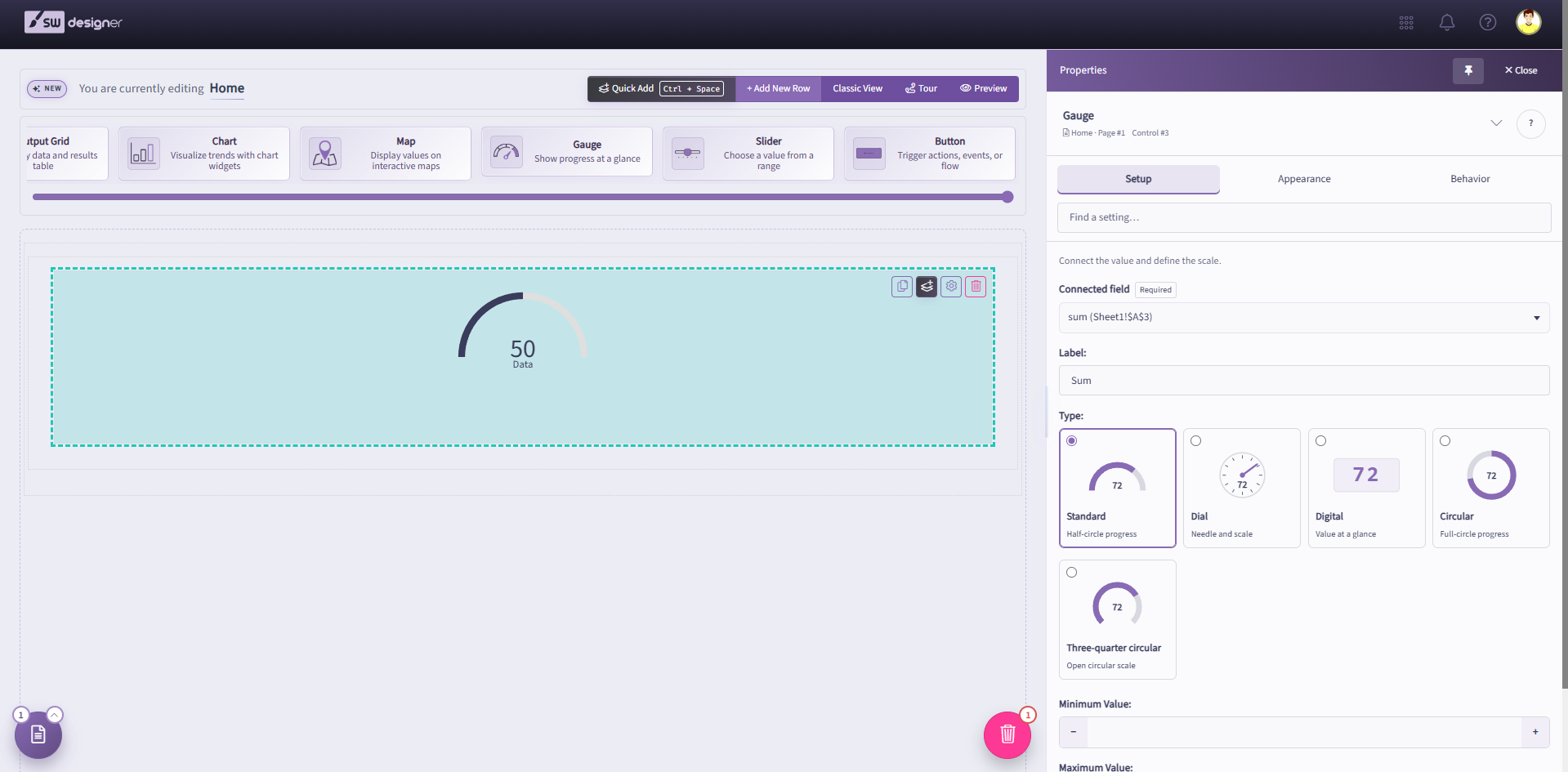
Gauges are output controls that display a visual representation of a cell value in the user interface. Widely used in data analysis and presenting key metrics, gauges are a vital component of dashboard reports. Each gauge must be associated with a Single Named Range (SNR) from the workbook.
Select the gauge on the canvas and open Setup in the Properties panel. Choose the Single Named Range (SNR) that contains the value to display.
Select from available styles from the Type menu. Other configuration options will populate based on your style selection.
There are three types of gauges available:
- Standard Gauges: Standard gauges are excellent for tracking progress or completion rates. Critical success factor, GPA, or performance score analyses are common examples. Min Value and Max Value determine the start and end points drawn on the gauge. You can enter a string into the Label field to add a header. Number Format allows customizing the numerical formatting of the values.
- Dial Gauges: Dial gauges are excellent for tracking progress or completion rates. Critical success factor, GPA or performance score analyses are common examples. Min Value and Max Value determine the start and end points drawn on the gauge. You can enter a string into the Label field to add a header. Number Format allows customizing the numerical formatting of the values.
- Digital Gauges: Digital gauges act like an interactive display card; they show a quantity in a fancy way. This gauge type can be used to report inventories, or “X Interval to Date” totals. You can enter a string into the Label field to add a header. Number Format allows customizing the numerical formatting of the values.