Transfer Workspace Ownership
Transfer a SpreadsheetWeb workspace to an existing member with verified email, review both email approvals, and manage pending requests and billing.
Workspace ownership transfer hands an existing workspace, including its applications, data, and control over access, to another workspace member. The current owner starts the transfer and confirms it from their email. The intended new owner then signs in and accepts or declines the invitation.
Ownership does not change until the new owner accepts. Until then, the current owner stays in control and can cancel the transfer.
Prepare the new owner
Start as the current workspace owner. The intended new owner must already belong to this workspace and have a verified email address. Only eligible existing members appear in the selection list.
If needed, invite the person to the workspace first, have them accept membership, and ensure they have verified their email. Review their access through User Management. The walkthrough uses a user template named admin as an example; that template is not an ownership-transfer prerequisite.
For a paid workspace, tell the recipient to expect billing instructions where required. Enterprise and private-server workspaces follow their applicable billing rules.
Start the transfer wizard
- Open My Workspaces.
- Select Edit for the workspace you want to transfer.
- On Update Workspace, find Workspace ownership.
- Select Manage ownership.
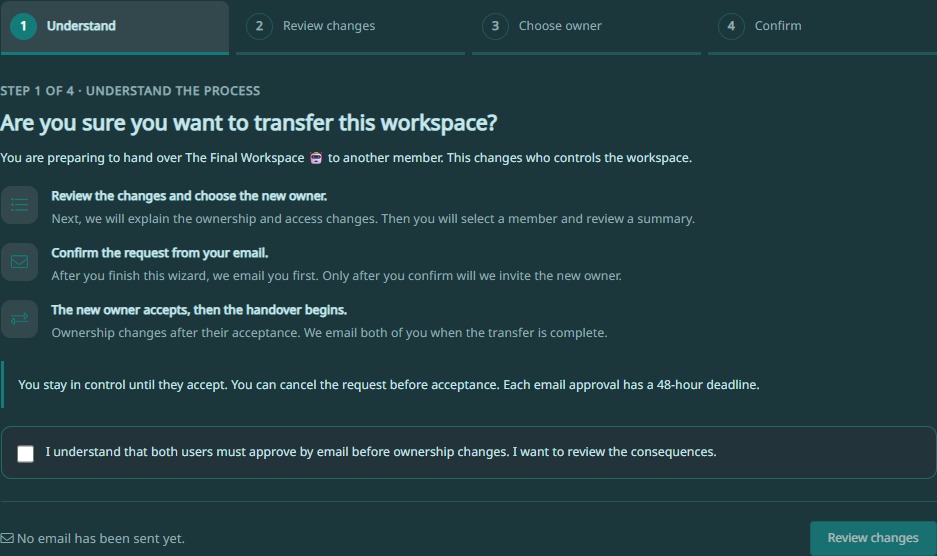
Official release example of the ownership-transfer interface. Workspace names and members will differ in your workspace.
Review the four wizard steps
- Understand: Read the handover process and acknowledge that both people must approve. You keep control until acceptance, and each email approval has its own 48-hour deadline.
- Review changes: Review the permissions handoff. The recipient gains owner permissions to manage the workspace, its applications, data, and access. You lose owner-only controls but remain a workspace member with your existing non-owner permissions.
- Choose owner: Search by name or email and select the eligible member. The new owner does not receive an email yet.
- Confirm: Check the workspace, current owner, and intended new owner's name and email. Change the recipient if necessary. The first confirmation email goes to you, not the new owner.
Select Send my confirmation email, then confirm the send when prompted. Sending this email does not transfer ownership or invite the recipient.
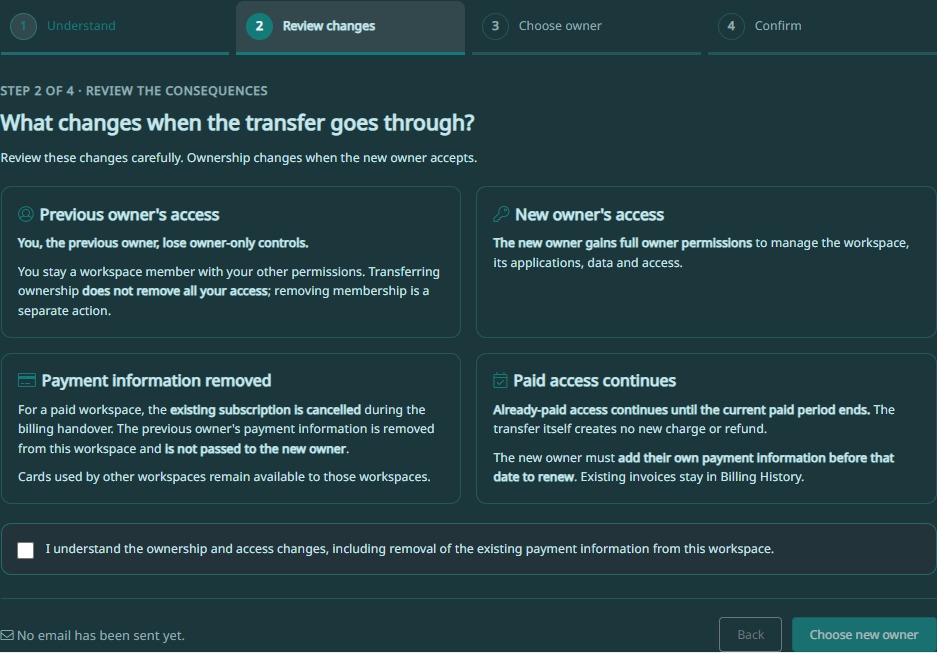
Official release example of Step 2, Review changes. Review the permission and billing consequences here before choosing the new owner and confirming the request.
Confirm from the current owner's email
The ownership page now waits for your email confirmation. Transfer history records that the request is awaiting the current owner's confirmation.
- Open the email confirming your workspace ownership transfer.
- Check the intended recipient and the expiry shown in the email.
- Select Review ownership transfer to return to the transfer page.
- Select Confirm and invite new owner.
This approval sends the ownership invitation to the recipient. You have 48 hours to complete your email approval. The recipient then has their own separate 48-hour acceptance period; this is not one shared deadline for the entire handover.
Have the new owner accept or decline
The recipient opens the ownership invitation, signs in, reviews the transfer, and accepts or declines. On paid workspaces, they receive steps to arrange billing where required. Follow those instructions and the workspace's applicable billing rules rather than assuming an existing payment card transfers with ownership. See Subscriptions and Payment Methods for the separate billing tasks.
While waiting for the recipient, the current owner can resend the invitation, cancel the transfer, or refresh its status. Ownership remains unchanged while the request is pending.
Manage a pending request
Return to Manage ownership to review the current stage and Transfer history. Before the current owner's approval, you can resend your confirmation email or cancel. After that approval, while waiting for acceptance, you can resend the new owner's invitation or cancel the transfer.
Check the expiry shown in each email. Each approval has a separate 48-hour limit. Review the current status before acting on an old email or sending another message.
Plan the paid-workspace billing handover
The Review changes step explains these consequences for a paid workspace's billing handover:
- The existing subscription is cancelled during the billing handover.
- The previous owner's payment information is removed from this workspace and is not passed to the new owner. Cards used by other workspaces remain available to those workspaces.
- Already-paid access continues until the current paid period ends. The transfer itself creates no new charge or refund.
- The new owner must add their own payment information before the current paid period ends to renew access.
- Existing invoices remain in Billing History.
Coordinate the renewal deadline with the recipient. Follow the billing instructions in the transfer and use Payment Methods and Subscriptions for the separate billing tasks. Enterprise and private-server workspaces follow their applicable billing rules.
Check the completed handover
After acceptance, both people receive a completion email naming the new owner. The workspace keeps its applications and users; the new owner now has the owner-only controls.
The previous owner remains a member with existing non-owner permissions. They no longer have access to manage ownership as the owner. Transferring ownership does not make them leave the workspace; leaving is a separate action.