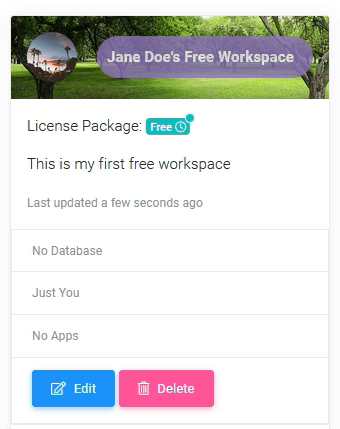
Workspaces
In SpreadsheetWeb Hub a workspace is represents a collection of all of your work: your applications, your tags, and your data.
In SpreadsheetWeb Hub a workspace represents a collection of all of your work: your applications, your tags, and your data. Effectively, all content that you create or contribute will live under a workspace. You can belong to multiple workspaces, typically through invitation, but the system also allows for one free-tiered workspace per user.
Creating a New Workspace
Each user registered in the SpreadsheetWeb Hub is automatically assigned to a one free-tiered workspace. To add a new workspace, go to the workspace page from the menu.
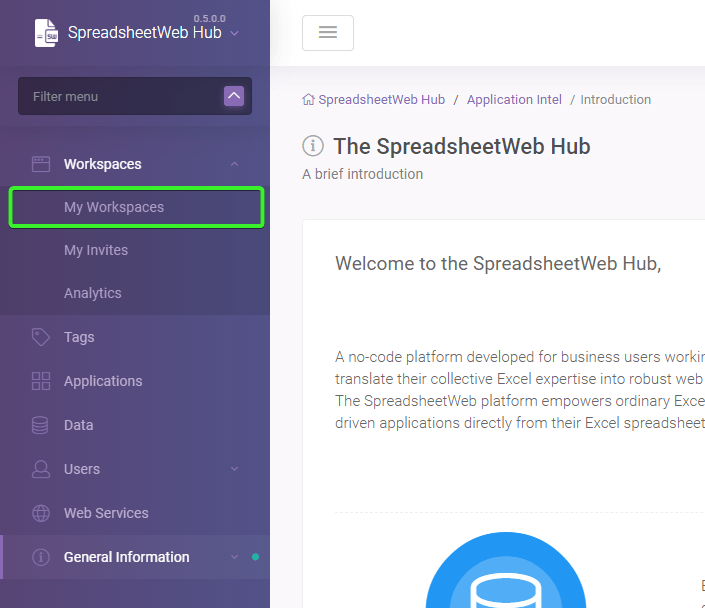
Click on Create A New Workspace button.

From the opened page you can view our license packages and choose the one suitable for your needs.
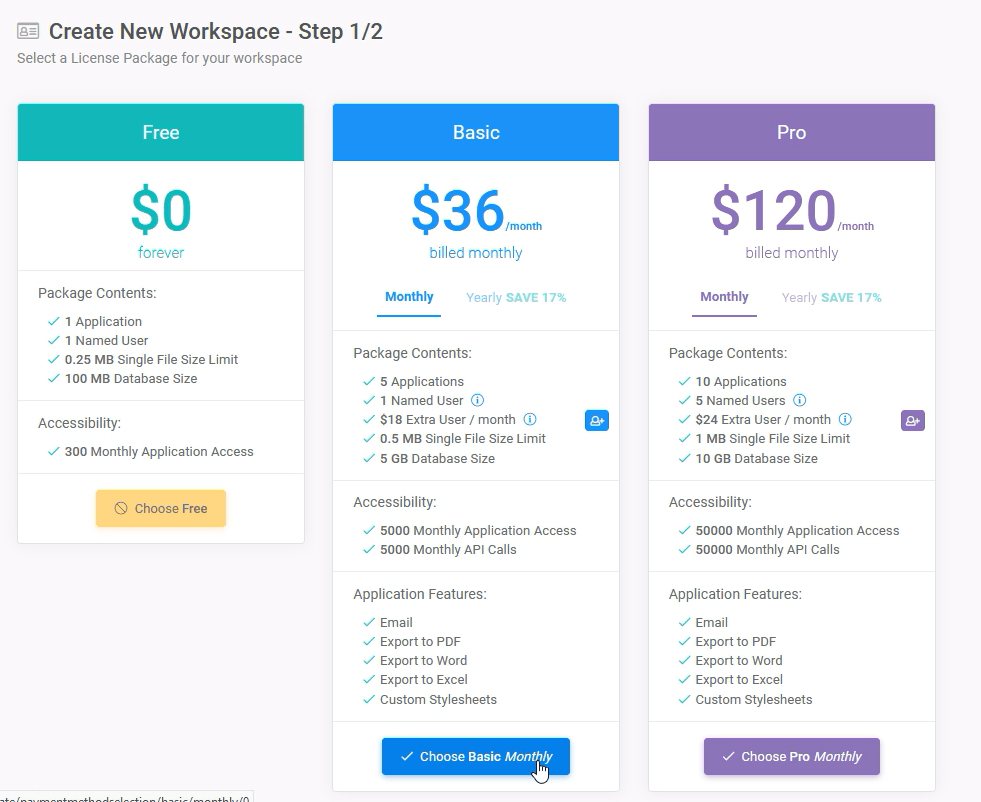
When you decide on a license package to subscribe, you need to enter your payment method to purchase except for Free Tier.
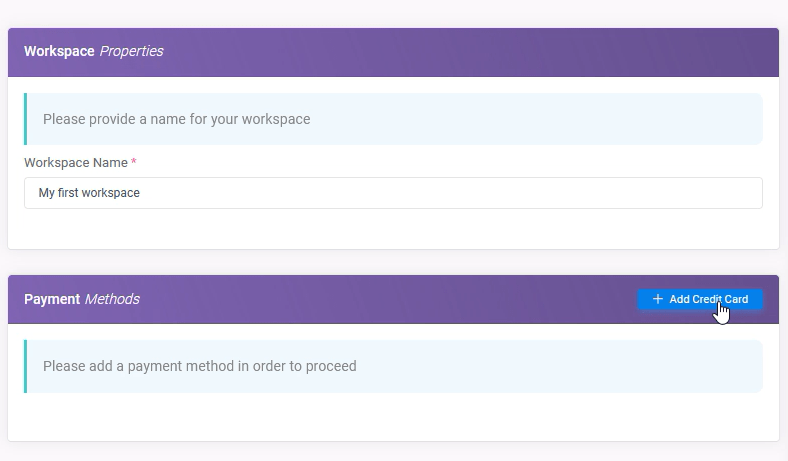
After your payment method is added, click on Buy Workspace Now button. Your workspace will be created immediately after the purchase. It will be included in My Workspaces page. You can choose to set a workspace as default by clicking on green tick button under Actions column.

Switching Between Workspaces
In SpreadsheetWeb Hub, you can work on one workspace at a time. There are three ways to switch between workspaces. Go to My Workspaces page to view all your workspaces.
-
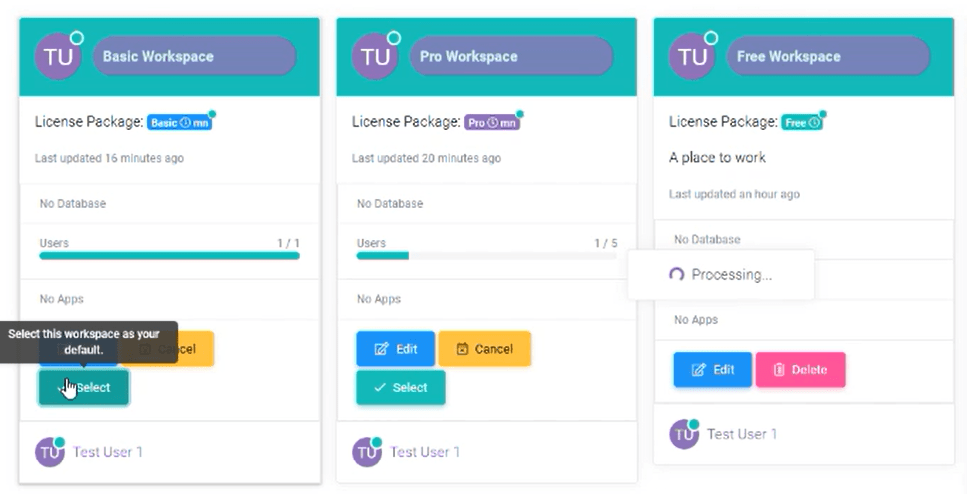
If you are using the Card View:
Click on the green Select button to set that workspace as default.
-
If you are using the Table View:
Click on green tick button to set that workspace as default.

-
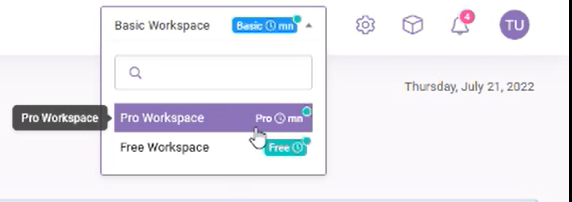
Instead of going to My Workspaces page you can also choose a workspace as default from the dropdown menu located on the top right corner. Click on dropdown and select the workspace you want to work on at that moment.
Updating A Workspace
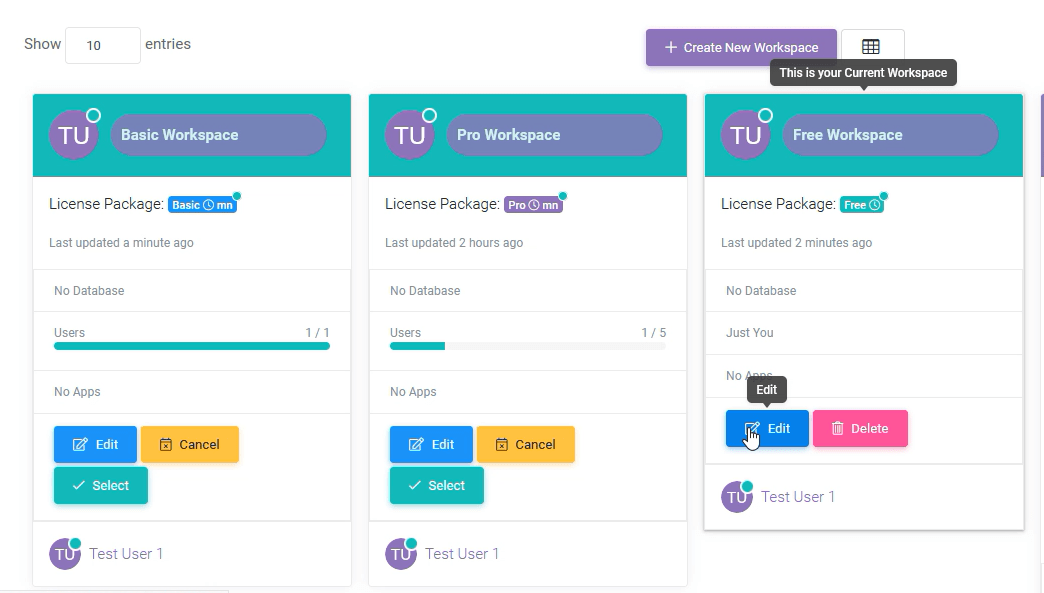
In SpreadsheetWeb Hub, you can update and customize your workspaces. To update a workspace, go to My Workspaces page and click on edit for the workspace you want to update.
From the opened page you can change your workspace’s name and add a description to it. You can also upload a Logo and a Banner for your workspace to make it stand out from your other workspaces.
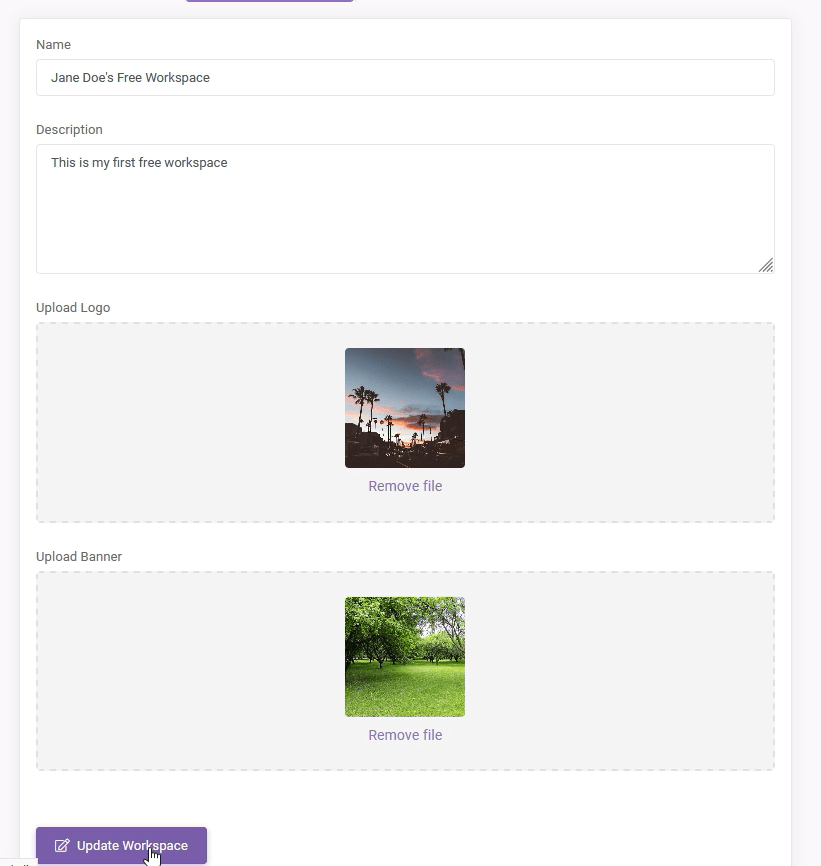
After clicking on Update Workspace button, all changes will be applied to your workspace immediately.