Check Workbook Compatibility Before an Update
Check an Excel workbook for compatibility issues before updating a SpreadsheetWeb application, review the findings, and choose how to continue.
The Workbook Compatibility Checker reviews an updated Excel workbook before it replaces the file used by an existing SpreadsheetWeb application. It identifies structural differences that could break controls, calculations, or publishing, so you can correct them before continuing.
The checker looks for named ranges that the application uses but the uploaded workbook does not contain. It also compares the dimensions of named ranges in the application with their dimensions in the uploaded file.
Upload an updated workbook
- Sign in to SpreadsheetWeb Hub and select Applications.
- Find the application that you want to update, then select Design.
- If all transactions for the application are published, select OK when prompted to start a new transaction.
- On the Designer Getting Started page, select Upload Excel.
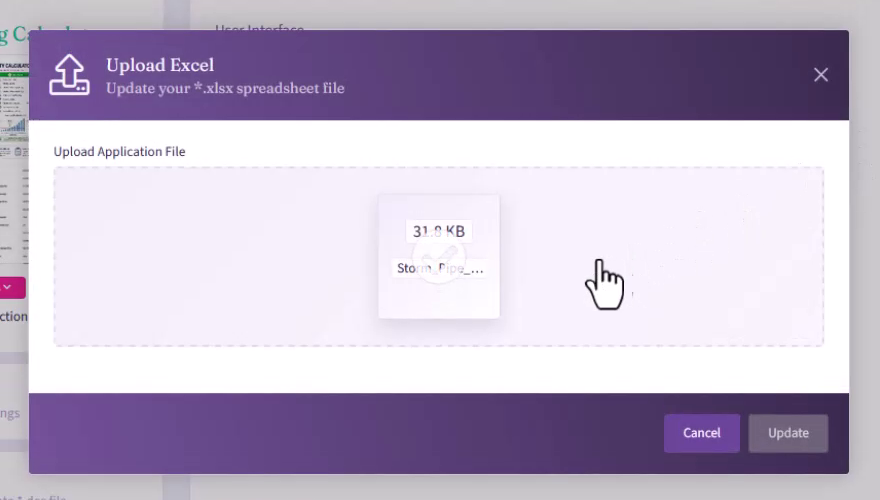
- Drag the updated
.xlsxfile into Upload Application File, or select the upload area and browse to the file. - Select Update.
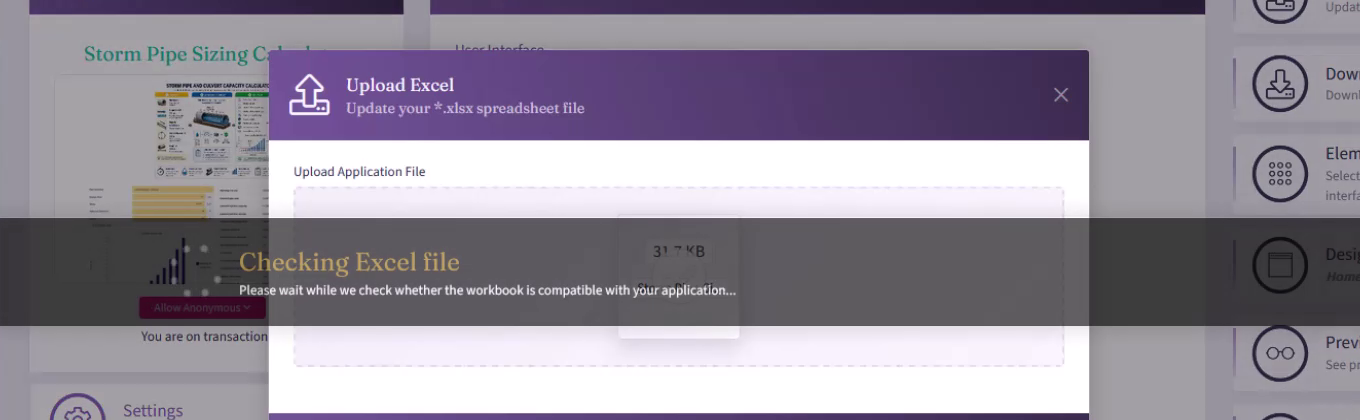
SpreadsheetWeb displays Checking Excel file while it compares the uploaded workbook with the application.
If the workbook is compatible, the update can continue normally. If the checker finds structural differences, it displays Upload this workbook anyway? with the affected named ranges.
Review compatibility findings
The results can include the following types of findings:
- Missing Named Ranges lists named ranges used by the application that are not present in the uploaded workbook.
- Size differences lists named ranges whose dimensions changed. The comparison table shows the range name, the application's current number of columns and rows, and the uploaded file's number of columns and rows.
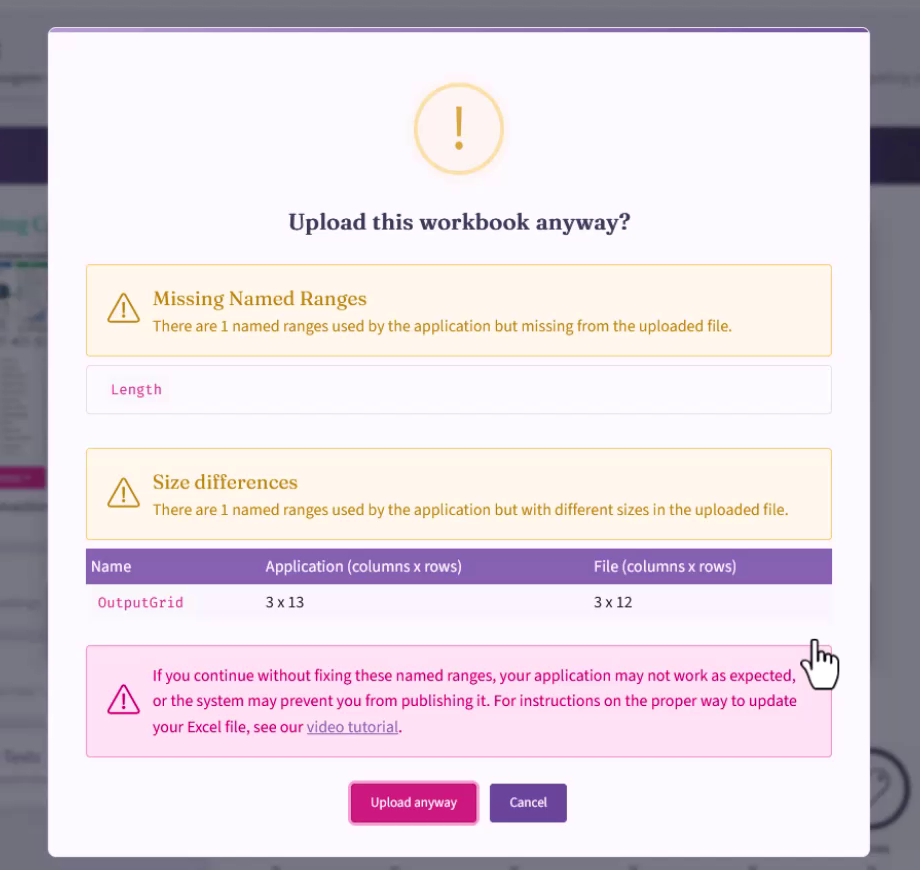
Review every named range in the results. A missing or resized range can disconnect a control from its workbook cells, change the data available to a grid, or affect calculations that expect the original range dimensions.
Choose how to continue
The compatibility results provide two options:
- Select Cancel to stop the upload and return to Designer. This is the recommended choice when you did not intend to remove or resize the listed named ranges.
- Select Upload anyway to continue with the incompatible workbook. Use this option only when you understand and have tested the impact of every reported difference.
Continuing without correcting the named ranges can cause the application to behave unexpectedly. SpreadsheetWeb may also prevent the application from being published if the incompatibilities affect required application elements.
Correct workbook compatibility issues
- Select Cancel in the compatibility results.
- Select Download Excel on the Designer Getting Started page to download the workbook currently associated with the application.
- Compare the current workbook with the file that you attempted to upload.
- Restore any missing named ranges that the application still uses.
- Correct the boundaries of resized named ranges, or update the application design if the new dimensions are intentional.
- Save the corrected workbook as an
.xlsxfile, then upload it again.
You can also review the application's Used Named Ranges to understand which workbook references are currently used by the application.
Verify the updated application
After a successful upload, open Preview and test every page affected by the workbook changes. Confirm that inputs write to the expected cells, calculated outputs remain correct, and grids display the intended rows and columns before publishing the transaction.
The Workbook Compatibility Checker is a preflight safeguard. It helps identify structural workbook changes, but it does not replace functional testing of the updated application.