Manage Application Availability
Take a SpreadsheetWeb application online or offline, schedule downtime, and customize the maintenance page displayed to visitors.
Use Availability Options to control whether users can open a published application. You can take an application offline immediately, schedule downtime, and choose the message that visitors see while the application is unavailable.
Open Availability Options
- Sign in to SpreadsheetWeb Hub and select Applications.
- Find the application that you want to manage, then select Settings.
- On the Update Application page, select Show more options.
- Locate Availability Options.
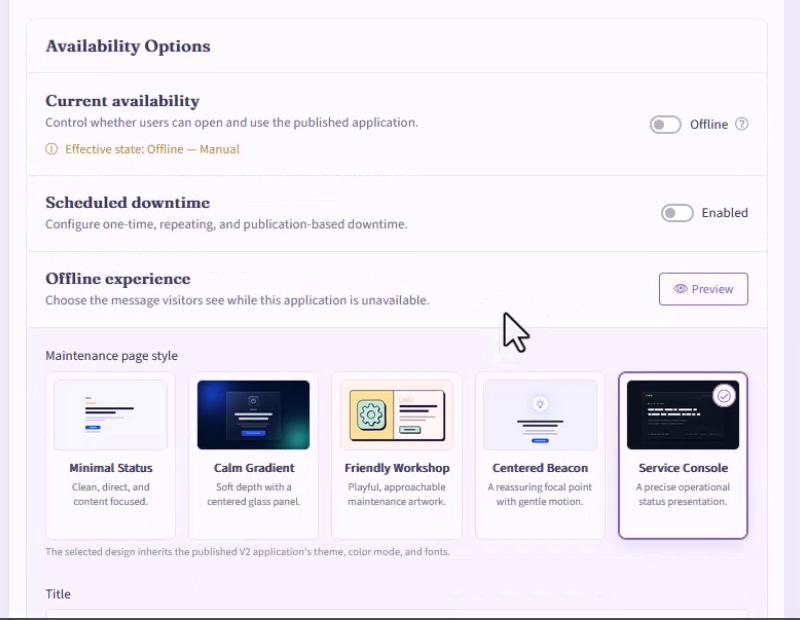
The Effective state indicator shows whether the published application is currently online or offline. It also identifies when the state was set manually. Scheduled downtime displays information about its next transition.
Take an application online or offline immediately
Use Current availability when you need to change access immediately.
- Change the Current availability switch to Online or Offline.
- Review the Effective state shown below the switch.
- Select Update Application to save the change.
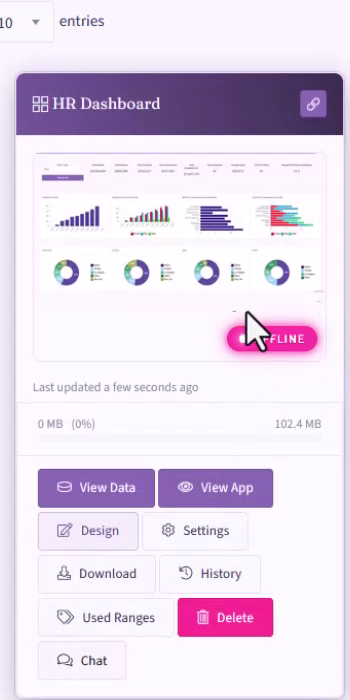
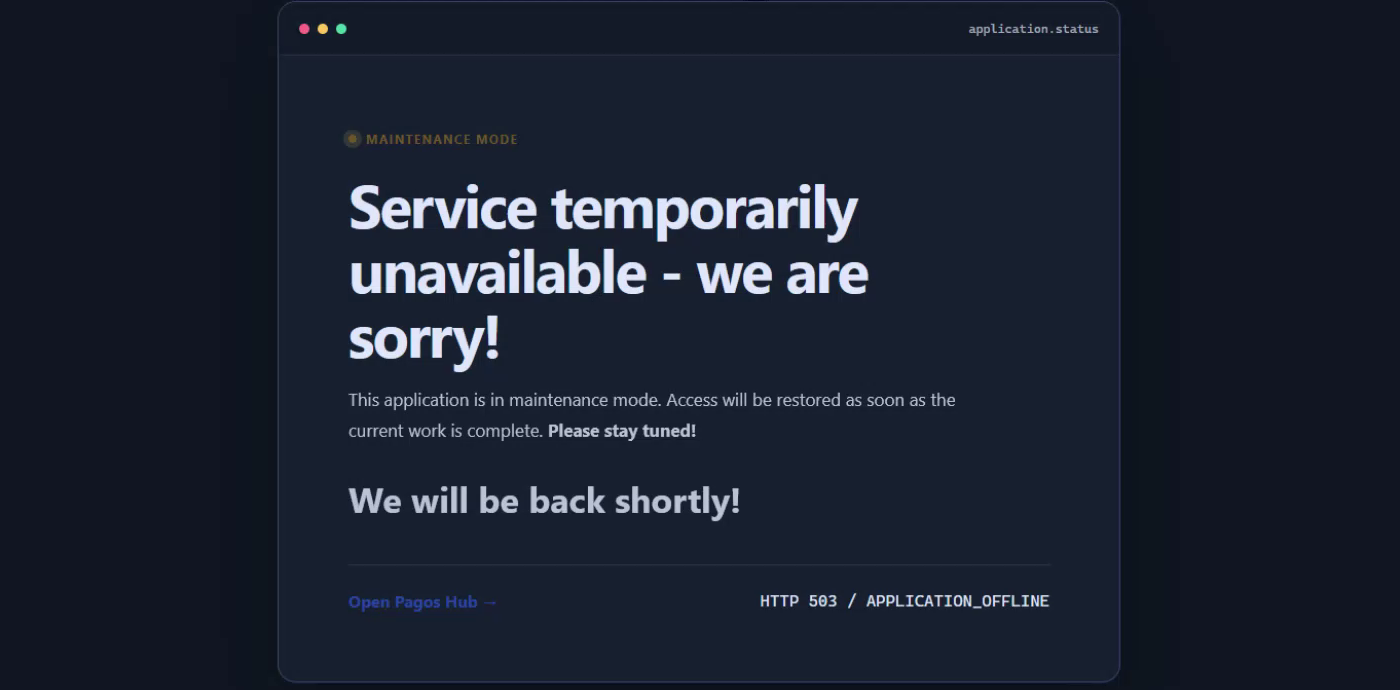
When the application is offline, visitors who open its public URL see the configured offline experience instead of the application. The application card on the My Applications page also displays an Offline status badge.
Schedule downtime
Use Scheduled downtime when access should change automatically.
- Turn on Scheduled downtime.
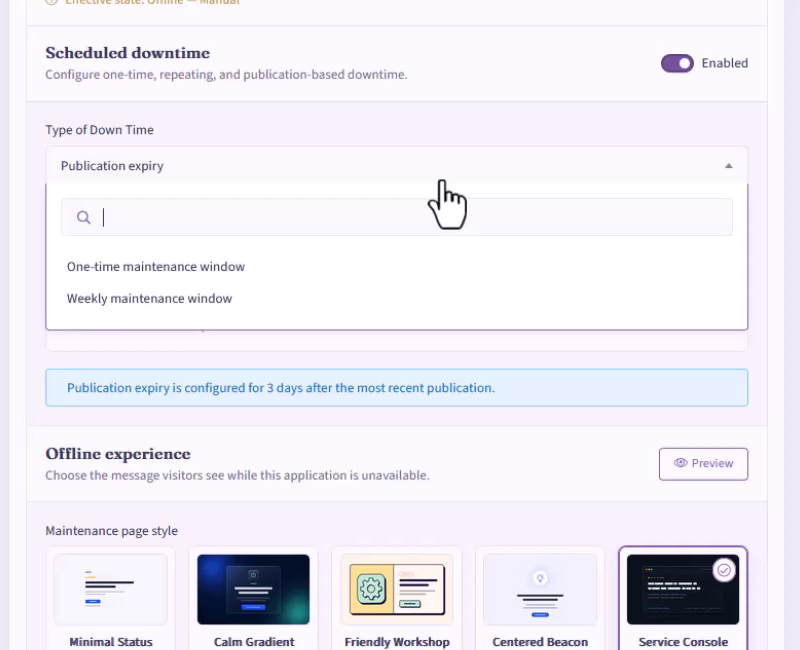
- Open Type of Down Time and choose one of the following options:
- Publication expiry takes the application offline a specified number of days after its most recent publication.
- One-time maintenance window uses a start date and time and an end date and time.
- Weekly maintenance window repeats on selected days between the recurring start and end times.
- Complete the fields for the selected downtime type.
- Select Update Application to save the schedule.
For a weekly maintenance window, select each day when the application should be unavailable, then set the Recurring start and Recurring end times.
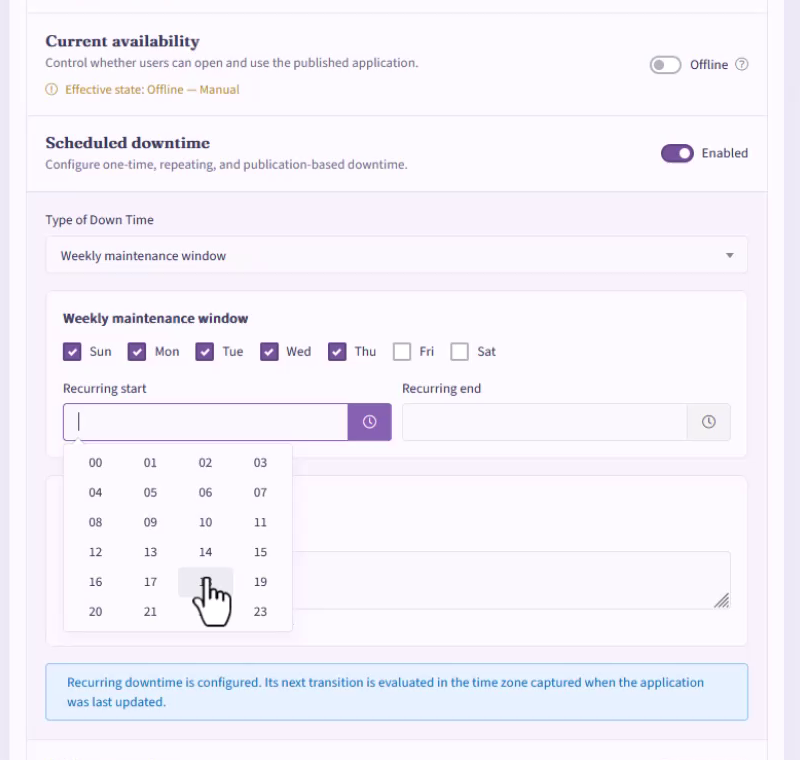
Recurring downtime is evaluated in the time zone captured when the application was last updated. Review the informational message below the schedule to confirm how the next transition will be evaluated.
Customize the offline experience
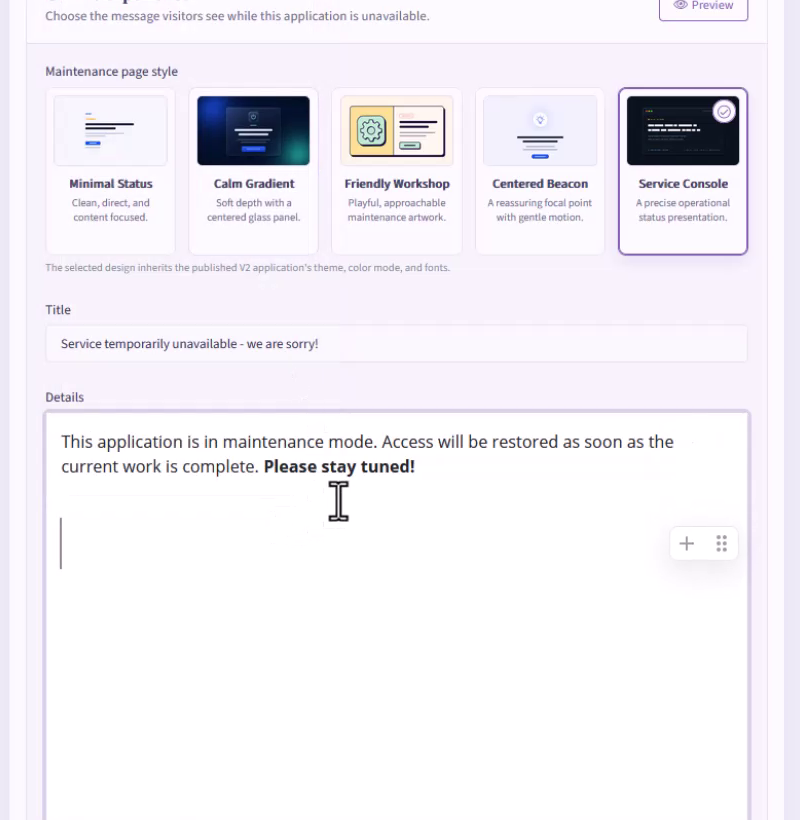
The Offline experience section controls the maintenance page that visitors see while the application is unavailable.
- Choose a Maintenance page style:
- Minimal Status provides a clean, content-focused layout.
- Calm Gradient displays the message in a centered panel over a gradient background.
- Friendly Workshop uses an illustrated maintenance layout.
- Centered Beacon places the message around a central status indicator.
- Service Console presents the message as an operational status screen.
- Enter the visitor-facing message in Title.
- Add supporting information in Details. Markdown formatting is supported, so you can organize and emphasize important information.
- Select Preview to review the maintenance page without leaving the settings page.
- Select Update Application when the preview is ready.
The selected design inherits the published application's theme, color mode, and fonts.
Verify the visitor experience
Open the application's public URL while its effective state is offline. The selected maintenance page should display the title and details configured in Offline experience.
Return to Settings if you need to adjust the schedule, visitor message, or maintenance page style. Use Effective state to confirm whether the application is currently available after saving your changes.