Lesson 4 of 9
Navigation and Pages
Create and organize SpreadsheetWeb application pages, choose a Home page, configure navigation, and add library flows from the current Designer.
3 min readThis lesson explains how pages form an application journey and how users move between them. The video shows an earlier Pages interface; use the current Designer steps below for page management in Layout & Controls.
Organize pages in the current Designer
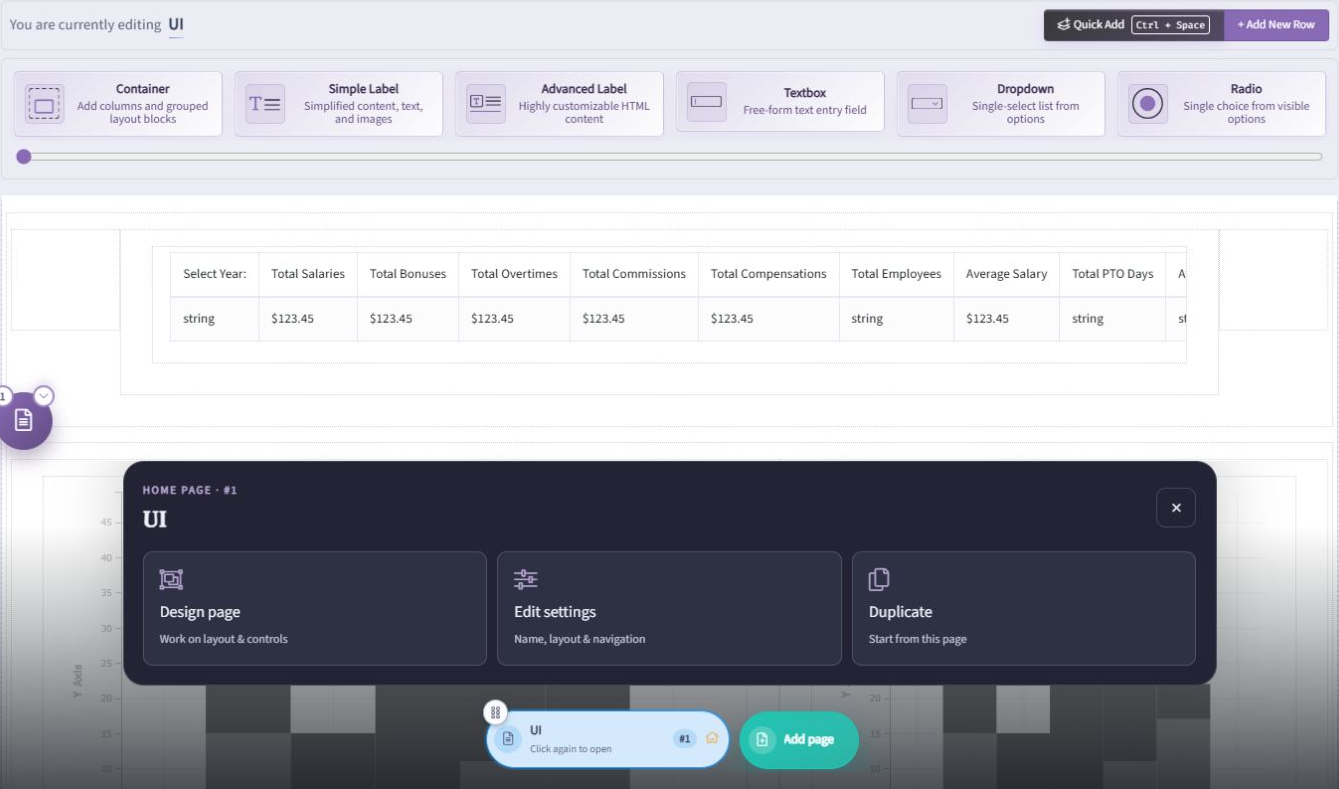
- Open Layout & Controls and expand the Pages drawer at the lower left.
- Select a page to display its actions. Choose Design page to edit its controls, or Edit settings for its name, layout, and navigation.
- Use Add New Page for a new blank page or Duplicate to start from an existing one.
- Drag the page's reorder handle to change its position. The order also matters for Back and Next navigation events.
- Use the available page action to set the Home page, the landing page users see when they open the application. Not all actions are offered for the current Home page.
Add designed pages or a complete flow
Open Overview → Design library to import a designed page or a multi-page flow. Choose whether the pages should be inserted Before or After a reference page and whether the first imported page should become Home. Review the theme, font, and background choices because selected suggestions apply to the whole application.
After importing, use Workbook connections to finish the workbook bindings and review labels and navigation. See Build an Application with the Design Library for the full procedure.
Choose how users navigate
In a page's Edit settings → Layout tab, choose its desktop and mobile navigation. Desktop choices include None, Top, Left, and Floating. Mobile choices include None, Top, and Bottom. The navigation menu lists pages visible to the end user. Use Apply to all only when you intend to apply a choice across the application.
You can also add Button controls with a Navigation event to move back, move next, open a specific page, or follow an external link. Configure each button from its Properties panel and verify its destination.
Page settings save automatically; leaving the settings editor does not publish the draft. Use Preview app to test the full journey, including validation and conditional page visibility, before publishing. See Pages and Navigation for the detailed reference.
Coordinate navigation, loading, and transitions
After choosing where navigation appears in Layout, open Appearances to compare navigation styles and loading-screen treatments. For a guided multi-step application, review Use Wizard Tracking in Setup and the available tracker styling alongside the page order and validation behavior.
Use Animation on a destination page to choose how the previous page exits and this page enters. Hover over or keyboard-focus the cards to preview them. You can retain Default · instant or choose an animated preset. Reduced-motion preferences are respected.
Use Apply for a page-specific choice or Apply to all for that setting across the application. Test the actual journey in Preview before publishing. Appearance and animation choices do not change a navigation button's destination or replace validation rules. See Navigation appearance, Loading screens, and Page transitions for the complete procedures.