Hub
Learn how to navigate SpreadsheetWeb Hub, switch workspaces, search resources, use Quick Navigation, manage notifications, and customize layout settings.
SpreadsheetWeb Hub is the central workspace for managing templates, workspaces, tags, dashboards, applications, data, users, and API access. The Hub interface keeps the active workspace, global search, navigation, notifications, and account tools available from a consistent layout.
The modules and actions you see depend on your workspace role, permissions, subscription, and deployment configuration.
Navigate SpreadsheetWeb Hub
Use the sidebar to move between Hub modules. Select the arrow next to an expandable section to display its related pages.
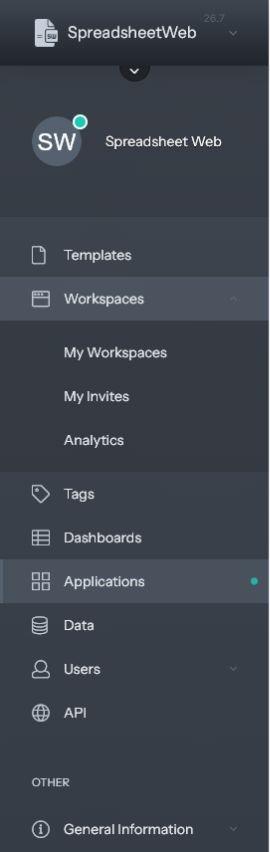
- Templates stores reusable templates that can be used to create applications.
- Workspaces includes My Workspaces, My Invites, and Analytics.
- Tags helps organize and filter Hub resources.
- Dashboards provides access to dashboards available in the active workspace.
- Applications lists applications you can access and provides actions for viewing data, opening or designing an application, changing settings, reviewing history, and other available operations.
- Data provides access to application data and records.
- Users includes the user list, Identity Templates, invitations, and invited users.
- API opens the API client management area.
- General Information includes the introduction, privacy information, terms and conditions, and build notes for the current version.
You can collapse or expand the sidebar with the menu button in the upper-left corner. This gives the main content area more room without changing your current page.
Use the Hub toolbar
The toolbar gives you quick access to global controls from any Hub page.

Search Hub resources
Enter a term in Search for anything to find resources across SpreadsheetWeb Hub. Select the search icon to open the dedicated search page and review broader results. For more details, see Advanced Search.
Switch the active workspace
The workspace selector displays the name and plan of the active workspace. Open it to switch to another workspace you can access. Lists, permissions, applications, data, users, and available actions update to match the selected workspace.
Always confirm the active workspace before creating, editing, inviting, or deleting items.
Open Quick Navigation
Select the cube icon to open Quick Navigation. This menu provides shortcuts to Services, Designer, Account, and My Workspace.
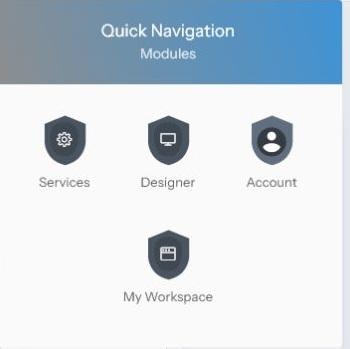
- Services opens administrative service settings available to your account.
- Designer opens Designer development tools.
- Account opens your SpreadsheetWeb account settings.
- My Workspace opens details for the active workspace.
Customize Layout Settings
Select the gear icon to open Layout Settings. These preferences help you adjust the interface without changing workspace content.
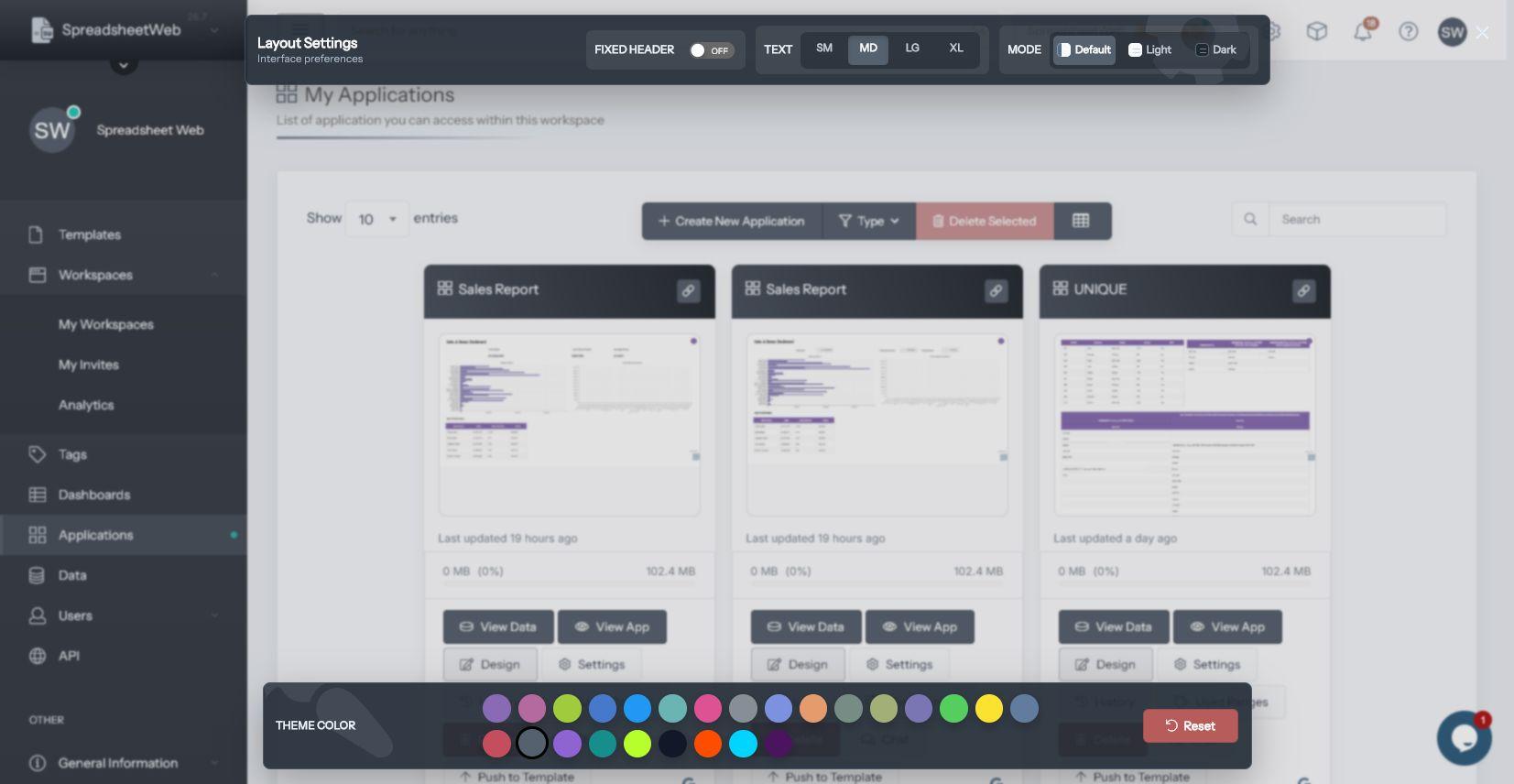
- Fixed header keeps the toolbar visible while you scroll.
- Text changes the interface font size to Small, Medium, Large, or Extra large.
- Mode switches among Default, Light, and Dark interface modes.
- Theme color changes the Hub accent color.
- Reset restores the default layout preferences.
Notifications, help, and account controls
- Notifications opens messages and system notifications. The badge shows the number of unread notifications. See Notifications for more information.
- Help opens the SpreadsheetWeb Help Center.
- Profile opens Account, Start Tour, Settings, Fullscreen, and Logout options. Use Account to manage your profile, personal data, security, notification preferences, and other account settings. See the Account Page guide.
Work with Hub list pages
Most Hub modules use searchable list or card views. Depending on the page and your permissions, you can change the number of entries shown, filter by type, switch the display, create a new item, select multiple items, and use actions on an individual resource.
Available controls vary by module and workspace permissions. If a module or action is not visible, confirm the active workspace and ask a workspace administrator to review your access.
For workspace setup and membership details, see Workspaces. For usage reporting, see Analytics.