Advanced Search
SpreadsheetWeb Help Advanced Search Learn how to use SpreadsheetWeb Hub's Advanced Search Box to reach all the elements you need.
Advanced Search is a feature designed to help users quickly navigate and find different elements within the Hub. You can use the Advanced Search functionality instead of going to the applications page to look for a specific application.
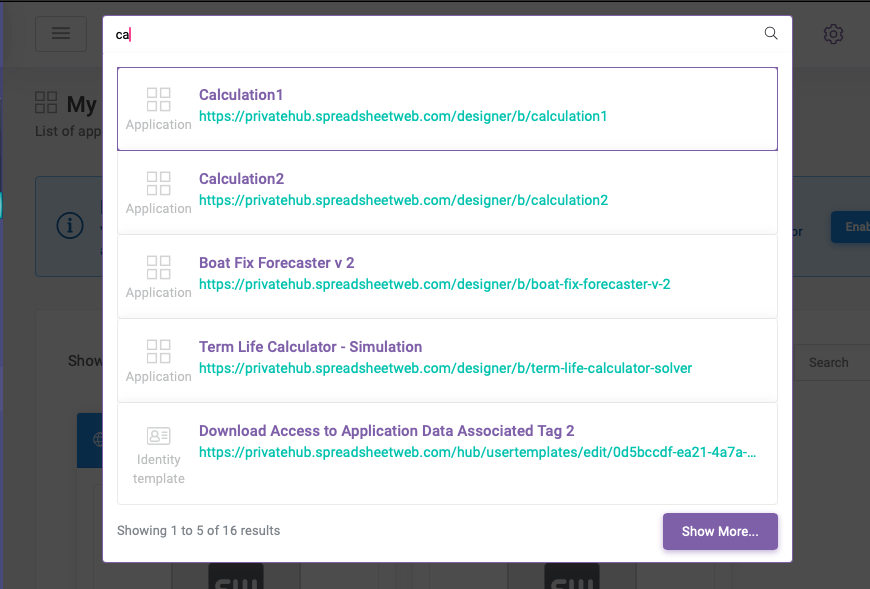
To use it, simply click on the Advanced Search box at the top of the Hub, start typing at least two characters, and a dropdown list will appear with the first five, the most relevant results. This process ensures you can find what you need in a few steps. In addition, you can only click on the icon to reach the Advanced Search page.

Click “Show More” to access the Advanced Search page and view the full list of search results.

The page dedicated to Advanced Research will appear. On this page, you can see several categories for searching, depending on your needs. The icons are only visible when the category “All” is selected.
The categories are Users, Dashboards, Identity Templates, Applications, Messages and APIs. These categories allow users to filter their searches.

Note that the “Messages” category displays the application’s chats.
The tags and their associated names can be searched as well as the other elements in the Hub.
To search with a tag, write “tag:” first and input the tag as shown below. In this case, our sample tag is “API.” The system will automatically list all elements tagged as API.
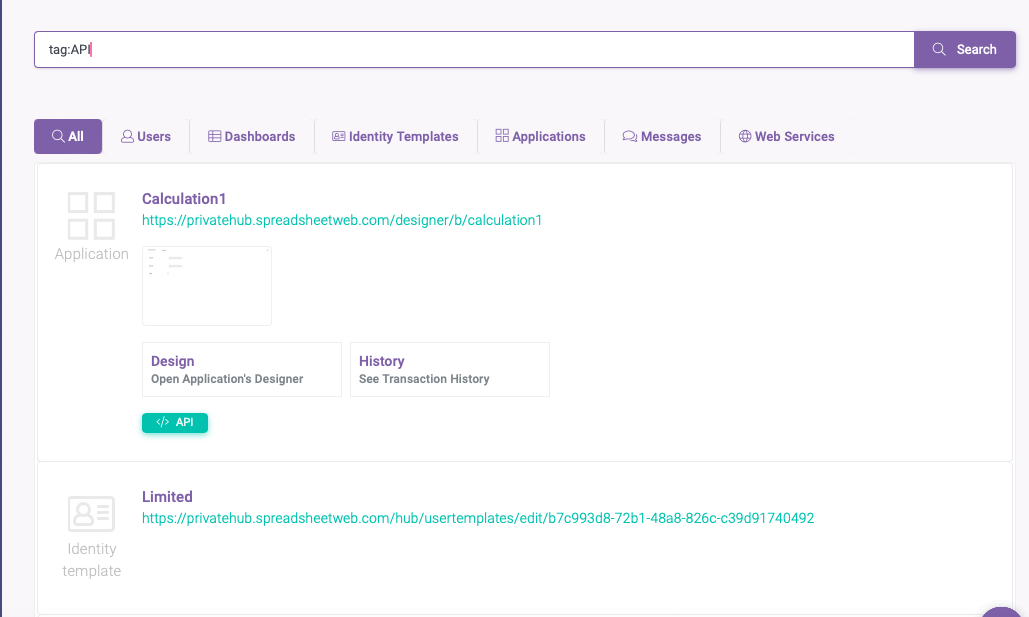
It’s important to note that not every user has access to the Dashboards and Identity Templates. This is a system limitation that we want to make of, so you can be sure you’re able to navigate the Hub effectively.
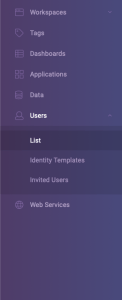
To edit accessibility, navigate to Users and click on List. Then click on the Edit icon of the corresponding user.

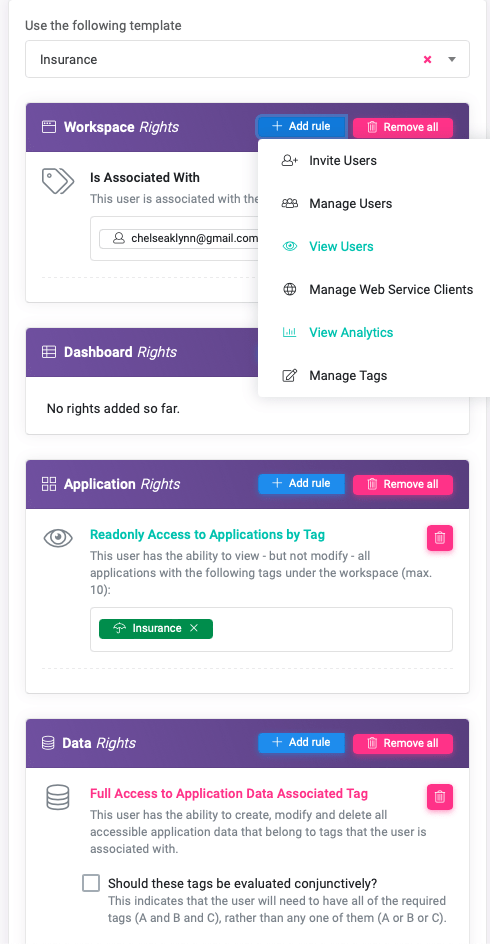
Make the necessary changes, then click on the Update User button.