Account Page
Manage your SpreadsheetWeb account profile, passkeys, two-factor authentication, sign-in history, notifications, privacy, and recovery options.
The Account page is your personal identity and security center in SpreadsheetWeb Hub. Use it to review your account status, update profile details, manage sign-in methods and recovery options, choose notification preferences, review sign-in activity, and manage your personal data.
Open your profile menu in the Hub and select Account. The navigation at the top of the page contains Home, Profile, Security, Preferences, and Privacy. Protected settings may ask you to confirm your password again before they open.
Account Home
Home summarizes your account and provides shortcuts to the tasks that need attention. The account card shows your email address and the verification status of your email and phone number. Select Edit profile to update these details.
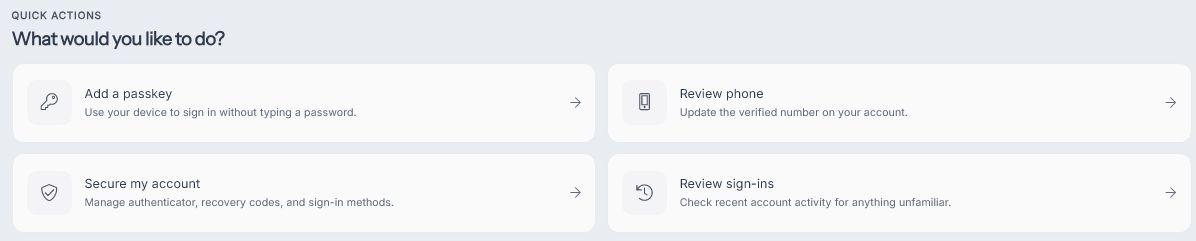
The Recommended next step card changes according to your current security setup. For example, it can recommend adding a passkey. The Quick actions area provides direct access to common tasks such as adding a passkey, reviewing your phone number, securing your account, and reviewing recent sign-ins.
The Sign-in & recovery summary shows the current state of your passkeys, authenticator app, and recovery codes. Use Manage security to open all available sign-in methods. Links to Preferences and Privacy appear under More account settings. Authorized administrators also see System administration.
Profile
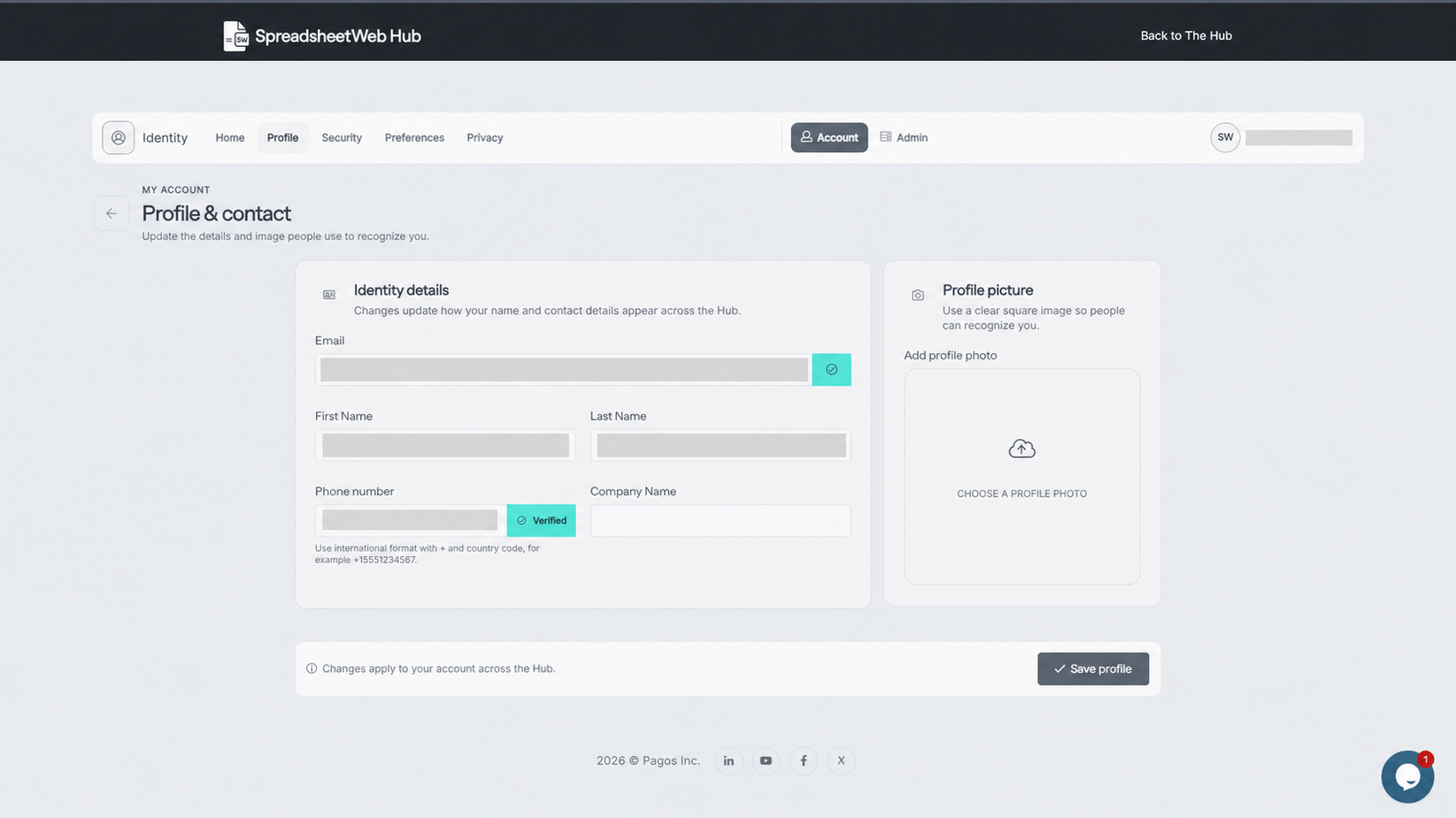
Open Profile to manage the identity and contact information used across the Hub:
- Email address and its verification status
- First and last name
- Phone number and its verification status
- Company name
- Profile picture
Enter phone numbers in international format, including + and the country code. Select Save profile after making changes. Your updated information and profile picture are applied across the Hub.
Security
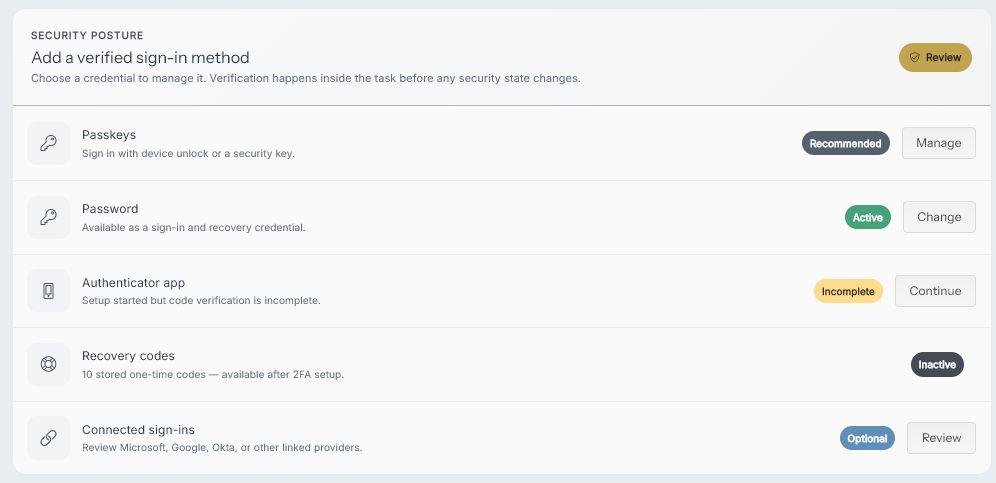
Open Security to view and manage the credentials that can be used to sign in to or recover your account. The Sign-in & recovery page reports the status of each method and provides the appropriate action, such as Manage, Change, Continue, or Review. SpreadsheetWeb verifies your identity within a security task before changing security settings.
Passkeys
A passkey lets you sign in without typing your password. It uses a trusted device unlock method such as Face ID or Windows Hello, or a hardware security key. Enter a recognizable name, such as Work laptop, and select Add passkey. Registered passkeys are listed on this page so you can manage them later. Your existing password and configured second factor continue to work.
Password
Select Change beside Password. Enter your current password, then enter and confirm a long, unique replacement. Select Change password when the requirements are satisfied. Existing signed-in sessions remain active after the password is changed.
Authenticator app and recovery codes
Select Continue or the available authenticator action to configure two-factor authentication. Use Microsoft Authenticator, Google Authenticator, 1Password, or another app that supports time-based one-time passwords (TOTP). Scan the QR code or use the manual setup option, then enter the current six-digit code from the app. Two-factor authentication is not enabled until the code is successfully verified.
Recovery codes become available after two-factor authentication is configured. Each recovery code can be used once if you cannot access your regular second factor. Store the codes in a secure location separate from the device you normally use to sign in.
Connected sign-ins
Select Review beside Connected sign-ins to see external identity providers available for your account. Depending on the providers configured for your SpreadsheetWeb installation, you can connect services such as Google or Okta to create an additional sign-in method. Connecting a provider requires you to authenticate with that provider.
Preferences
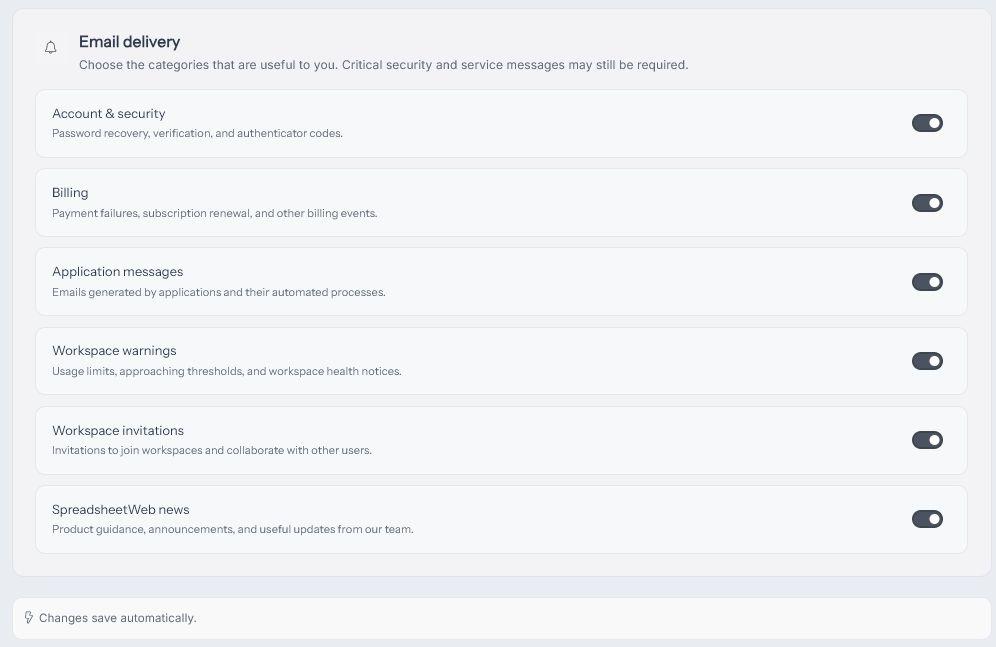
Open Preferences to choose which account and product emails you want to receive. Available categories include:
- Account & security: password recovery, verification, and authenticator messages
- Billing: payment failures, renewals, and other billing events
- Application messages: messages created by applications and automated processes
- Workspace warnings: usage limits, approaching thresholds, and workspace health notices
- Workspace invitations: invitations to join and collaborate in workspaces
- SpreadsheetWeb news: product guidance, announcements, and updates
Preference changes are saved automatically. Critical security and service messages may still be required even when a category is turned off.
Privacy
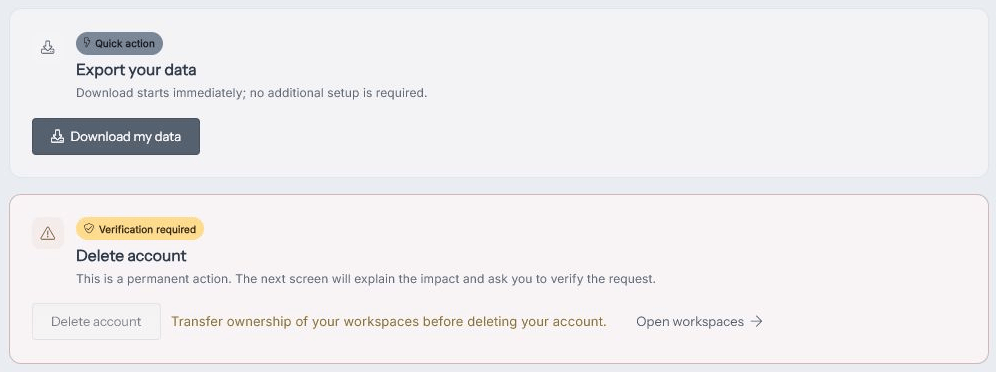
Open Privacy to export your information or begin permanent account removal.
Export your data
Select Download my data to download the personal data associated with your SpreadsheetWeb Hub account. The download begins immediately.
Delete your account
Account deletion is permanent. Select Delete account to open the confirmation process, review the impact, and verify the request. If you own one or more workspaces, account deletion is unavailable until you transfer ownership of those workspaces. Use Open workspaces to resolve workspace ownership before returning to the Privacy page.
Sign-in History
Select Review sign-ins from the Home page to open My sign-in history. The recent activity feed shows each recorded sign-in result, date and time, sign-in method, and source IP address. Use Older activity to move through earlier pages of account activity. Review this page periodically and investigate any sign-in you do not recognize.
Administration
Authorized system administrators can switch from Account to Admin in the management scope. The Identity Administration control center groups tools by outcome:
- People & access: users, active sessions, and system-wide authentication events
- Resources: workspaces and applications
- Communication: targeted system messages
- Platform: data operations, license information, logs, and server analytics
The Admin option and individual tools are shown only to users with the required administrative permissions.