Lesson 2 of 6
Legacy platformInput Selection
In this step you define the input cells that are used for user input in the web application. What are the input cells? Please have a look at the ‘Excel…
3 min readIn this step you define the input cells that are used for user input in the web application.
What are the input cells? Please have a look at the ‘Excel file’ in the screenshot below. YELLOW CELLS are the cells which are used for data input on the web application. Now check the screenshot of the web application. Here, you can see that only the fields that were defined as input cells allow user input. All other cells are inaccessible. BLUE CELLS signify the calculated results.

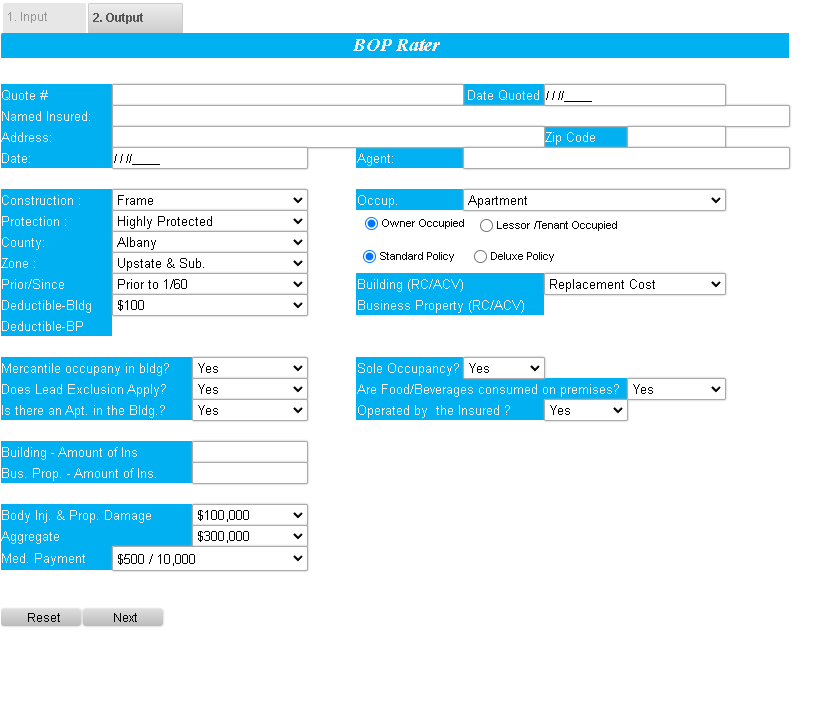
Excel file before conversion and Excel file as a web application
Form Controls for User Input
You can also use form controls for user input. There are two ways to create form controls, both will be explained in more depth later on:
- Use the SpreadsheetWEB Wizard to create PSW form controls.
- Create form controls with Excel using Excel’s built-in form controls.
SpreadsheetWEB can automatically convert Excel’s built in form controls. Please consult the table below to confirm which of Excel’s form controls SpreadsheetWEB currently supports.
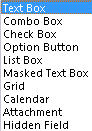
Three Types of Input Cell Selection Methods:
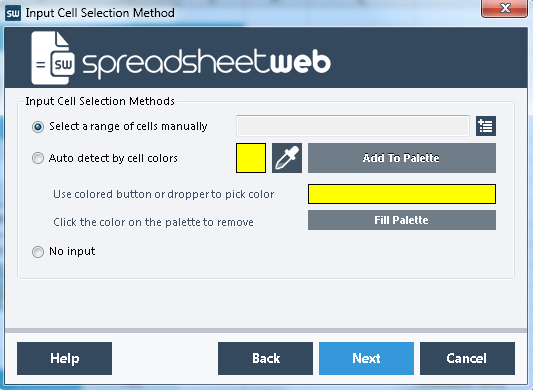
A – Manually select a range
First, click the option button next to “Manually select a range”, then click the button to right of the field in the same line.
A new window called “Input Cells” will appear. Now you can select the input cells just like you can select cells in Excel. Continue by selecting a range with the mouse.
Select individual cells spread over the spreadsheet with “CTRL + LMB”.
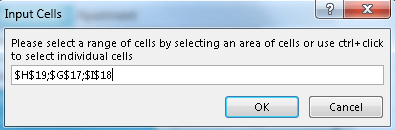
Or simply type in the cell addresses in the form field in the dialog window. Press “Next” to continue.
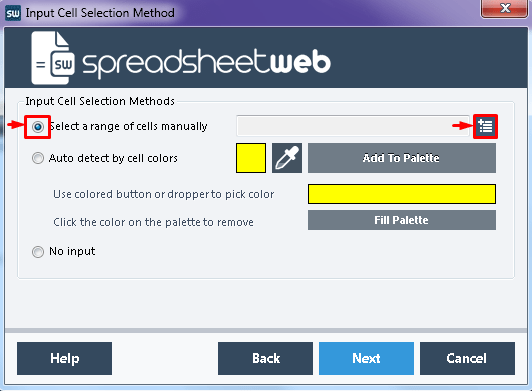
B – Auto Detect by Cell Colors
This method is recommend if necessary input cells are spread all over your spreadsheet. It requires the input cells to be formatted with a specific cell color before the SpreadsheetWEB Wizard is started.
At first, all input cells need to be formatted with a specific color. In this example, light blue is used.
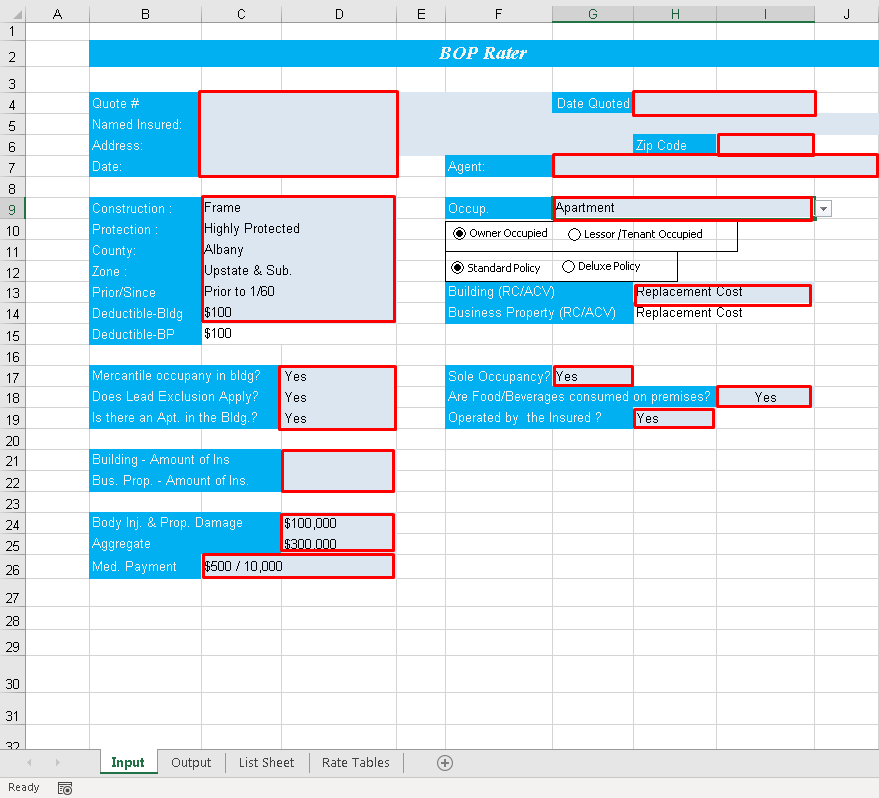
In the Wizard click the option button next to “Auto detect by cell colors”.
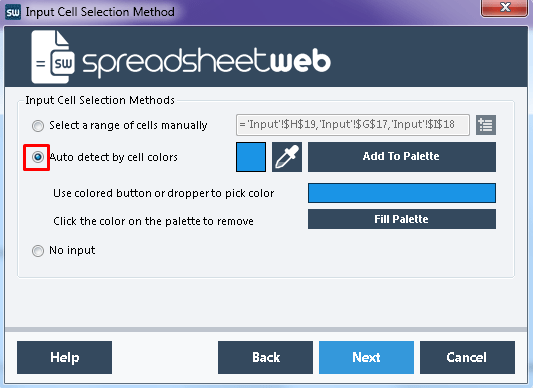
Use the colored button ( ) to choose the color you have used or alternatively use the dropper (
 ) to pick the color in your Excel spreadsheet. In both cases, the colored button will change its color to the color that you have selected. In this example the inputs are highlighted in light blue (
 ). Then press Add to Palette and then Fill Palette. You will see that the color you have selected for your input cells will appear in the pallet as so:
 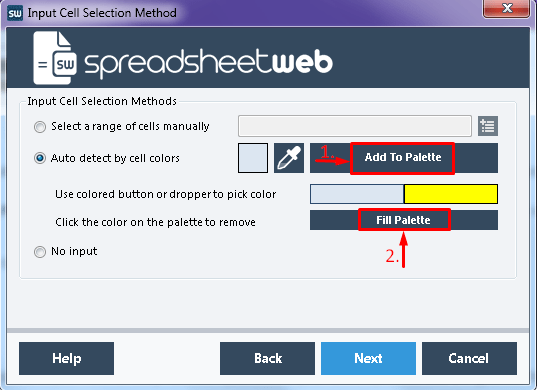 .
.
If you have accidentally selected a wrong color, simply click Empty Palette to remove the color selection. Press Next to continue.
C – Static Page / Form Controls
Use this method, if you want to create a static web page without any user input or if you have already defined input cells in your Excel spreadsheet using Excel form controls. SpreadsheetWEB is able to recognize the form controls combo box, check box, option button and list box and can convert these automatically. Alternatively, you can also define form controls in the next step of the SpreadsheetWEB Wizard.
Click “Next” to continue.