
In this tutorial, you will learn how to create database tables in SpreadsheetWEB applications to capture user information. You can capture the inputs and outputs of your Excel model using the Databases interface. Note that the corresponding cells must be defined as named ranges within the workbook in order to bind them to database tables. To enable data save for your application, create a Primary table by pressing Add New in the Databases interface.

Next, give your table a name. You will see this name as the sheet name for when you export the saved data in Excel format from the Data page. This will create the Primary database for your application where you can define which named ranges you would like to save. To add new fields into this table, click the table name.

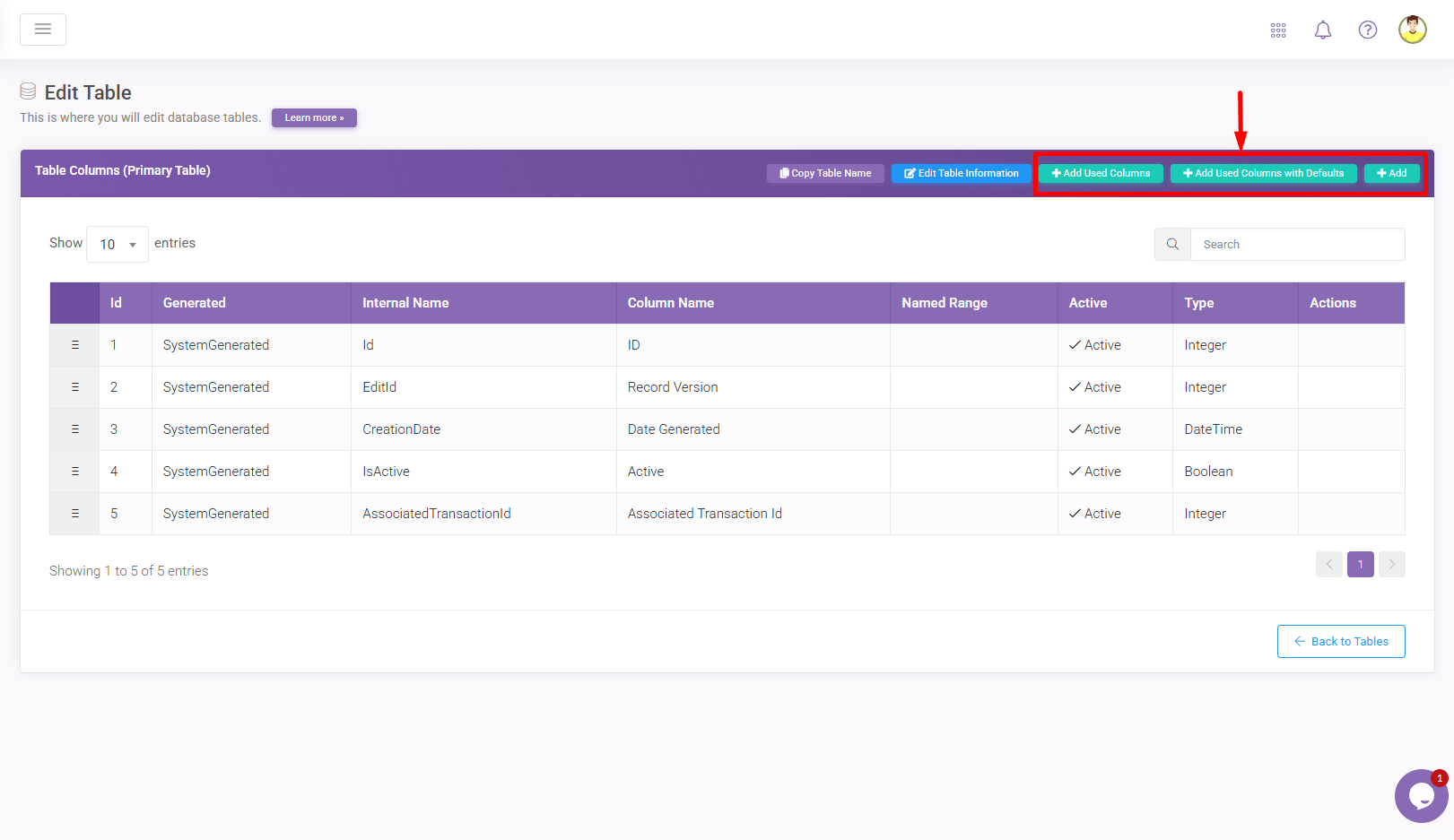
You can add new fields into this table using the Add button. If you’ve built the user interface before this step, you can click the Add Used Columns button to let the system go through each field you’ve used in the user interface designer.
Database tables have three categories – Primary, One-to-One, and One-to-Many. The Primary table is the first table that is created for all web applications and stores all application data. One-to-One and One-to-Many tables are Secondary auxiliary tables that can supplement the Primary table for better structuring the data. You can use these Secondary tables for large grids, or any columns you would like to split into other tables. We recommend using One-to-One tables for applications featuring a large number of fields (if you have close to 1000 fields for example, you should move the rest into another table), and One-to-Many tables for grid controls.