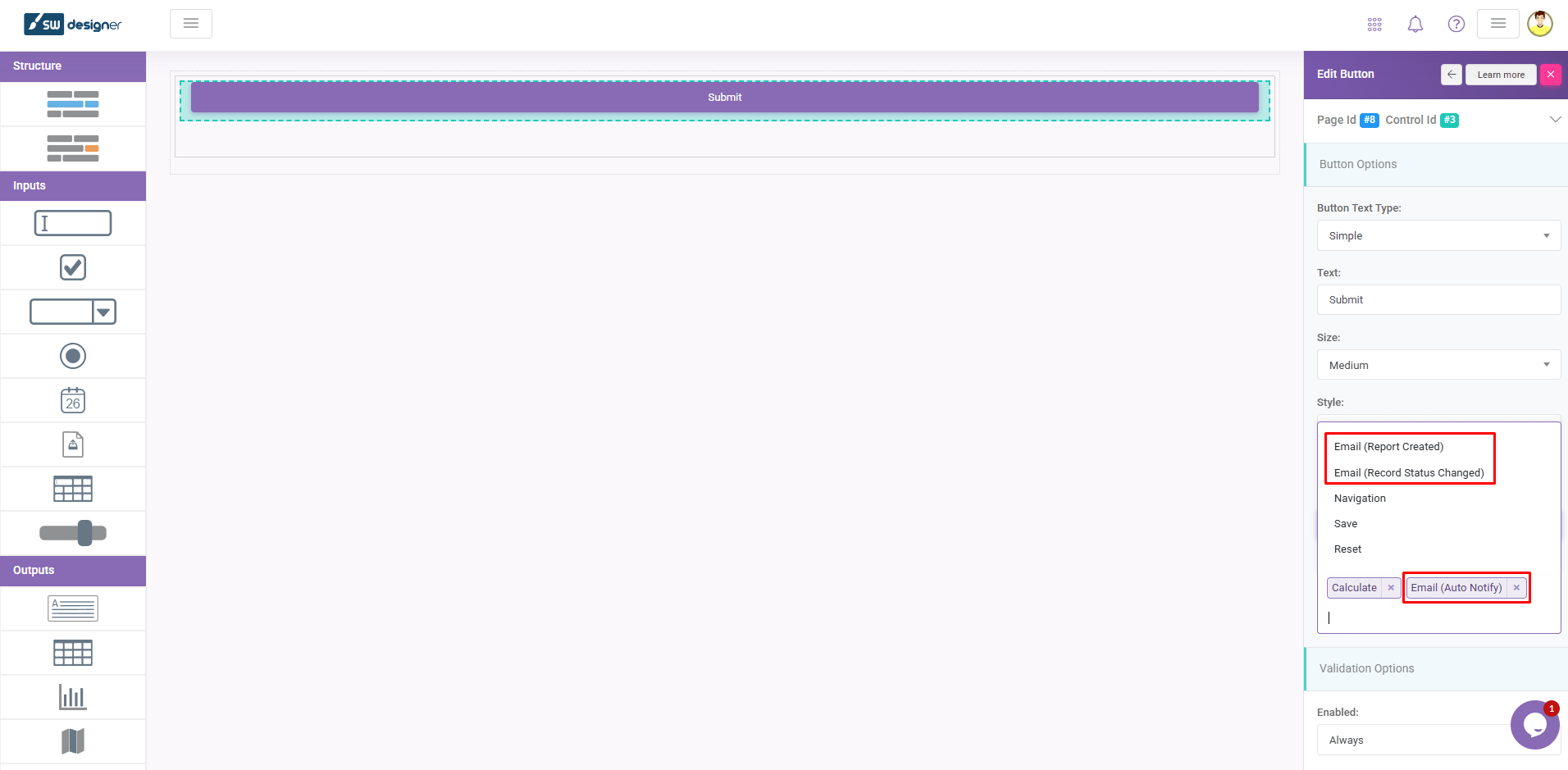
This video will show you how to create automated Email notifications in SpreadsheetWEB applications. Email processes can be assigned to Action Buttons to send predefined emails each time the button is engaged.
To create an Email process, click Add Email Process in the Email Process Designer page. This will take you to the Add Email Process page where you can configure the contents of the email to be sent.
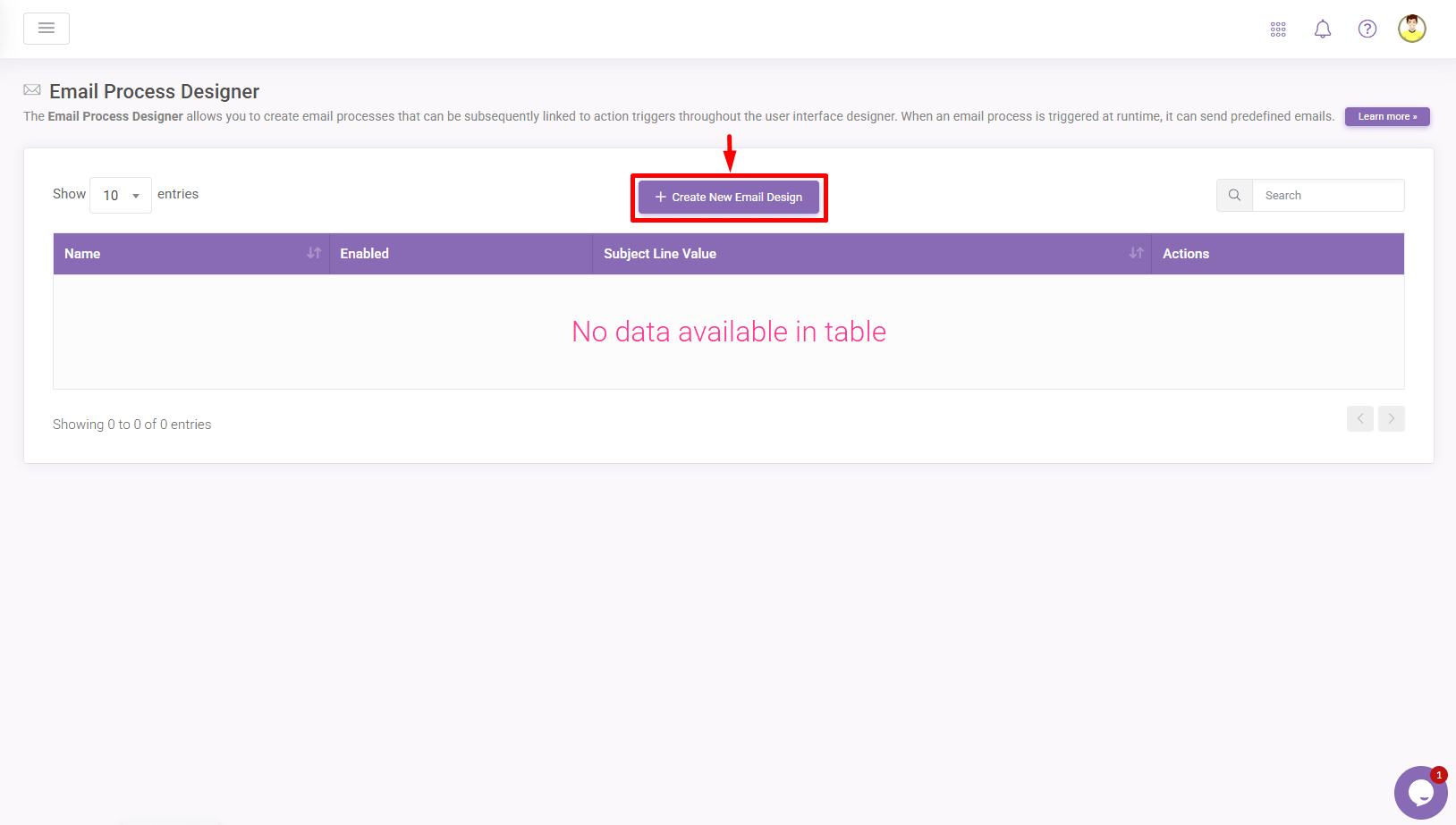
Existing email processes can be edited by clicking their corresponding boxes on the Email Process Designer page. You can add named ranges from your workbook into the email contents using stubs. Stubs are named ranges placed inside double curly braces ( {{namedrange}} ). This will print the results of that named range in the emails sent.
You can add any number of email processes to a single button by selecting them from the Events selection of the button in the User Interface Designer. When the button is pressed, all active email processes will be triggered.