


Login to Control Panel with your username and password:


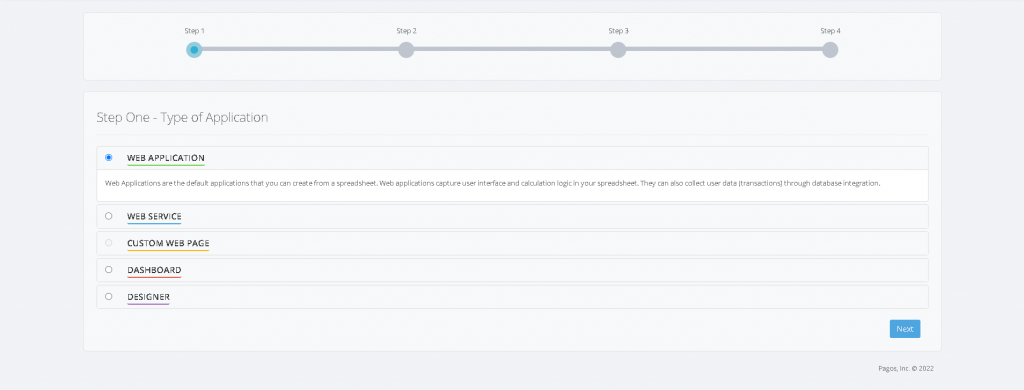
Step 1: Select application type

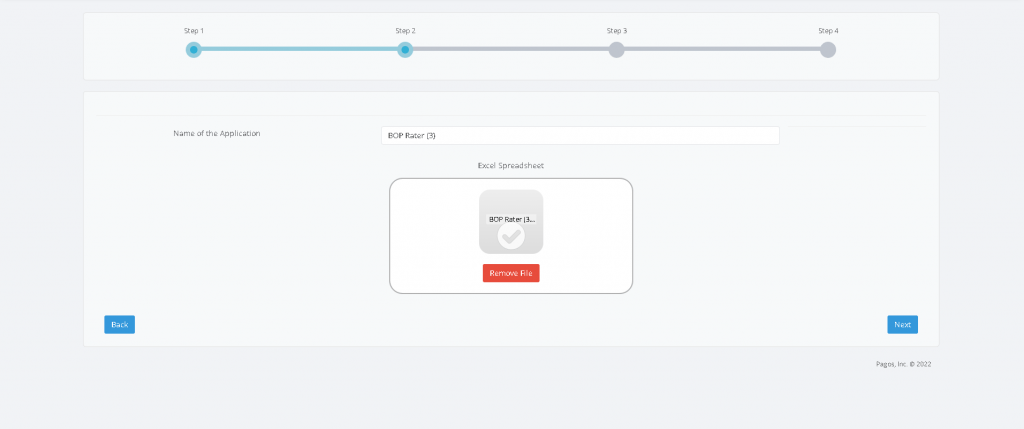
Step 2: Naming and file upload

Step 3: Application options


Advanced options regarding application handling can be determined on this step. Leaving all these options as default will work in almost all situations.
| Status |
Online: The web application is published at a specific web address and can be viewed by others in a web browser Offline: The web application is stored in your account but is not available to the end users. |
| Access |
Available options: unrestricted and restricted Unrestricted: Anyone who knows the URL of your web application can open and view it in a browser. Restricted: Only registered users can access the web application (i.e. open it in a browser, view it and/or perform calculations) Restricted with registration: Only defined users can access the web application (i.e. open it in a browser, view it and/or perform calculations) after registering from the login page. |
| Availability | Select if a web application will be published only for a certain period of time or until the it’s removed. |
| Allow Concurrent Editing | Concurrent Data Editing locks a record that is being accessed to prevent two users from editing the same record at the same time. Only admin users or users with Unlock Records role can unlock a record. |
| Single Record Application | Single Record Application provides the functionality to create an application with a single record. Every time a user accesses this application and presses Save, it will overwrite the existing record. In a way, it is similar to working on the same Excel file and saving over and over again. |
| Tab Based Loading | Loads each tab only when the user presses that tab in a multi-tab application. This improves the initial loading times in large and complex applications. If it is unchecked, all tabs are loaded at the initial opening of the application. |
| Disable Cache | SpreadsheetWEB can cache HTML pages on the web server. This improves initial loading of web applications. It is disabled by default. |
| Auto Load | When enabled, the workbook for this application will be pre-loaded on all SSWebNodes at ObjectServer startup. |
| Enable DBOpen & DBGet | When enabled, this allows fetching data from a database, either within the application or by other applications. Please note that this feature can only be used in server and dedicated server options. |
| Group | Chose the access type restricted only users that belong to the group you specify here, have full access to this web application. |
| Notes | Space for your own notes. This will also be displayed in the web application list in the column Notes. |
Step 4: Upload complete!


Your document has been successfully transferred to the web!